
In the previous article, we discussed displaying Power BI reports (Free) on Microsoft SharePoint. This time, I'll introduce a way to display Power BI reports on a Google application: Google Sites. Google Sites is a user-friendly website creation application that also allows you to control access permissions to web pages. Today, let's look at the steps for displaying Power BI reports (Free) on Google Sites
Google Sites is a free service that comes with Gmail and Google Suite. The process of displaying a Power BI report on Google Sites is similar to displaying a report from Power BI Service on SharePoint, which we've previously explained (see "Sharing Power BI Reports from Power BI Service (Free) with MS SharePoint").
Create a link for embedding the report
The first step is to copy the required code from Power BI Service (you can find the steps in How to Share Power BI Report).
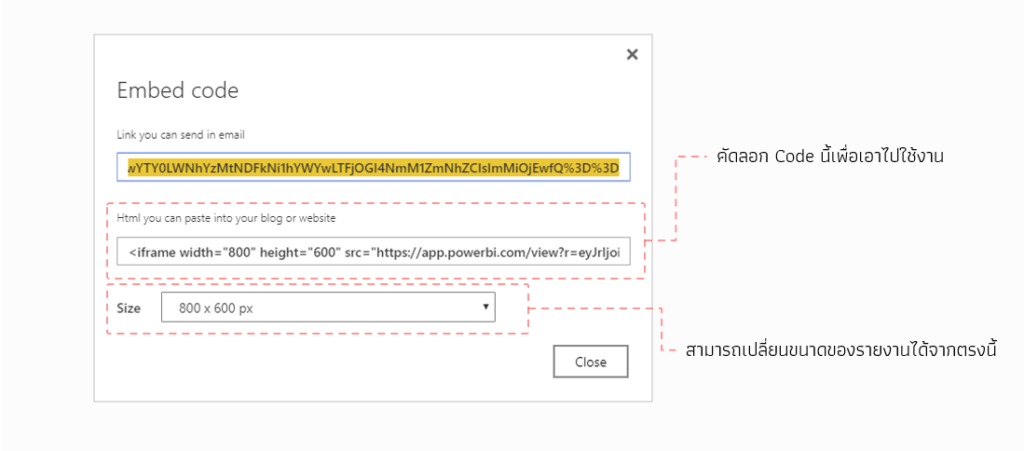
Embed the provided link into your website
Next, go to Google Sites, which can be accessed at https://sites.google.com/new (the link will be for the New Google Sites, which is much easier to use than the old one).
Once you're on the Google Sites page, start creating your site (if you haven't already) by clicking on Blank or choosing from the pre-prepared templates
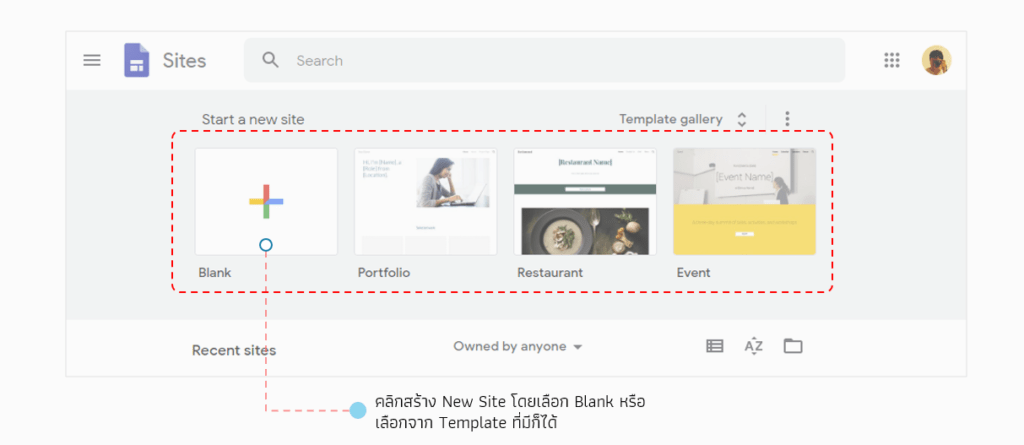
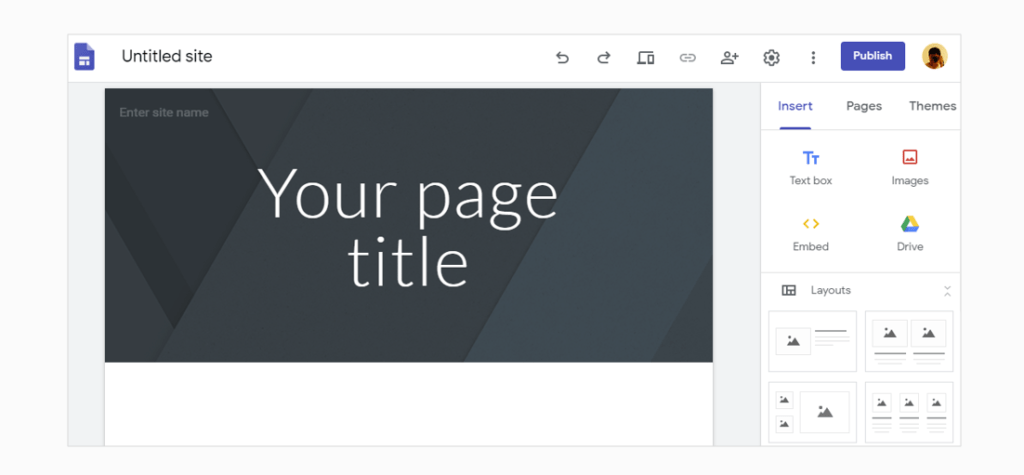
In this example, I chose the Blank option, which means the system will initially create the site's homepage. We need to define the Site Name and Page Title accordingly. We can place reports on this page or create subpages to display those reports
In this example, I've created a new page called PBI Report to display the report. To paste the copied code into the page, click the Embed button as shown in the image
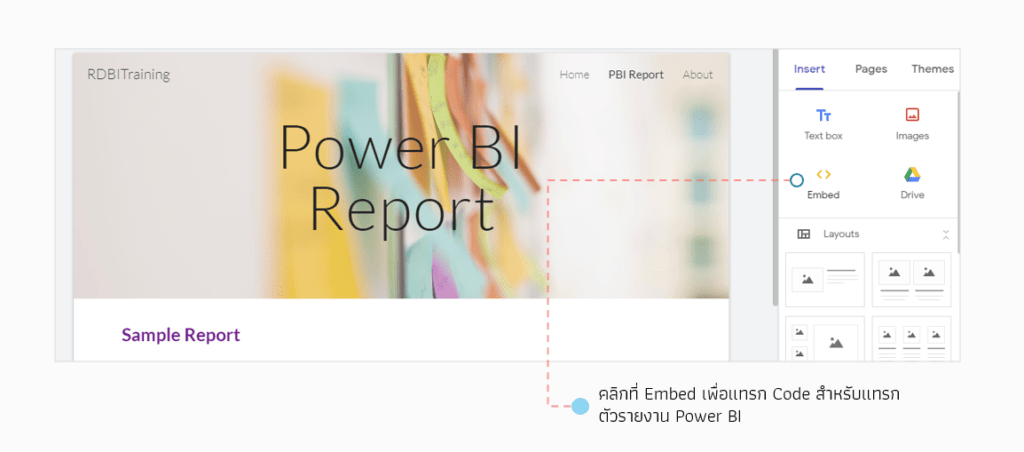
Select Embed and paste the copied code into the field.<html> The code goes here, as shown in the image
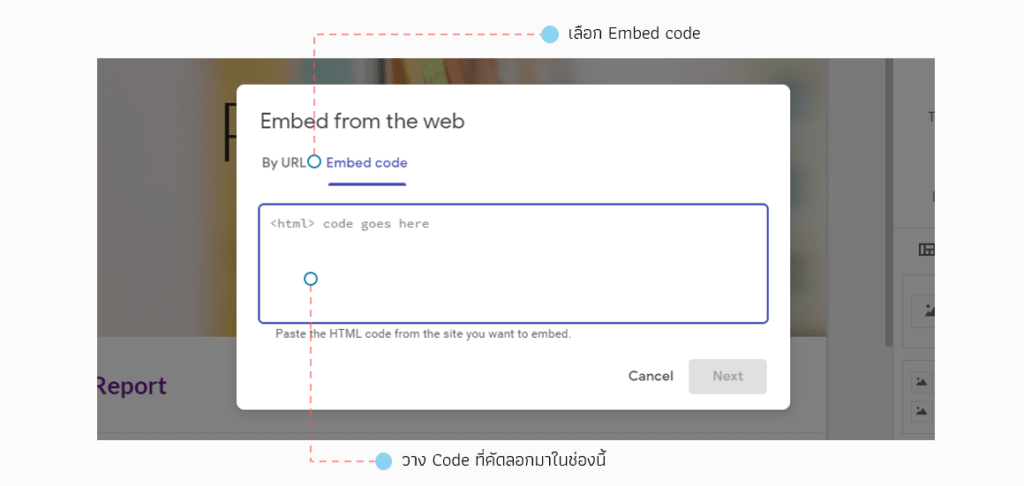
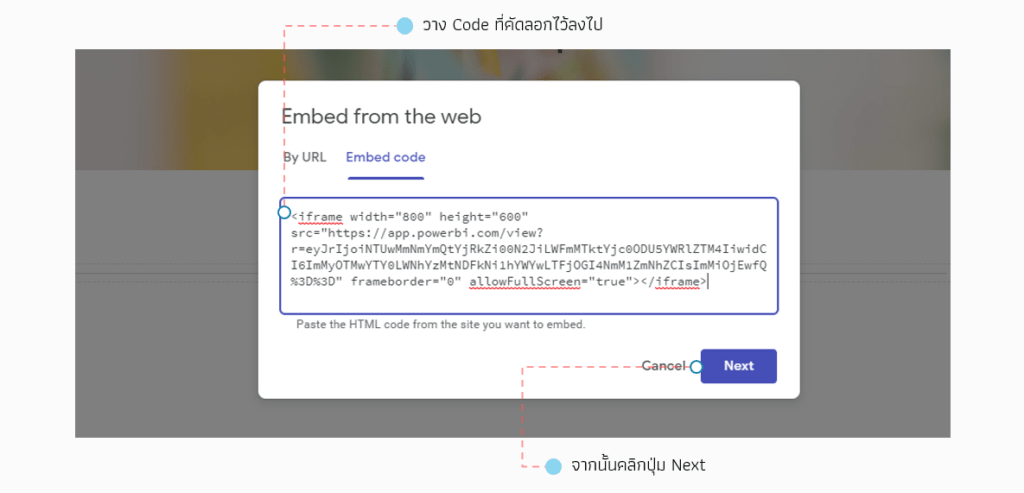
After pasting the code, click the Next button. The program will retrieve and display the report. Then click Next again
Next, position the elements as desired. Once finished, click the Publish button to publish and save the created page
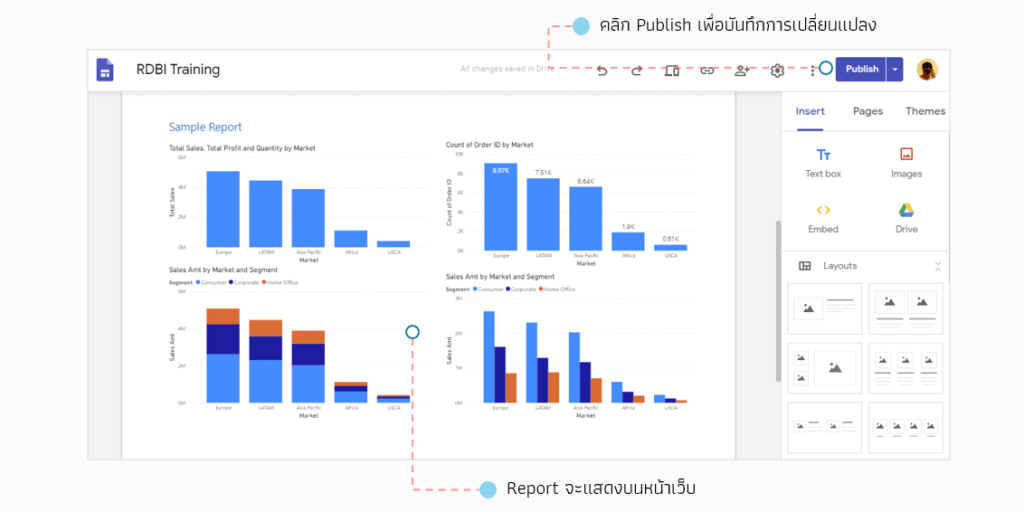
In the case of Google Sites, once we publish a site, it is set to public. Therefore, when we send a link to the site, all users (both internal and external to the organization) will be able to access all the information on the site. We should therefore define the access permissions before sharing the site with users
Examples of Google Site permission settings
Access permissions on a Google Site are set at the Site level only, and are divided into the following levels:
- Owner: Users will have the same management rights as the account that created this site (suitable for managing a site, ideal for teamwork).
- Editor: Users will be able to edit the content within the site.
- Publish viewer: Users will only have the right to view.
Regarding permission settings, we can use both email and group mail (group mail is likely to be used frequently in organizational settings)
Now, we'll set access permissions, allowing only specified individuals to view the site. Look at the menu bar at the top; there are several buttons to use. To set access permissions, we'll use the button with the "+" sign or the "Share with others" button (the Site Access Permissions Management button as shown in the image)
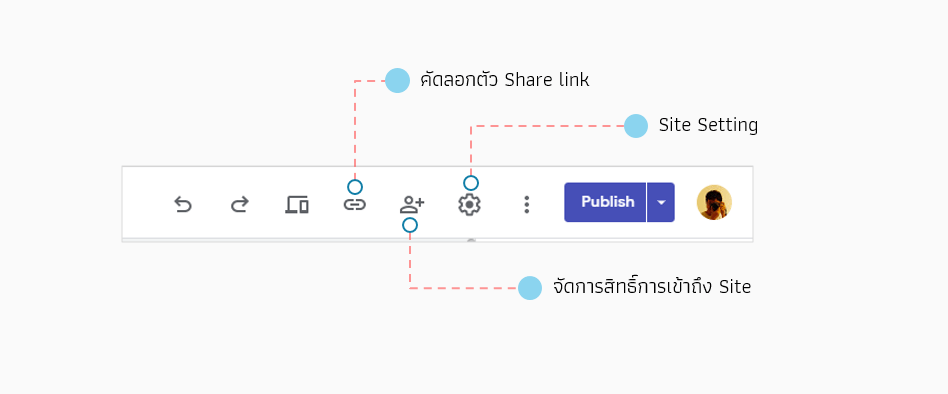
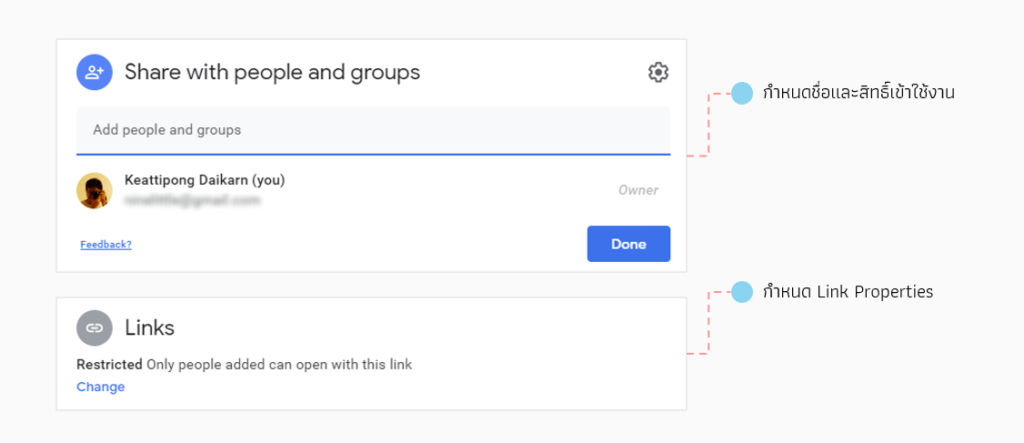
Upon accessing the site's access permissions page, there are two sections for configuration: one for defining the user name or group, and another for configuring the shared link functionality
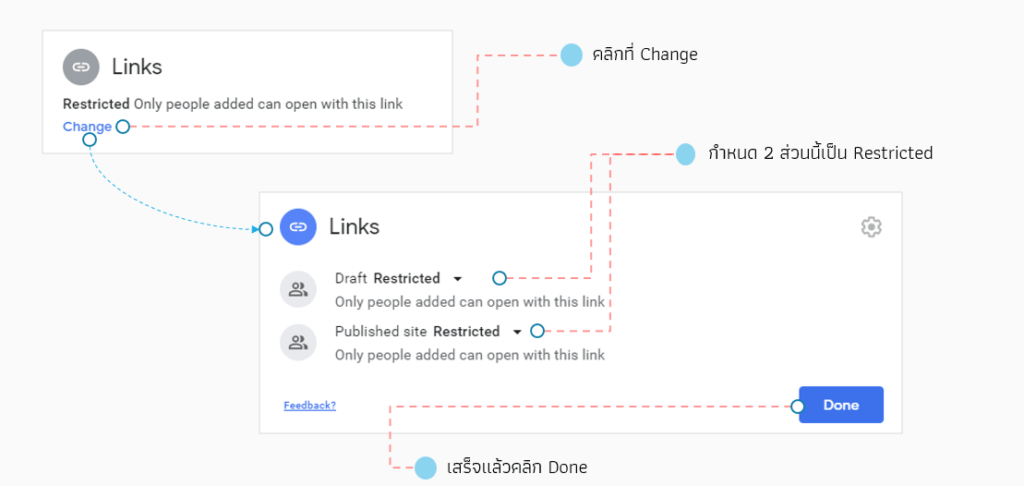
First, set restrictions for links connecting to your site to prevent external access. Click "Change" in the Links section, then set the "Published site" and "Draft" settings to "Restricted". (This example uses Google Sites on Gmail Free; G-Suite usage may differ.) Once finished, click "Done"
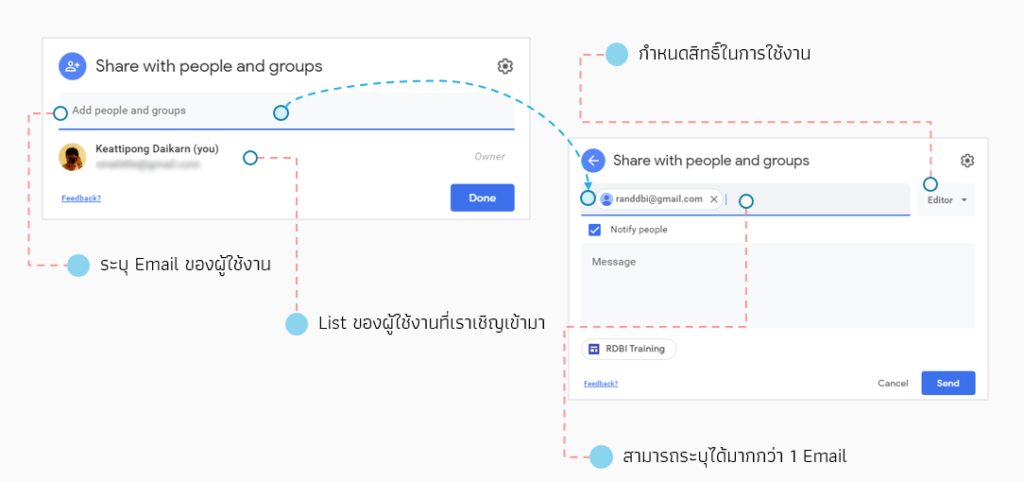
The next step is to specify the names of the users you want to invite to view the information on your site. Click the "Share with other" button again, then enter the desired email address or group email in the "Add people and groups" field. If the email address is correct, Google Sites will display a popup to set access permissions (you can specify whether they are Editors or Viewers). You can choose whether or not to send email notifications to the users. Finally, click "Send" to save the settings
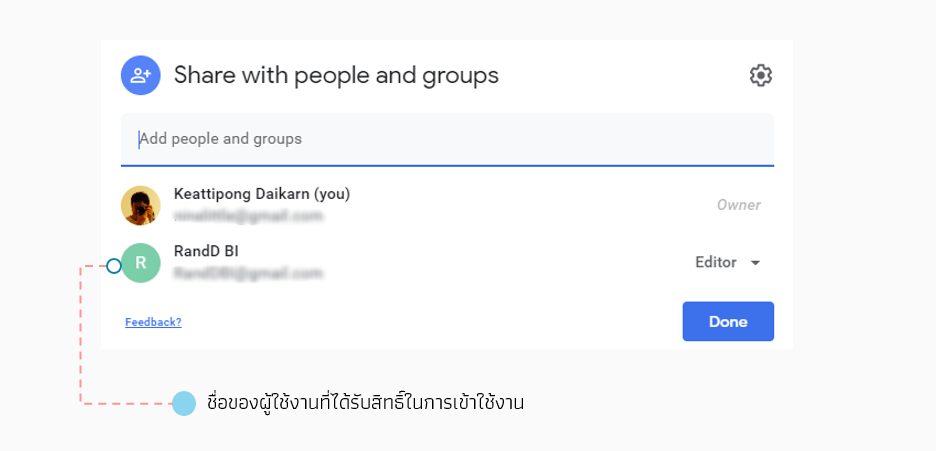
To check who has access rights, simply click the "Share with other" button again. A list of users who can access your site will be displayed in the "Share with people and groups" frame. You can adjust and remove user access rights from this page
At this point, the site is ready to operate according to our defined terms, which mean that only the users we specify will be able to access the data on the site
It's also important to be aware that even if you grant access permissions to the website, the link to the Power BI report is still a public link and can be searched. Therefore, use with caution. If possible, using Power BI Service (Pro) is recommended for greater security
Hopefully, this article will provide a helpful guide for applying Power BI Reports within your organization. See you again with more insightful articles from our R&D BI series!
Interested in Power BI Desktop training courses? You can find details at https://demo.rdbi.co.th/power-bi-desktop/
Read other articles related to Power BI.
For more information, please contact us via our
Line official account: @rdbi
or email: sales@rdbi.co.th