
This training course is for those who want to learn how to use Power BI Desktop, from data import and data manipulation to data model building and creating Business Intelligence Reports, enabling them to effectively generate reports for organizational data analysis
Training objectives
– Participants will be able to use Power BI Desktop.
– Participants will be able to import data from various data sources.
– Participants will be able to manage data to create data models for practical use.
– Participants will be able to create reports in various formats.
– Participants will be able to define the report display format for presentation as a BI Report.
– Participants will be able to create custom dashboards and share reports with colleagues.
Suitable for
Individuals, agencies, or organizations that wish to learn how to use tools to create Business Intelligence Reports
Training duration
12 hours (2-day course)
Background of the trainees
Have a basic understanding of computer usage and Microsoft Excel
Further details
For on-site training, participants must bring their own notebooks with Power BI Desktop installed. The latest version is recommended and can be downloaded from https://powerbi.microsoft.com/en-us/desktop/.
Training topics
Day 1
Introduction to Power BI Desktop
- Overview of Power BI Desktop
- Downloading and installing the program
- Program components
- Sample data to be used in the training
Connect to Data Source
- Getting to know Power BI Data Sources
- Practice importing data from a data source file, such as:
- Connecting to a single file (Excel, CSV, Txt)
- Connecting to more than one data source file
- Connecting to the Data Folder
- Connecting to a SharePoint Folder
- Connecting to a PDF file
- Connecting to data on a webpage
- Creating a custom table for use in Power BI Desktop
- Introducing ways to connect to other data sources
Data Model Management
- Managing data relationships
- Creating a Model Layout
- Grouping and Binning Data within a Data Model
- Defining data categorization for map coordinate data
- Creating a data hierarchy
- Creating a Data Folder to group columns within a table
- Defining the data format of the data within a table
Power BI Report
- Introducing a data model for training
- Creating graphs or basic visualizations
- Creating graphs or visualizations using On-Object Interaction
- Graph customization
- Adding a reference line to a graph
- Understanding Filters and Slicers
- Understanding Drill Up and Drill Down
- Defining Visual Interaction
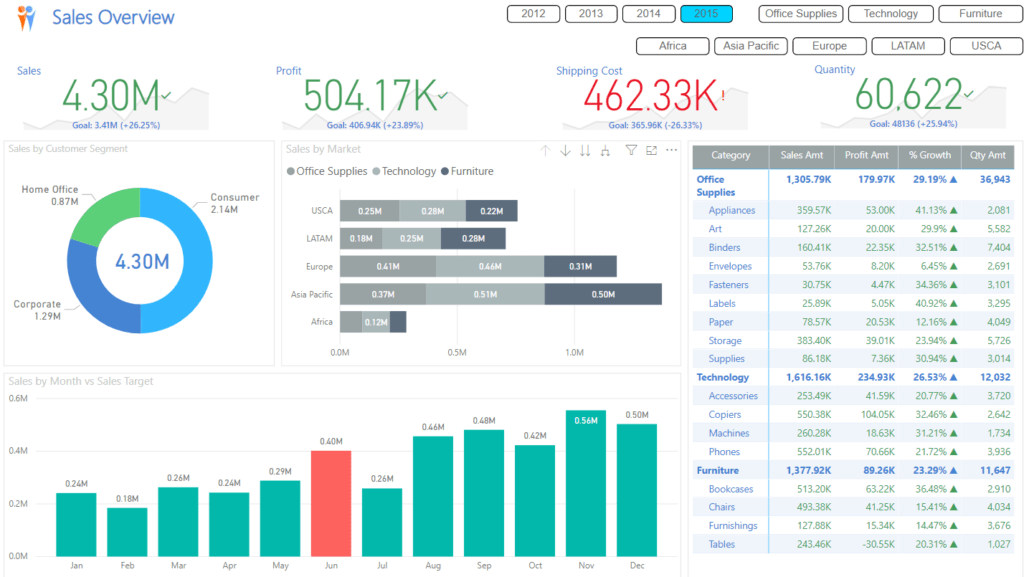
- Creating reports in Power BI Desktop
Participants will practice creating report pages based on sample reports, learning how to create various types of graphs, such as:- Table & Matrix Chart
- Column & Bar Chart
- Clustered Column & Clustered Bar Chart
- Stacked Column & Stacked Bar Chart
- Line & Area Chart
- Combination Chart
- Pie & Donut Chart
- KPI & Card
- Small multiple
- Table Sparkline
- Creating reports on Mobile Layout
Day 2
Query & Transform Data
- Data types in Power BI Desktop
- A suitable data table for use with Power BI Desktop
- Using Power Query Editor
- Data transformation is the process of converting data into the format we need
- Frequently used commands in Power Query Editor, categorized by situation
- If the entered data is incorrect
- If you need to combine the data
- To create or add a new column:
- If you need to rotate or swap rows and columns
Calculation in Power BI
- Creating a New Column
- Creating a New Measure
- Creating a New Table
- Introducing Time Intelligence
- Creating a Date Table
- Creating a New Quick Measure
Power up Your Report
- Using Conditional Formatting in Power BI
- Applications of Chart Conditional Formatting
- Table Conditional Formatting
- Dynamic Color Card Visual
- Dynamic Color Column & Bar Chart
- Dynamic Color Gauge Chart
- Heat Map Chart
- Creating a Custom Tooltip
- Creating a Visual Header Tooltip
- Introducing how to add a Custom Visual
Power BI Service & Share Report
- Introducing Power BI Service
- Publishing a report to Power BI Service
- Sharing a Power BI report
- Getting to know Power BI Dashboards
- Pinning a report to a Power BI Dashboard
- Installing Power BI Gateway
- Schedule Refresh settings
*The schedule may be adjusted as needed
Training format
Public Training Schedule
note
The schedule may be subject to change.
Every step of the practical training will include examples, and instructors will provide guidance throughout the workshop.
For more information, please contact us at https://demo.rdbi.co.th/contact/,
via our
Line official account: @rdbi,
or by email at sales@rdbi.co.th.