
This article will show another example of using a report from the free Power BI service in a different way. Today, we'll be using it with a Microsoft 365 application called SharePoint. SharePoint is an application for sharing organizational data and documents via a web browser (as its name suggests). What's interesting about SharePoint is that it's not just a data storage platform; it can also function as a website for an organizational community. Furthermore, it allows you to define access permissions to data within SharePoint. Today, I'll show you how to use a public link from a Power BI report on SharePoint and how to define access permissions for the report
If your organization already uses Office 365, you should also be able to use MS SharePoint (if your Office 365 doesn't include this app, try contacting your administrator). Today, we'll look at how to import report links from Power BI Service (Free) into MS SharePoint
Create a link for embedding the report
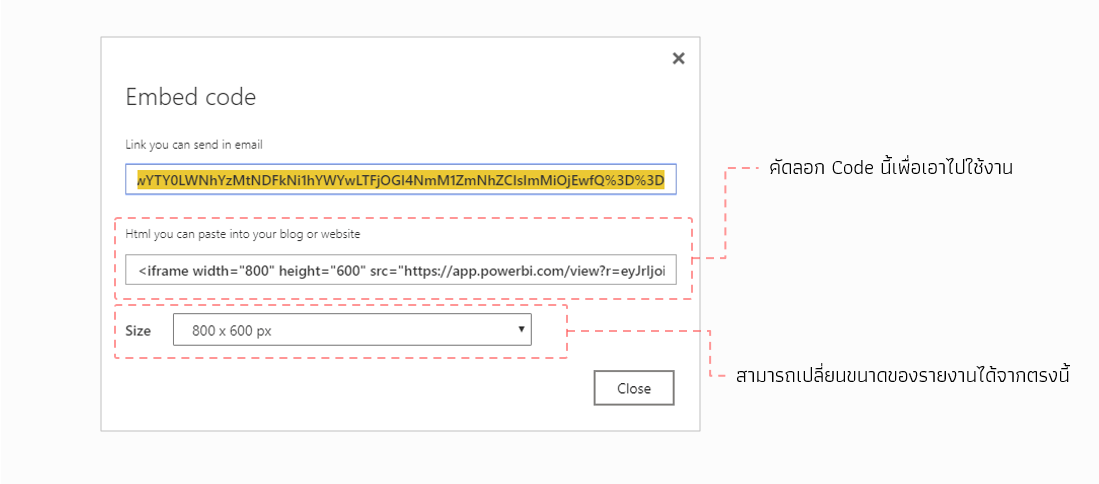
The first step is to copy the required code from Power BI Service (you can find the steps in How to Share Power BI Report Part 1).
Create a SharePoint Site
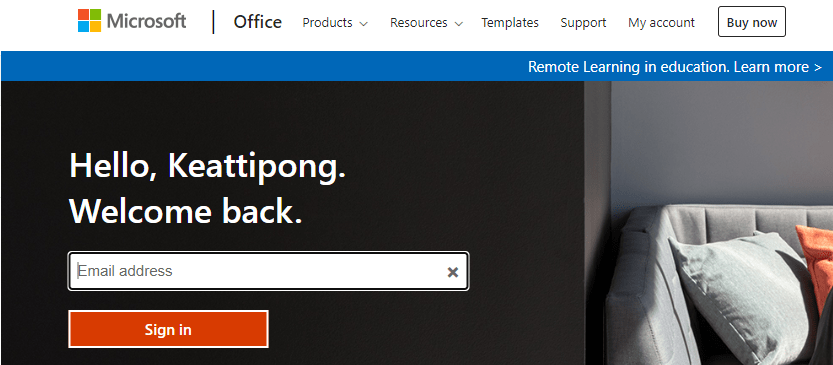
Next, go to your SharePoint site at https://www.office.com/ and enter your email address to sign in.
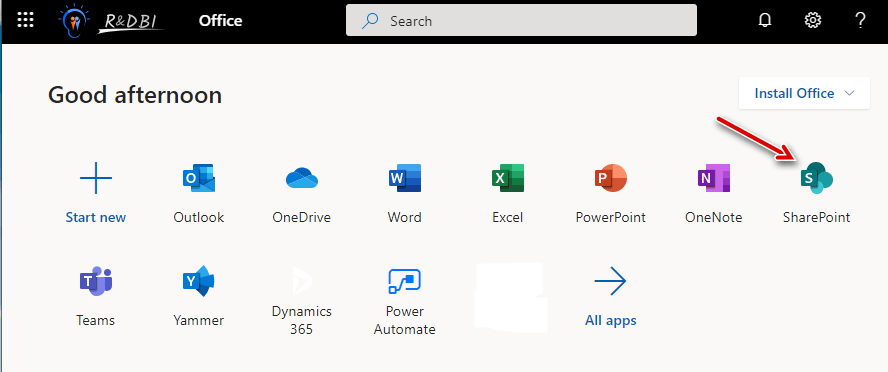
Then select SharePoint as shown in the image
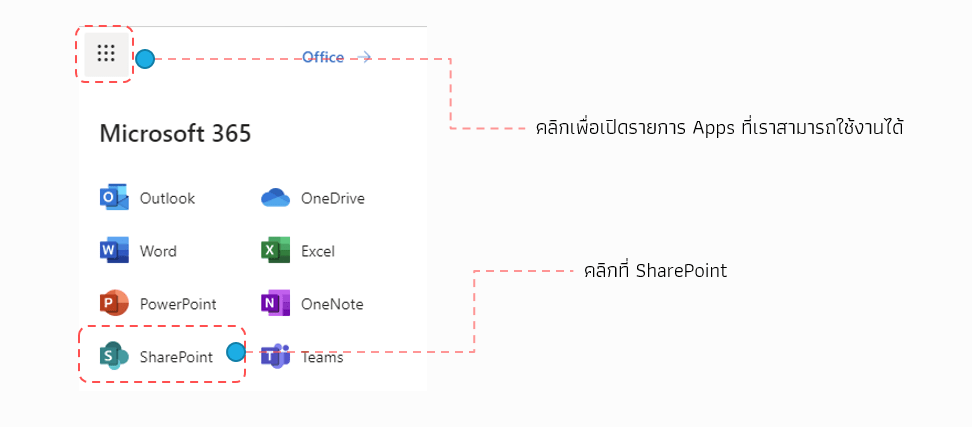
Alternatively, if you are already using other Office 365 apps, you can click the SharePoint icon in the upper left corner of the webpage
Once you're in SharePoint, create a Site (if you haven't already). Then, navigate to the Site you just created and create a Page to display the report from Power BI Service. Click on the Pages menu, then click New > Site Page. The Page Editor will open, as shown in the image below
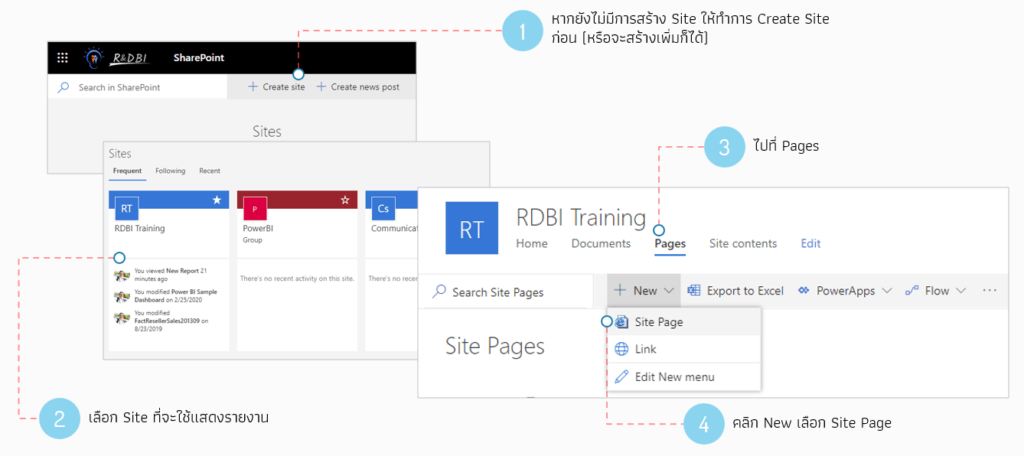
Take the link from the first step and embed it into the page
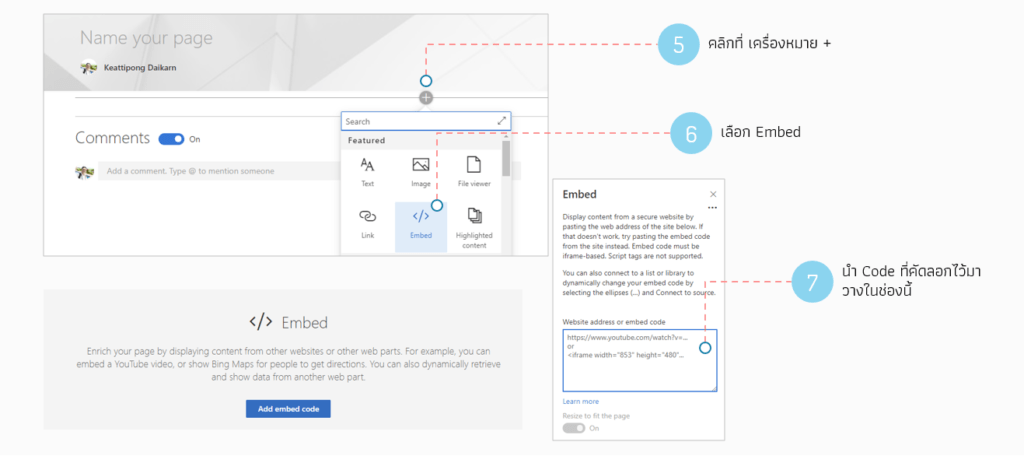
In the Page Editor, you'll find a "+" icon below the page banner. Click it to add an object to the page, then select "Embed" to paste the code you copied
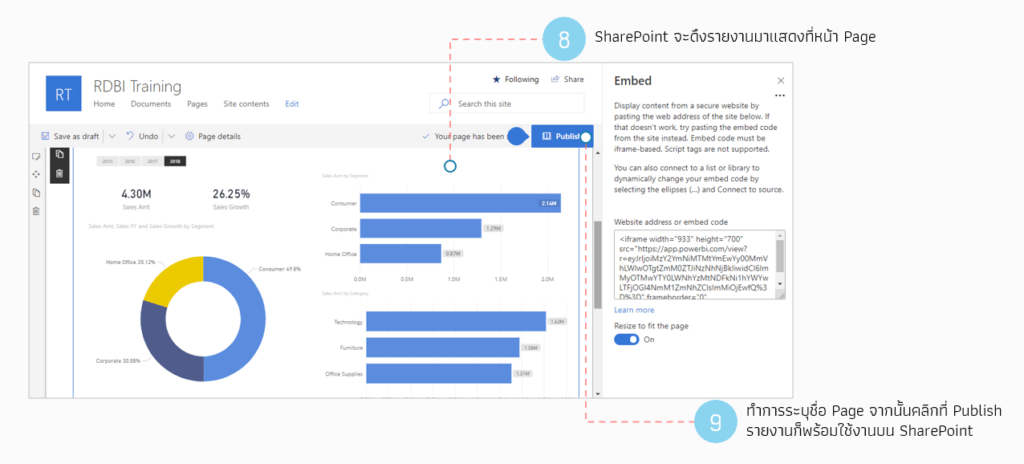
Next, paste the code we copied into the right-hand pane. If everything is correct, SharePoint will display the Power BI report page as shown in the image. Specify a page name, then publish the page (or save it)
The SharePoint page is now ready to display the report data, but only you can see it initially. To allow colleagues to view it, you need to share or invite them to your SharePoint page
Steps for setting permissions and sharing a page
There are two ways to share a SharePoint page
1. Site Share
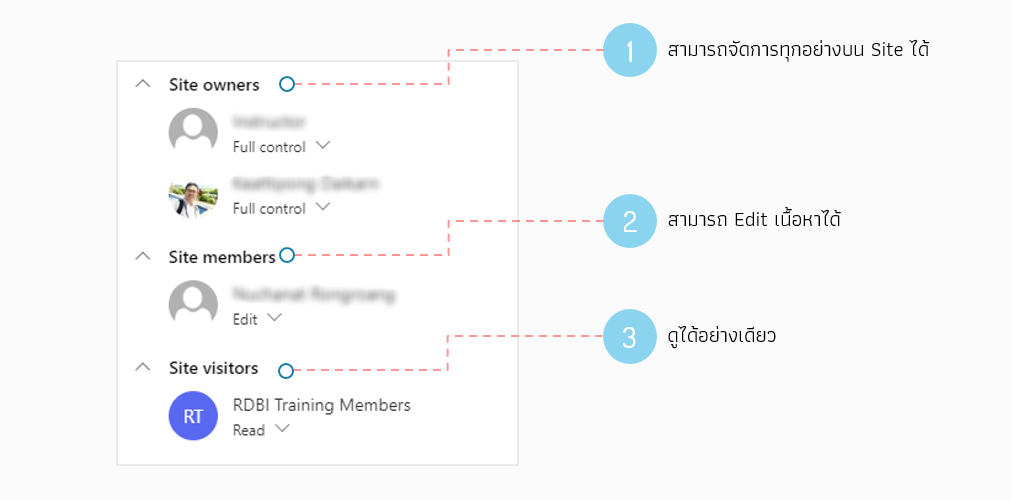
Site sharing grants users access to content within a created site. Access rights can be assigned to individuals or groups of users (personal mail or group mail). Access rights to the site are divided into member groups as follows:
- The Site Owner will receive Full Control privileges. If we grant a user Full Control, that user will be able to edit information on the shared site, having the same rights as the site owner. This is useful when we want teammates to collaboratively manage the site. (This only affects the shared site.)
- Site Members will have Edit privileges. If you want to invite friends to help edit information on the site you created, select Edit permission instead.
- Site visitors will have Read access, meaning they can only view the site.
To share the site, click the Share button in the upper right corner of the webpage. Then, specify the email address or group mail and the member group according to their permissions. Click Share to confirm. (You can choose whether or not to send email notifications to users.)
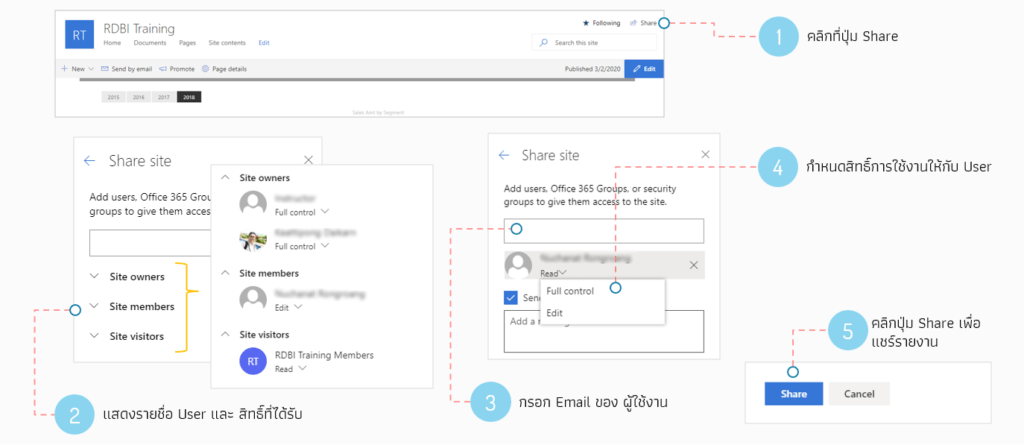
To check user permissions and see who has what access, simply click on the member group. A list of users in each group will be displayed. To remove a user or user group, select the "Remove" menu
With Site Share, all authorized users can access or view all pages within the site (all authorized users must log in with their organization's Office 365 account to view). However, if you need to set permissions at the page level, please refer to Method 2
2. Page Share
This method allows you to define access permissions for each page on the site you are currently using. For example, you could specify that Mr. A can view all pages on the site except the executive report page, or you could specify that Mr. A only has access to his own report page (other pages on the site are inaccessible)
To configure Page Sharing, first go to the Page List page by clicking on the Pages menu. This will show a list of all pages on the site
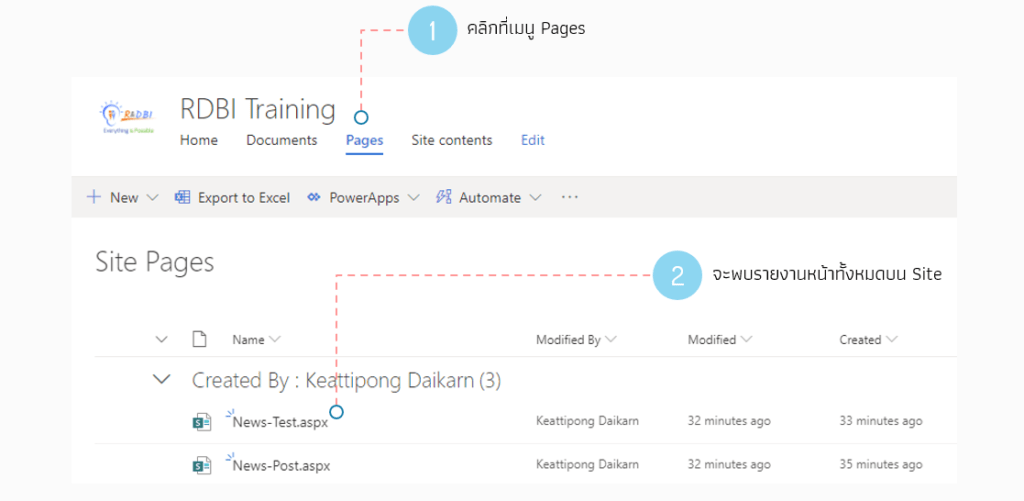
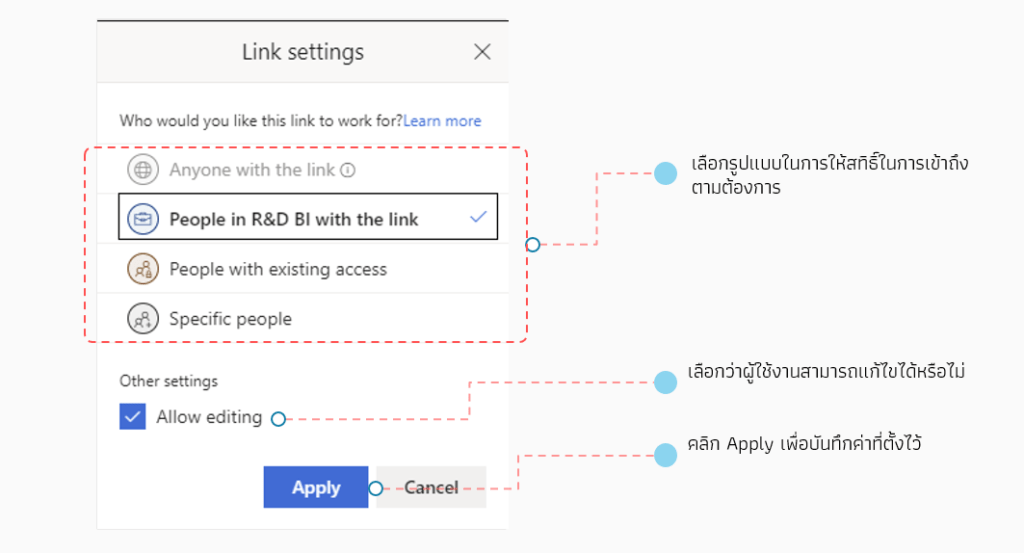
Next, hover your mouse over the page name where you want to share the report, and click the Share button to access the Settings screen and set access permissions as needed
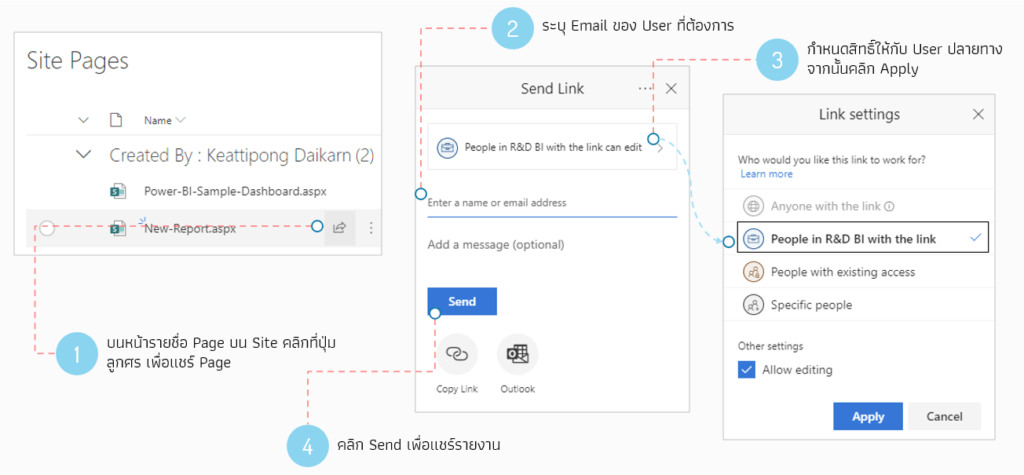
Specify the sharing details as needed
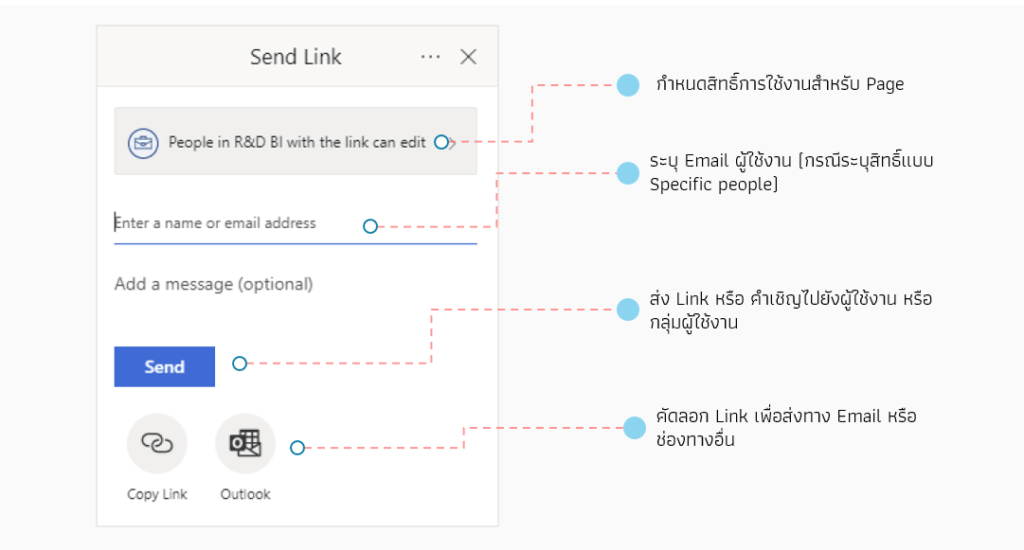
Set sharing permissions based on the image
Example case
If we want to specify that regular users can view the site but are not allowed to access specific pages, we would follow these steps
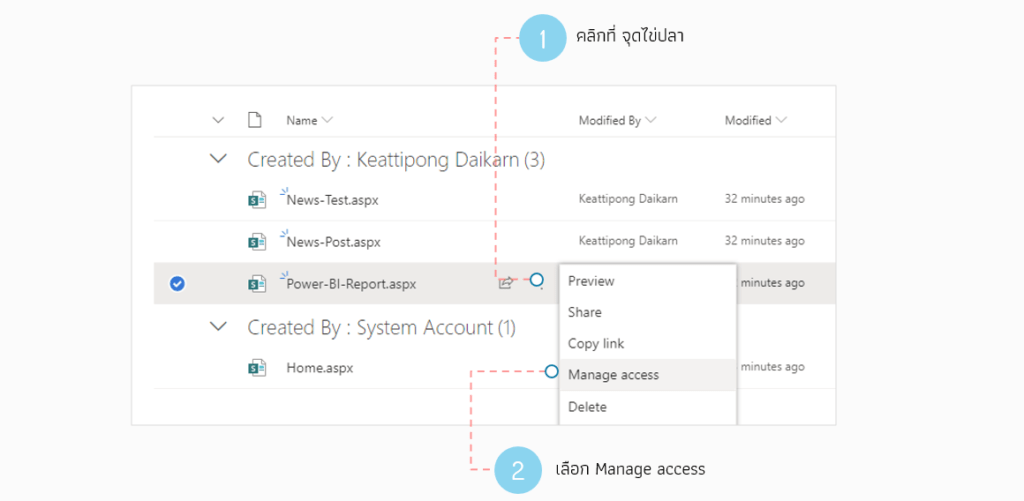
First, go to the Page List and click the three dots at the bottom of the page you want to customize. Then select Manage access
Next, remove the permissions of the user group (which are obtained from the Site Share settings) by clicking the arrow next to the group name and selecting Stop sharing. Then, click the three dots at the top to specify the users who can view this page, and to set their access rights to Edit or View only
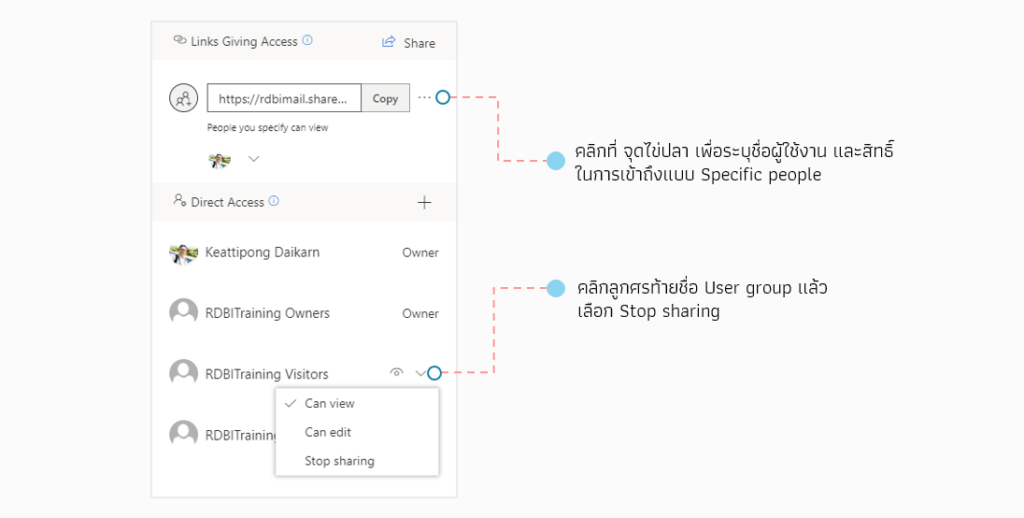
Once configured, users will be able to visit the site as usual, but will not be able to see the pages we have designated, except for users who have been granted permission
With this, you can customize access permissions for reports pulled from Power BI Service as needed
However, it's still important to be aware that even if you grant access permissions to the webpage, the link to the Power BI report is still a public link and can be searched. Therefore, caution is advised when using it. If possible, using Power BI Service (Pro) is recommended for greater security
Hopefully, this will provide you with a useful guide. See you again in the next article!
Interested in Power BI Desktop training courses? You can find details at https://demo.rdbi.co.th/power-bi-desktop/
Read other articles related to Power BI.
For more information, please contact us via our
Line official account: @rdbi
or email: sales@rdbi.co.th