
After introducing Power BI, today we'll discuss another crucial step in data visualization: sharing the completed report/dashboard with colleagues, supervisors, or executives. Carrying your computer around to present every time would be inconvenient. Wouldn't it be better if you could send the report directly to the executives' computer screens?
If we use Excel to create a report, when we want to show the report to our boss, we simply save the file and send it via email with the Excel file attached. Our boss can then open and view our report because office computers likely have Microsoft Office programs installed. However, in the case of Power BI Desktop, even though it's a free program to download and use, not everyone will download and use it
Sending a Power BI file to another user grants them editing rights as if they were the one opening the file, or as if they had full access to all the data within the file. Therefore, if using this method, it's crucial to properly manage the data source connecting to Power BI before sending the file to the user
To share a Power BI report, you need to subscribe to Power BI Service first. There are two subscription options: Free and Pro (or Subscription). Both subscriptions require a non-free email address (an organizational or educational email address). You can subscribe at the link below
Power BI Service Registration : https://powerbi.microsoft.com/en-us/get-started/
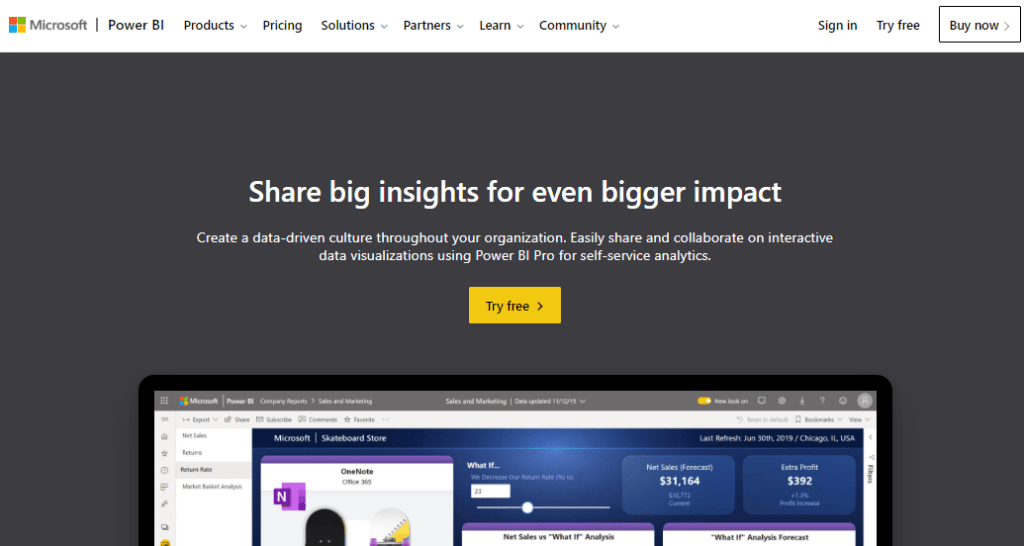
Once you've successfully registered, log in by going to powerbi.com and using the email address you registered with
For Power BI Service (Pro) case
To share reports using Power BI Service (Pro), all users you share the report with must also have Power BI Service (Pro) installed (using the same organization's license as you). If they don't have it, or don't have all the necessary licenses, you'll need to use the Power BI Service (Free) method instead
Sharing a report is very easy and can be done in two ways
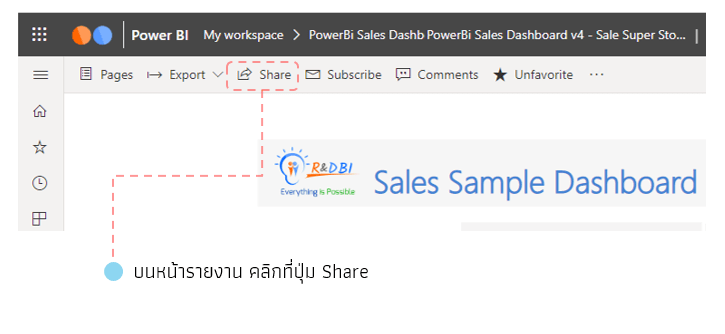
First method First, open the report you want to share. A Share button will be located in the top menu of the report page
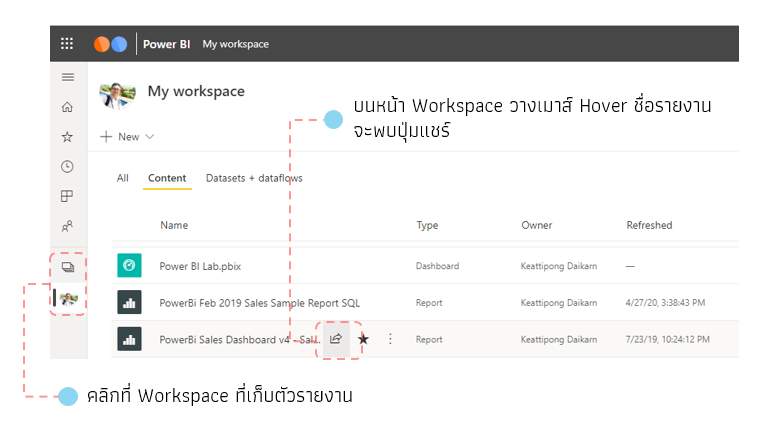
The second method is to go to the Workspace page, then click on Content (this will only display a list of Reports and Dashboards). Then, hover your mouse over the name of the report you want to share, and you will find a share button; click it to share the report.
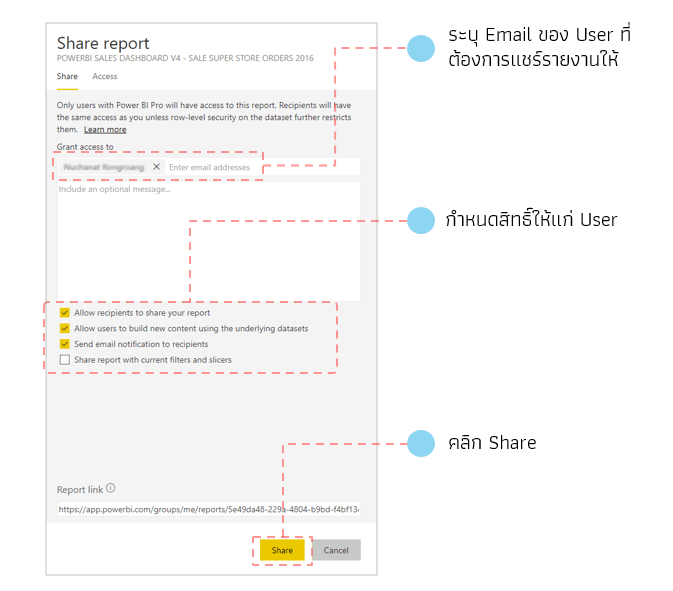
Next, specify the email address of the user you want to send the report to, and assign access permissions to them. Then click Share to share the report. (The system will send an email notification to the user that the report has been shared.)
If you want to view a report that someone has shared with you, you can go to the "Share with me" menu located on the left-hand side, as shown in the image
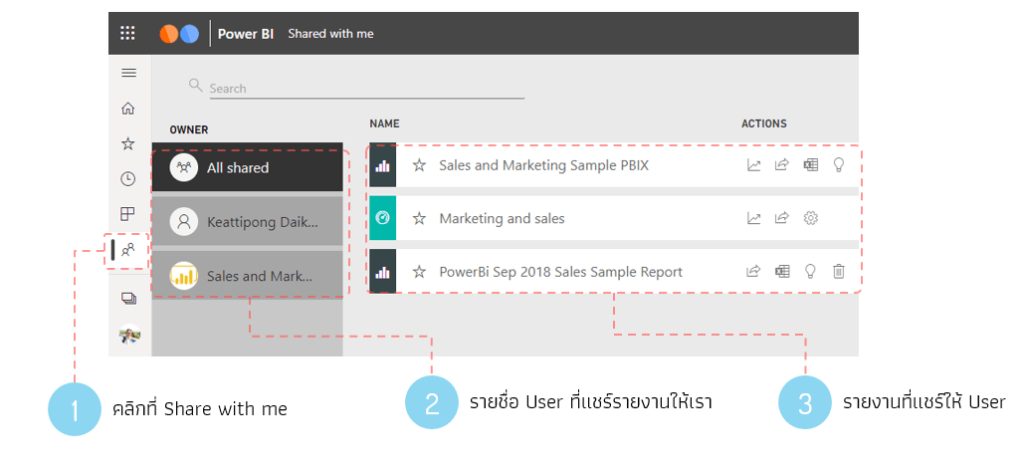
The "Share with me" section has two parts: a list of people who have shared reports with you, and a list of the reports themselves
The above steps can be used to share reports and dashboards within our Power BI Service
For Power BI Service (Free)
While the free version of Power BI Service doesn't allow for sharing reports with on-premise users like the Pro version, you can still share reports as a link that can be opened in a web browser or embedded on a webpage
When sharing reports with Power BI Service (Free), you can only choose to publish to the web (public) option. (The Pro version offers more sharing options.)
There are two ways to create a link for publishing to the web
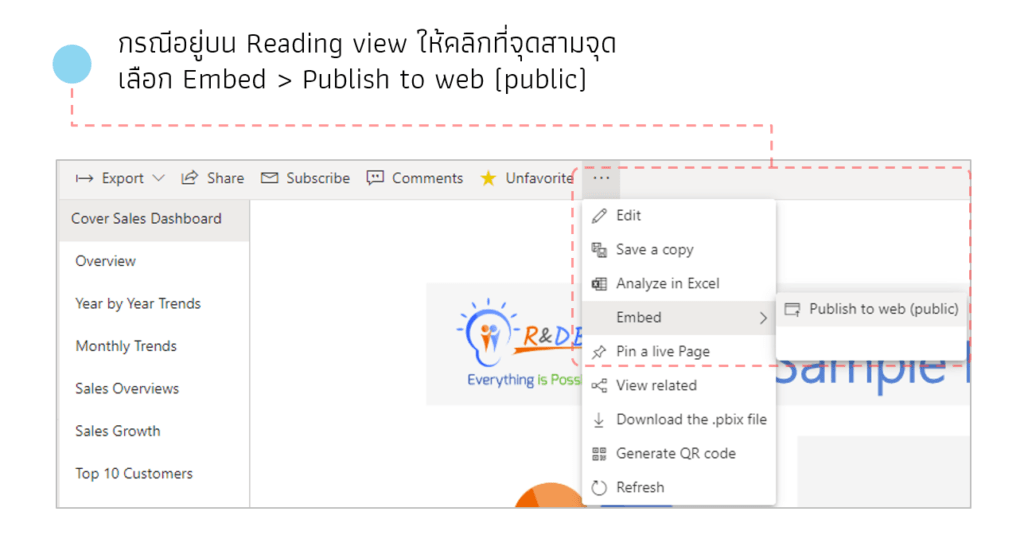
If you are in Reading view (report page), click the three dots and select Embed > Publish to web (public)
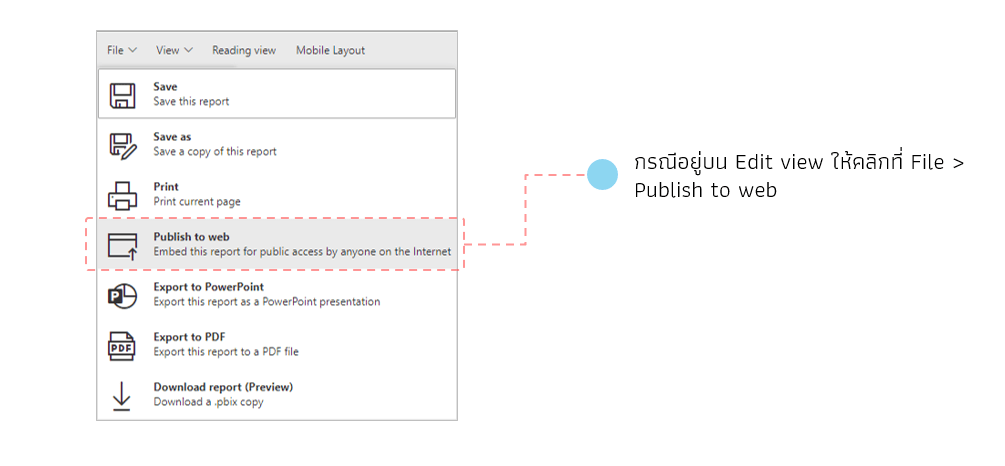
If you are in the Edit view, you can also click on the File menu and select the Publish to web command
The system will then generate two types of code for us, as shown in the image
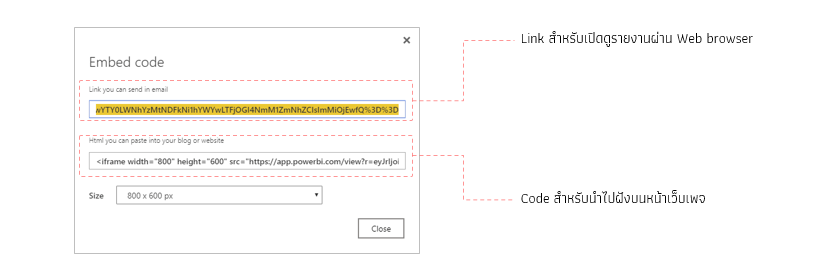
This is a link that can be opened directly through a web browser. You can send it as a link in an email .
This HTML code (IF frame code) is what you can paste into your blog or website.
Caution: Both sets of codes will provide direct access to the report without requiring a username and password. Therefore, exercise caution when using them, especially if the report contains sensitive organizational data. (In the case of Power BI Service (Pro), there is an option to select a version that requires a username and password.)
For using public links, it is recommended to use HTML links that you can paste into your blog or website. This allows you to set security measures for the webpage (depending on the website system of each organization).
Once we have the embed code, copy the code in the "HTML you can paste into your blog or website" section, which will look like the example below
<iframe width="800" height="600" src="https://app.powerbi.com/view?r=eyJrIjoiNTUwMmNmYmQtYjRkZi00N2JiLWFmMTktYjc0ODU5YWRlZTM4IiwidCI6ImMyOTMwYTY0LWNhYzMtNDFkNi...................." frameborder="0" allowFullScreen="true"></iframe>Once you have the embed code, simply paste it into the website where you want to share the report. That's all it takes to share your Power BI report using the free Power BI service
Next time, I'll provide an example of how to use embed code (with the ability to define access rights to the report page). For now, this article ends here. Thank you for reading
Interested in a Power BI Desktop training course? You can find details at https://demo.rdbi.co.th/power-bi-desktop/
Read other articles about Power BI.
For more information, please contact us at https://demo.rdbi.co.th/contact/,
via our
Line official account: @rdbi,
or email sales@rdbi.co.th.