
In the previous article, we discussed how to share Power BI reports. Today, we'll look at how to embed the code obtained from publishing to the web (public). Normally, opening the link in a browser would display the report data... but this isn't ideal if the data is sensitive and we're not yet ready to upgrade to Power BI Pro. So, how can we display the code on our website with access control? We have the answer today
First, it's important to understand that creating a report link from Publish to Web (Public) is typically used when you want to display the report publicly (with data that is already publicly available). In the Power BI Service Pro version, you can choose to use either a public or a secure link. However, in the Power BI Service Free version, only public links are available.
Therefore, if we want to use code from Publish to Web (Public) for data that we don't want external users to see, or to restrict access to a report page, we need to use other tools or systems. The following example will demonstrate how to use embed code with a website in a CMS (Content Management System), which allows for setting access permissions to web pages. For this example, we'll use WordPress (our company's website uses it). You can check other CMS platforms; they likely have similar features
Prepare the link for embedding the report
The first step is to copy the required code from Power BI Service (you can find the steps in How to Share Power BI Report Part 1).
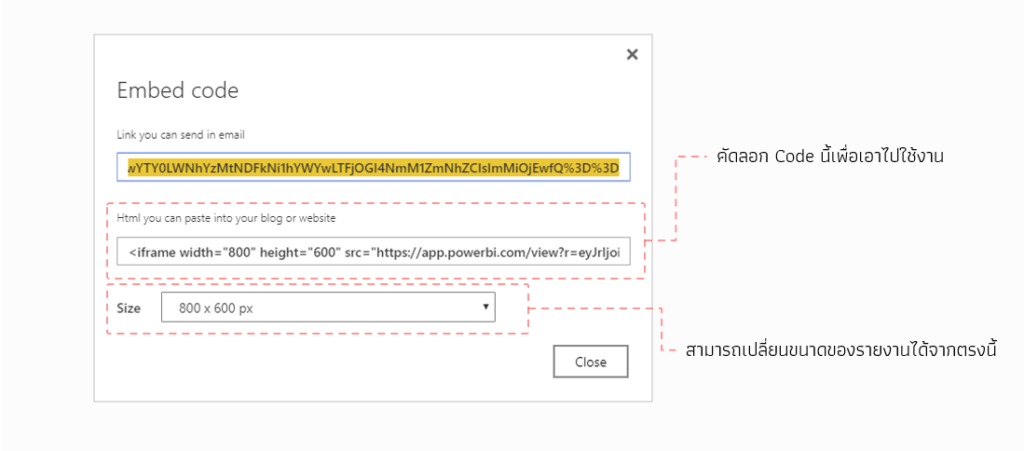
Embed the link onto the desired webpage
Once you have the code, create a new post or page on WordPress. Then, insert the HTML code into the content. Since the code you received is HTML, click the "+" icon to add an object, then scroll to Formatting and select HTML Custom HTML, as shown in the image
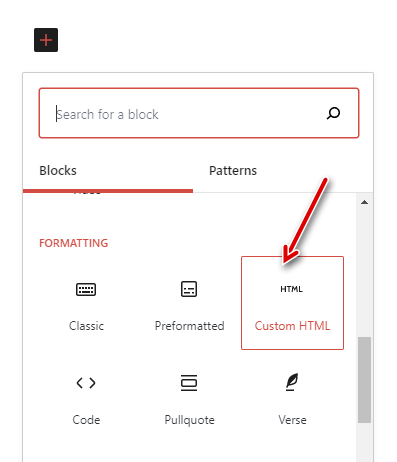
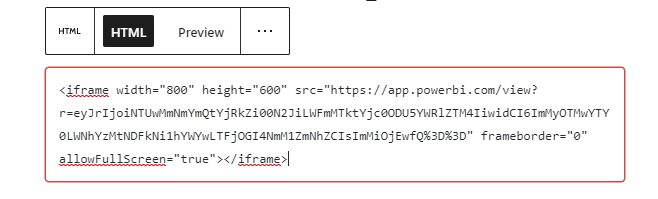
A text box will then be created where you can write HTML code

Paste the code copied from Power BI Service into the slot, as shown in the example
Examples of setting access permissions for a webpage
Next, configure the security settings for displaying the document by going to the Document Tab in the right-hand menu of the Edit Page. If you don't see it, click the gear icon in the upper right corner of the screen and then select Private or Password Protected
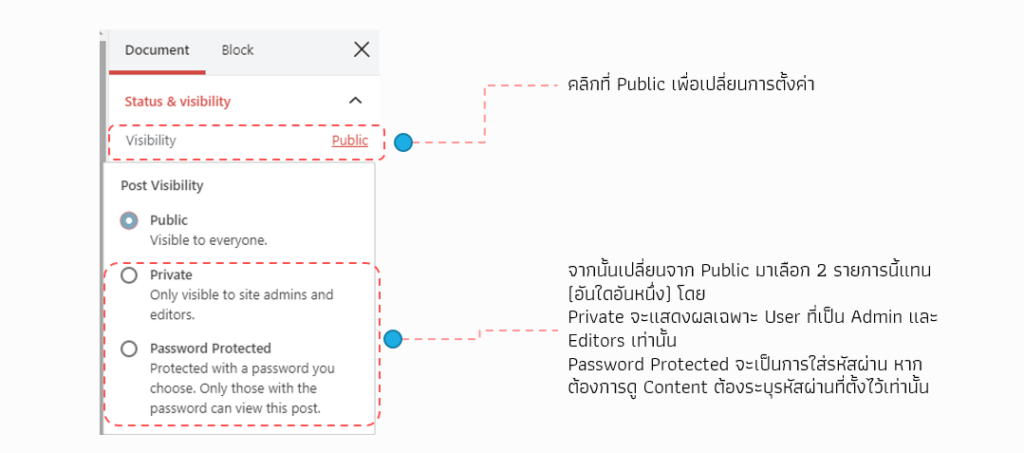
If you select Private, the page will not be displayed unless you log in to the website first. Only users with the Editor or Admin role will be able to see it. Other roles will not be able to see it
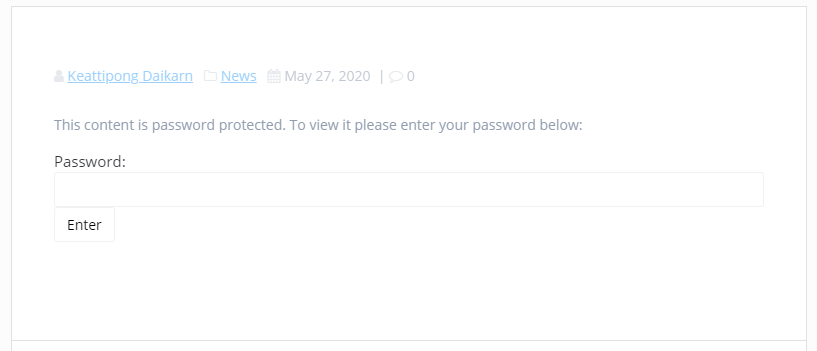
If "Password Protected" is selected, visitors will see the title or page name, but when the page is opened, the website will ask for a password to verify access. Without the password, they will not be able to access the report
However, if you set it to Public, you can view a preview of the report page directly, following the sample report provided by R&D BI (available at https://demo.rdbi.co.th/rdbi-course/power-bi-sample-dashboard/ ).
This report will update based on updates to reports in Power BI Service. To schedule updates, you need to set up a schedule in Power BI Service
Caution !!!!
Although access to the report on the webpage can be blocked, the link to the report remains a public link. Therefore, users who can access the page displaying the report must be cautious because after logging in, the webpage will reveal the public link to the Power BI report, which can be copied and used
This article is just a guideline for making public links more secure. It can be adapted for other CMS platforms, but if possible, I recommend upgrading to Power BI Service (Pro) instead
Interested in Power BI Desktop training courses? You can find details at https://demo.rdbi.co.th/power-bi-desktop/
Read other articles related to Power BI.
For more information, please contact us via our
Line official account: @rdbi
or email: sales@rdbi.co.th