
Today we're going to get acquainted with one of the most popular data visualization applications on the market. It's free software with a wide range of features and a user-friendly interface designed for self-use. That application is Power BI, or Power BI Desktop, from Microsoft
Power BI is a Microsoft Business Intelligence tool that can connect data from multiple sources to analyze and present the results in reports. Users can also customize the report view as needed. Power BI applications can be categorized into two main types based on their usage:
PowerBI Desktop is a program for connecting data sources, managing data, and creating reports for presentation. It supports a wide variety of data sources, and importantly, it's free to use.
Power BI Service is a Microsoft cloud service that supports data management, report visualization from Power BI Desktop, and the creation of reports similar to those from Power BI Desktop (referred to as Power BI or Power BI Pro on the Microsoft website). It comes in two forms:
- Power BI Service (Free) : This is a service that users can subscribe to for free, but it is only available for personal use.
- Power BI Service Pro : This service is designed for enterprise use and allows data sharing among users within the organization, but it requires a subscription fee.
Power BI Solution
Power BI is an application designed to allow users to create reports and access the reports or data they need anytime, anywhere, through the solutions provided by Microsoft. As shown in the image, there are three main solution components

- Power BI Desktop supports a wide variety of data sources, including files (Excel, CSV, PDF), cloud services, and databases.
Once you create a report in Power BI Desktop, you can view it not only on your PC but also publish it to the Power BI service, allowing you to access the report via the internet or mobile apps without needing your PC.
2. Power BI Service, in addition to supporting reports created from Power BI Desktop (both viewing and editing), also allows you to create reports directly from Power BI Service by connecting your data source directly to Power BI Service. This enables you to create reports just as you would with Power BI Desktop, and the created reports can be accessed via the internet and mobile apps.
3. Power BI Gateway is a tool used to connect the Power BI report dataset on the Power BI Service with the on-premise data source. This allows for scheduled refreshes of reports on the Power BI Service.
Power BI Service Free & Power BI Service Pro
Many of you have probably wondered about the differences between Power BI Service Free and Power BI Service Pro: what are the differences between the two, and which one should you use?

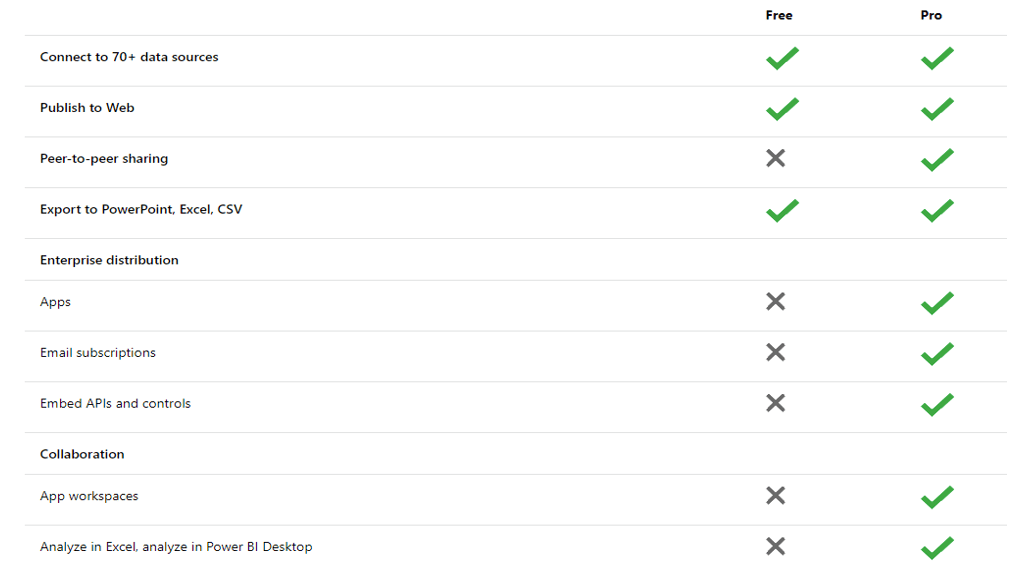
The free version of Power BI Service (yellow frame) is a cloud service for individuals. This means users can create reports using Power BI Desktop and store them on their own Power BI Service server. They can then access the data on their Power BI Service server via a web browser and mobile apps.
Power BI Service version Pro (blue frame) is a cloud service for organizations. In addition to the standard Power BI Service features, it also allows for data sharing with other users (within the same organization). Access to reports can be defined based on user permissions (as shown in the image, User 2 can access both Report 1 and Report 2, while User 1 only has access to Report 1). Furthermore, datasets can be created and shared, allowing other users to create reports according to their needs using the data.
The differences between the Free and Pro versions of Power BI Service can be briefly summarized in the image below
How does Power BI work?
The operation of Power BI Desktop can be illustrated in the image below
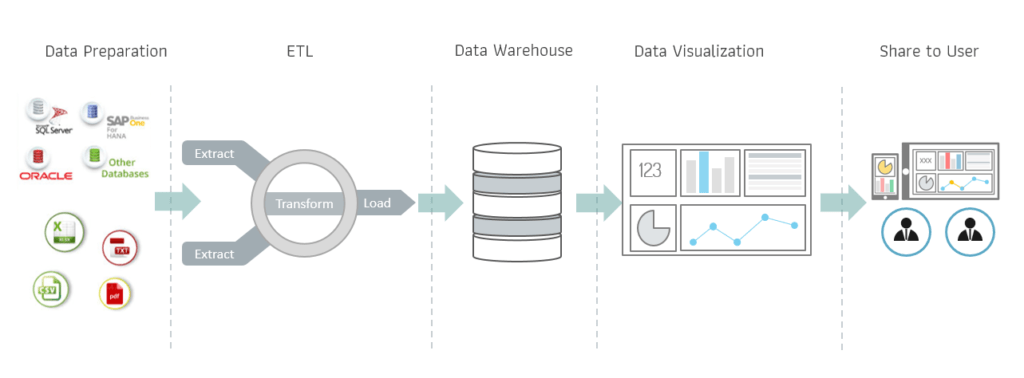
The workflow of the Power BI Desktop program can be divided into 5 steps as follows:
Data preparation
is the process of connecting data sources (getting data). Power BI supports connecting to various data sources and can combine data from multiple sources into a Power BI model. This allows for 360-degree data analysis from related data sources within a single application.
ETL : Extract – Transform – Load
is a crucial step in data visualization. In Power BI, we use the Power Query Editor to manage this.
Extract: Because we often collect data from multiple sources, we need to extract the data to determine its type (e.g., text or numbers. If it's text, we need to categorize it as text, dates, names, or places, etc.).
Transform: After extraction, the data needs to be transformed to the correct format or the desired format. For example, date data from various sources may use different date formats. In this case, we need to convert the data to a consistent format for accurate analysis.
Load: Once the data is processed, we load it into the Power BI model for use in creating visualizations.
ETL
(Entering, Transmitting, and Expanding) is complete, we gather all the collected data and organize it into a Data Warehouse or Data Model. This involves naming and grouping the data, creating a data hierarchy, and generating necessary calculated fields to make it easier for users to select and use the data fields they need.
Data visualization
allows you to create the desired visualizations from your prepared data warehouse. Power BI provides a comprehensive set of ready-to-use visualizations, and you can also create or download additional custom visualizations from the Windows Market.
Share to User
feature, we can easily share reports created with Power BI to other users within our organization. We can also define access rights as needed, which is more secure than directly sending the Power BI file. This helps executives and stakeholders make faster business decisions.
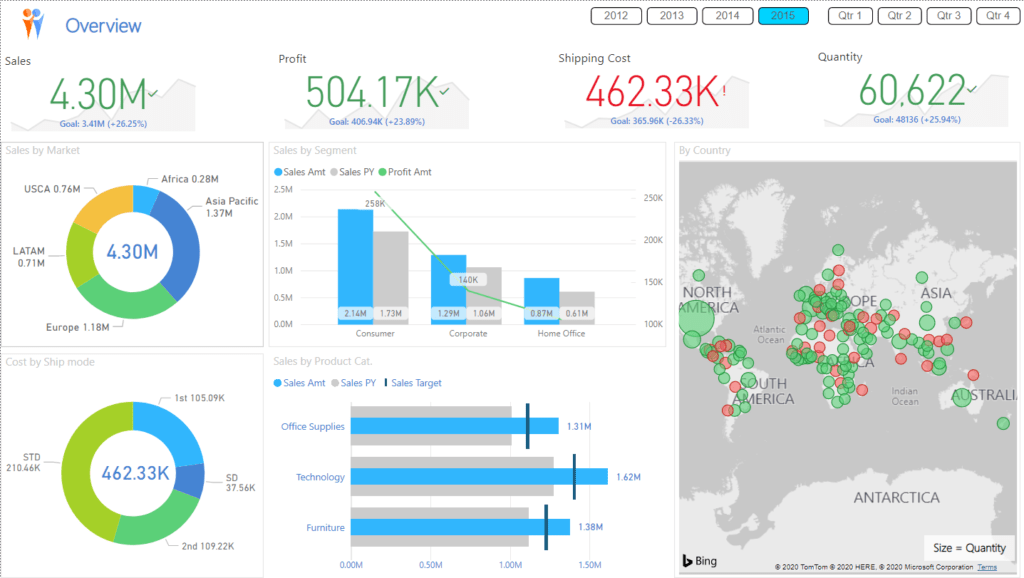
Example Power BI report
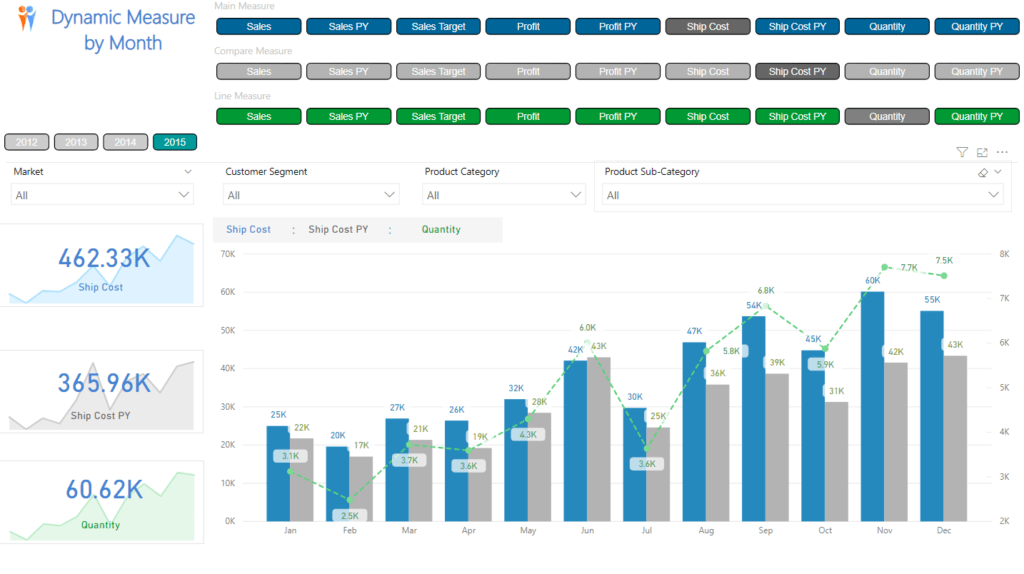
More sample Power BI reports can be viewed at the following link:
https://demo.rdbi.co.th/rdbi-course/power-bi-sample-dashboard/
Example Power BI report
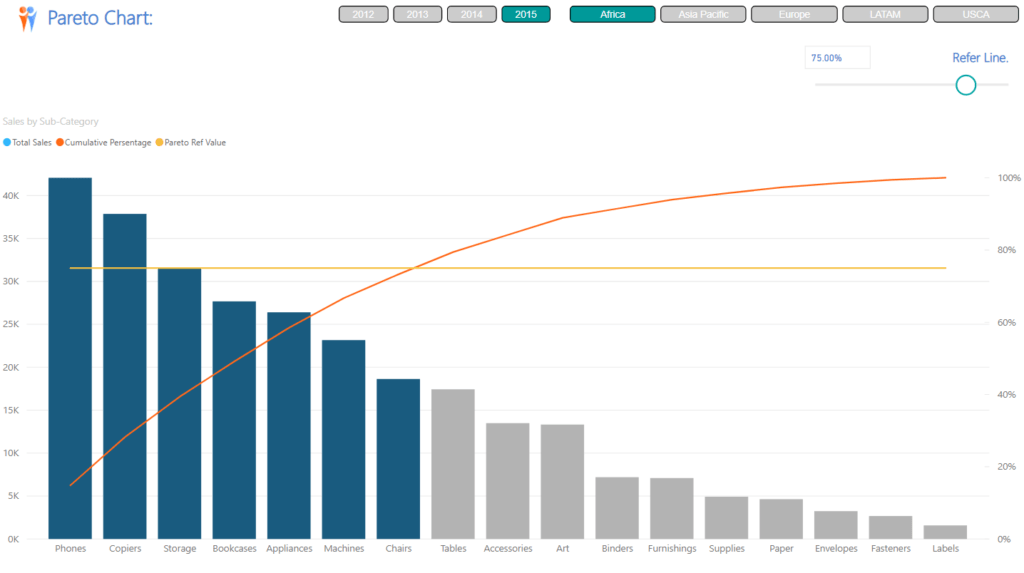
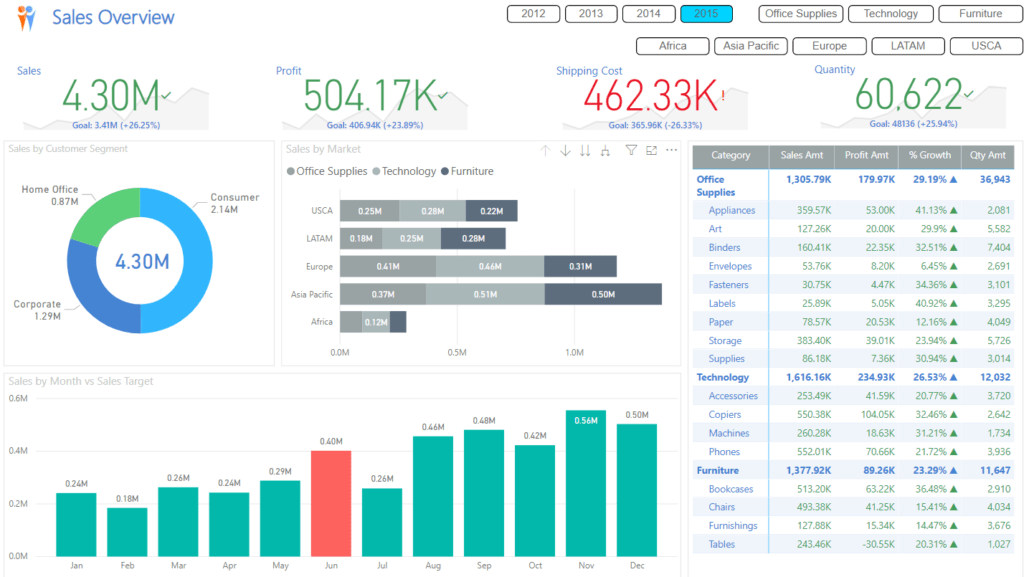
Basic Practice Power BI Desktop
You can learn how to use Power BI Desktop from this video:
https://youtu.be/GQlQL4hPxUg
Download Power BI Desktop
Power BI Desktop can be downloaded for free at https://powerbi.microsoft.com/en-us/desktop/. It's recommended to click on "See download or language options" for easier access. (If you choose "Download Free" and are using Windows 10, the system will open the Windows Store. Your computer must be linked to a Microsoft account before installation can begin.)

Next, select your desired language and click Download.
On this page, you can check the current version of Power BI Desktop. Microsoft updates this approximately once a month.

Next, choose whether to install the 32-bit or 64-bit version (depending on your operating system). After selecting, click the Next button. The system will then begin downloading the installation files. Choose the location to save the files, then click [button/link]. Wait until the download is complete. You will then have the program installation file. (When saving the file, be sure to include the version name.)

Power BI Service Application Process
If you wish to sign up for Power BI Service, you can do so by going to http://powerbi.com and clicking the "Start Free" button

Alternatively, go to https://powerbi.microsoft.com/en-us/get-started/ and click on Try free.

The system will take you to the registration page. Then, enter the email address you will use to register (it must be an organizational or educational institution email address; free email addresses are not accepted). Then click Sign up

The system will then ask if the email address you provided is an organizational email address. Answer "Yes." Don't lie! (You may also need to have your mobile phone number ready at this step.)

Next, check the email address you registered with to see if Microsoft has sent you the 6-digit code

Then, return to the registration page, fill in your first name, last name, and password to access the system, enter the verification code you received, and then click Start

Once Microsoft has verified your email, you will see an "Invite more people" window where you can invite colleagues within your organization to use Power BI Service (the free version, of course). If you don't want to invite anyone yet, or just want to use it yourself, you can click "Skip." However, if you want to try the Pro version as well, I recommend inviting your team members
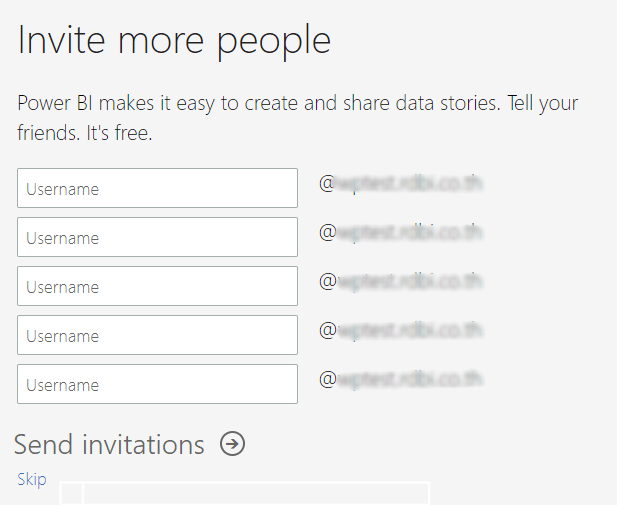
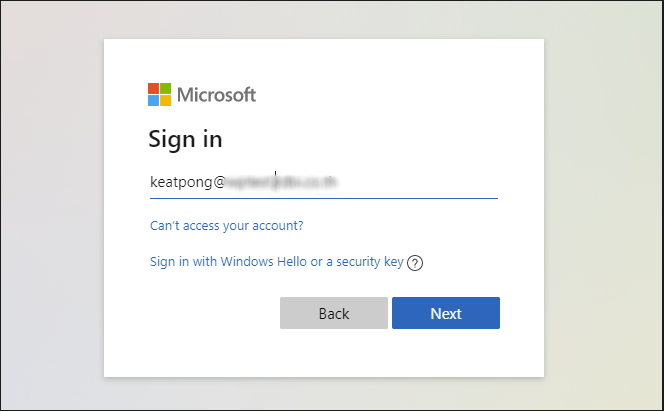
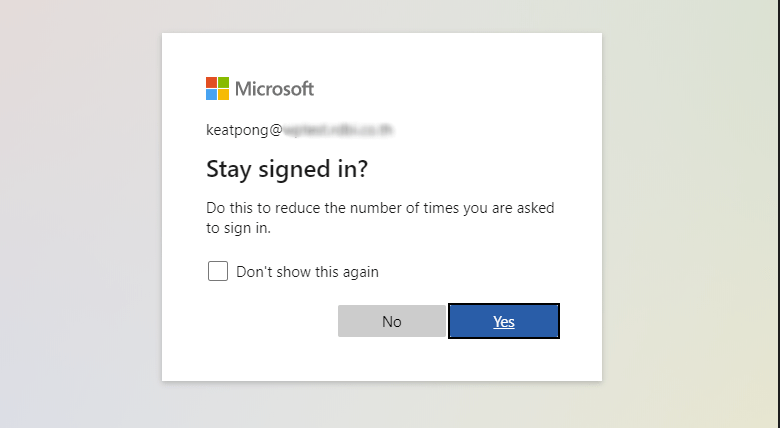
Next, sign in using the email and password you set during registration
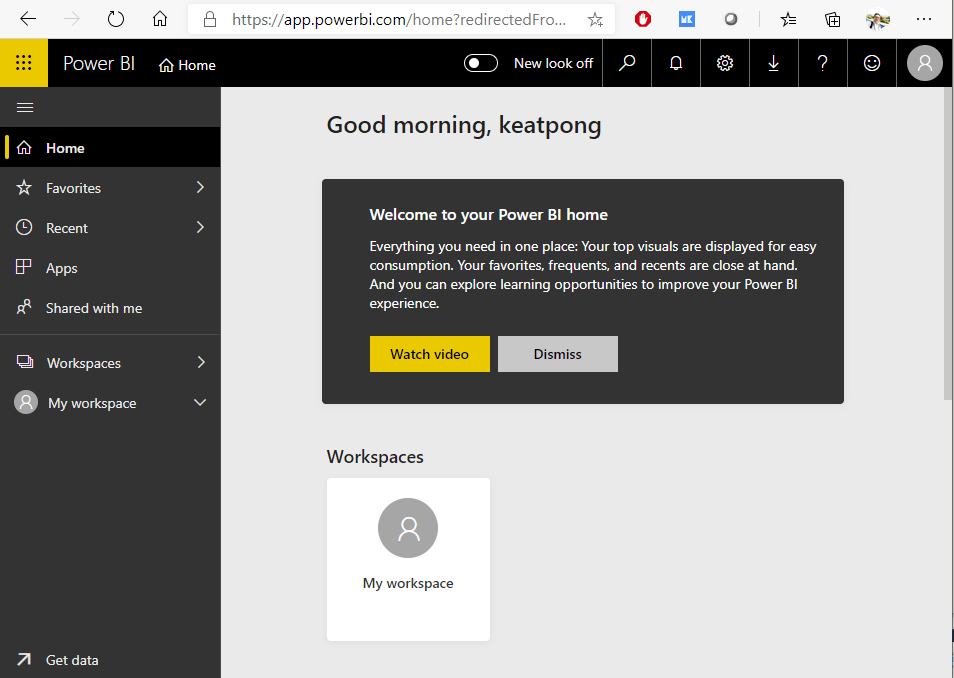
Once you have successfully logged in, you will be taken to the Power BI Service screen, as shown in the image
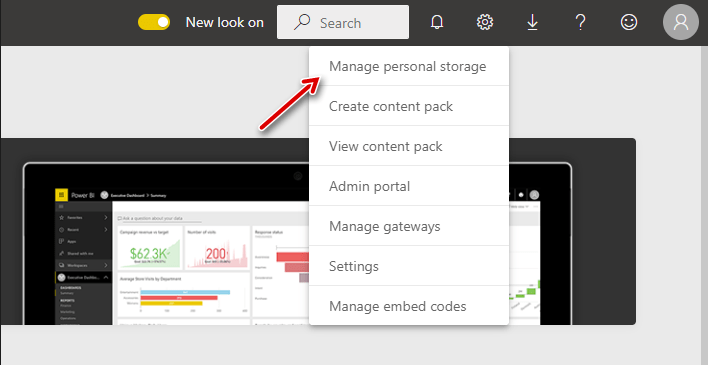
Currently, your account is free. To try the Pro version, click the gear icon and select Manage personal storage (this displays the storage space for your reports on the cloud service)
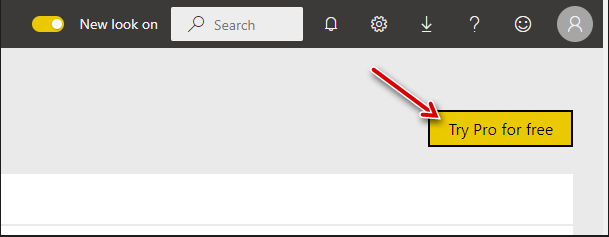
On the Manage personal storage screen, there's a "Try Pro for Free" button in the upper right corner. To try it out, click this button. (The trial is free and doesn't require a credit card number.)
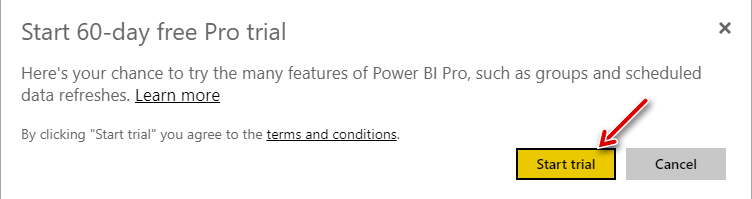
The system will display a screen showing that you can use the Pro version for 60 days (after 60 days, your account will revert to the Free version)
When the system sets your account to the Pro version, a message will appear as shown in the image. Click Close to start using the service

When you return to the Power BI Service screen, you will see a message indicating how many days you have left on the Pro version. This will allow you to use Power BI Service Pro for up to 2 months and fully try out all the features. After 60 days, your account will be downgraded to the Free version. (Don't worry about being charged, as you didn't enter any card information during the registration process.)

*If your organization's administrator prevents you from installing apps yourself, you will not be able to register. In this case, you must inform your administrator to install it for you.*
Interested in a Power BI Desktop training course? You can find details at https://demo.rdbi.co.th/power-bi-desktop/
Read other articles about Power BI.
For more information, please contact us at https://demo.rdbi.co.th/contact/,
via our
Line official account: @rdbi,
or email sales@rdbi.co.th.