
Today, I'll keep it short and sweet. We'll learn about a tool used for filtering data in Power BI reports: the Report Filter, located in the Filter Pane. I believe many beginners might overlook this tool, which is a shame, because in reality, the Report Filter has many capabilities. It helps us manage and display data easily and in various ways. Let's see how
Filter format
Report filters are used to filter data in Power BI reports and support both Dimension and Measure filters. You can configure the filter settings in the Filter pane, as shown in the image below, which offers three different options
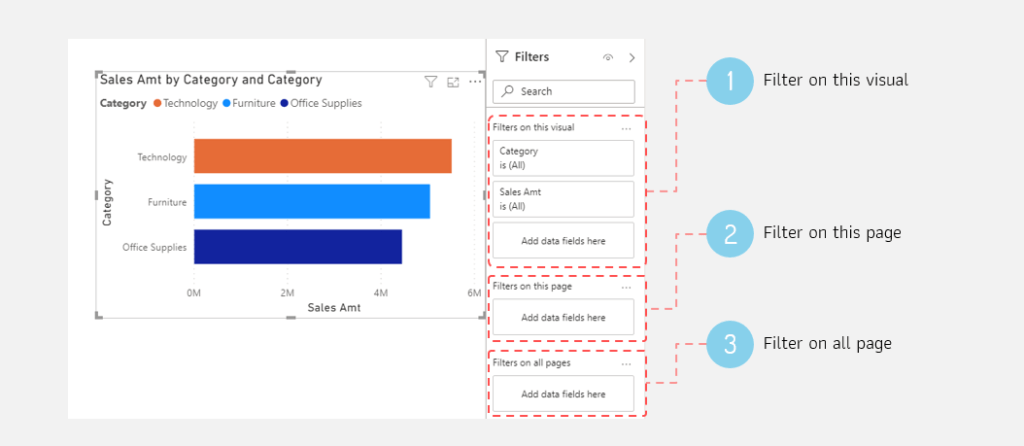
- Filter on this visual: This setting is used to specify how the visual is displayed in the report. It will only affect the selected visual. Normally, it displays a list of fields used to create that visual, but you can add other fields as needed
- Filter on this page: This setting is used to specify the display of data and will affect the entire report page where that filter is applied
- Filter on all pages: Use this to specify how data is displayed on all pages in the Power BI file
Adding/Configuring Report Filters
In the case of "Filter on this visual," there are two cases
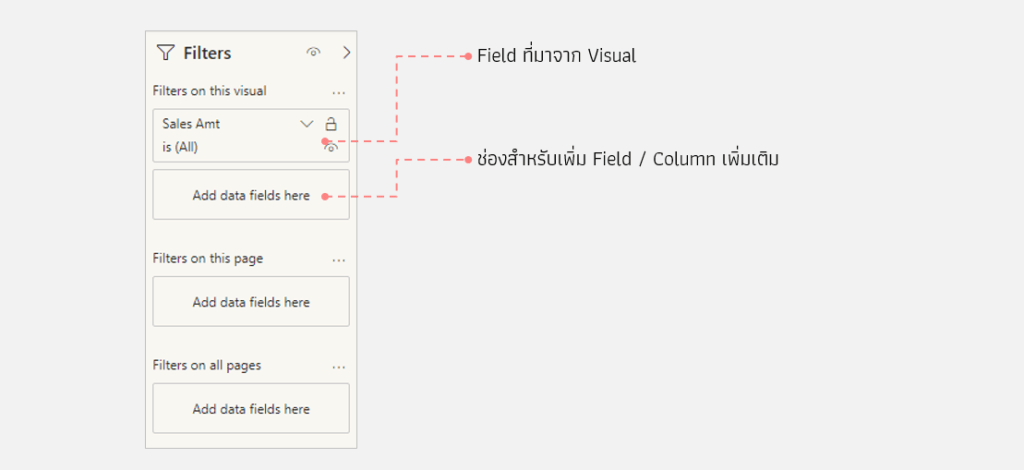
- If we create a visual using a column or field, the column/field name will automatically appear in the filter pane. We can then customize the filter settings as needed
- If you want to use a different column or field as a filter, you can drag and drop that column into the "Add data field here" field
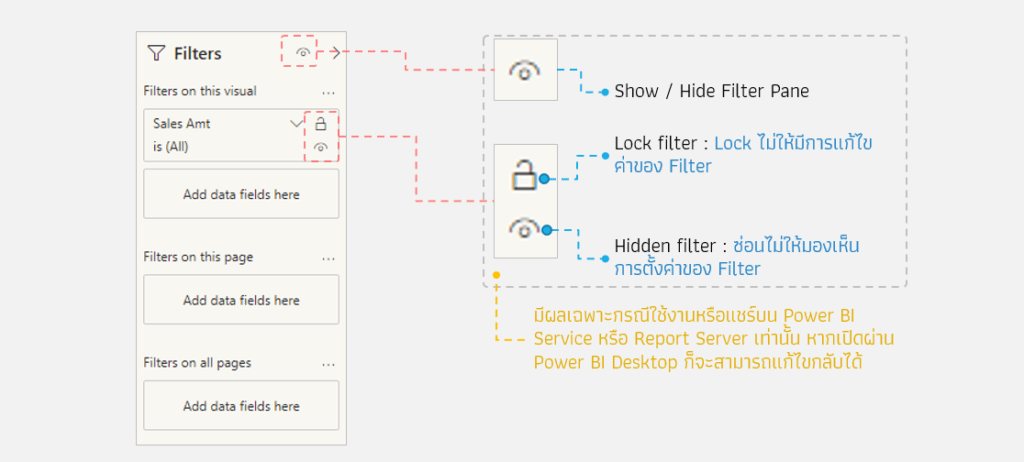
We can configure the display of the Filter Pane and the Filter itself using the icons as shown in the image. This only affects usage through Power BI Service (see Power BI Service section). Users can adjust these settings directly on Power BI Desktop.
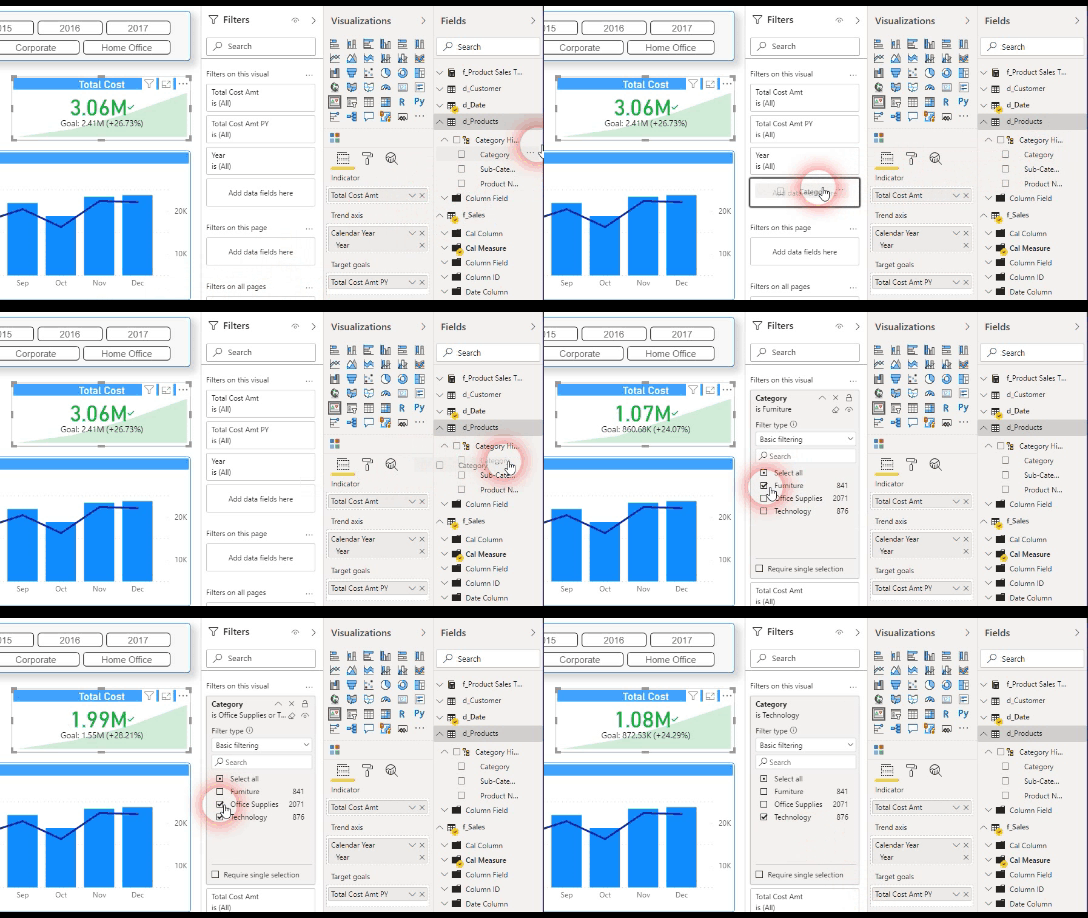
Adding a filter: Add new filter
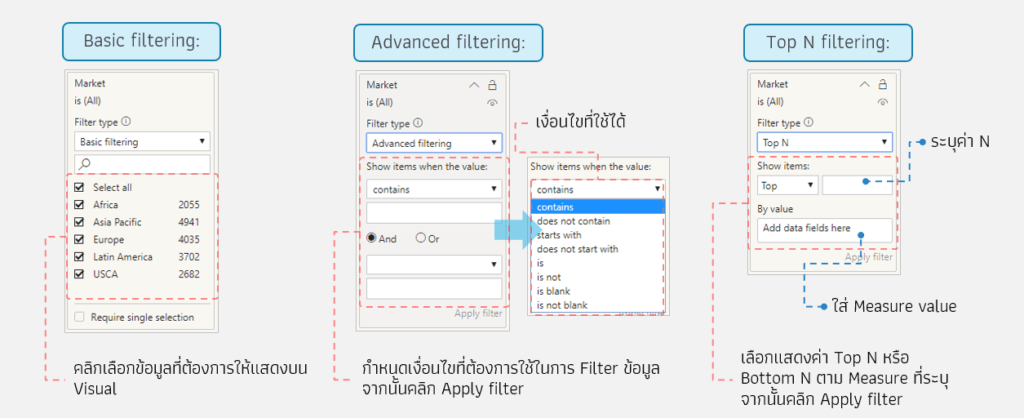
The filter's configuration depends on whether the column or field used is a dimension, measure, or date dimension. The configuration settings are shown in the image below
Dimension Filter
Using Dimension as a filter: for example, displaying only Market values, or displaying the Top N values based on total sales, etc
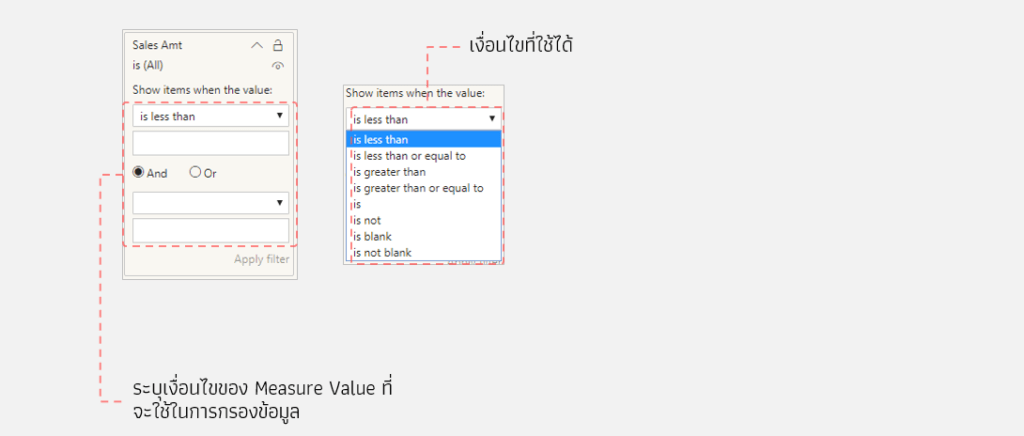
Measure Filter
Using 'Measure' as a filter: For example, displaying data with sales exceeding 5 million baht
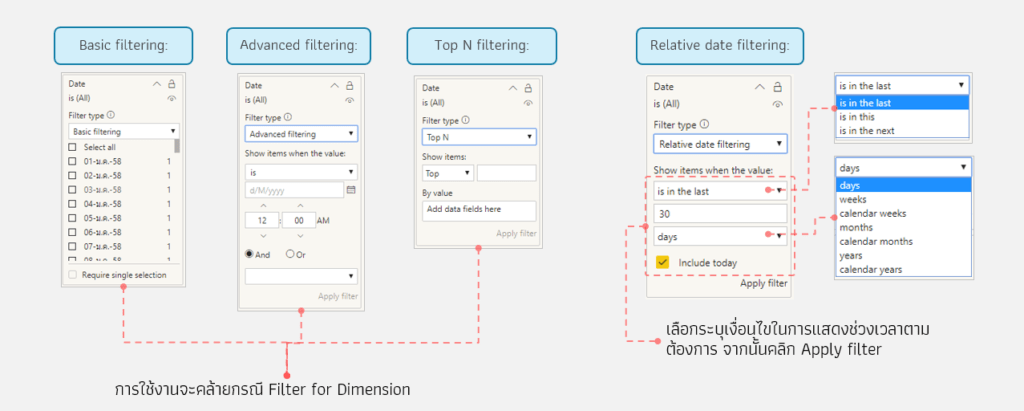
Date Filter
Using a Date Dimension as a filter: This is similar to using a Dimension as a filter, but it also allows for relative date filtering (specifying a time range for displaying the data)
That's pretty much it for using the Report Filter. Feel free to adapt it to your own reports. That's all for today; we'll see you again in another helpful article next time
For more information, please contact us via our
Line official account: @rdbi
or email sales@rdbi.co.th
Interested in a Power BI Desktop training course? You can find details at https://demo.rdbi.co.th/power-bi-desktop/
Read other articles about Power BI.