
Hello everyone! It's been a while since my last article about Power BI Desktop. Today, I'll introduce how to connect an Excel file from Google Drive to use it as an online data source for collaboration and updates. This works with both G-Suite and Gmail! I believe this will be useful for anyone who wants an online data source to use with Power BI. If you're interested, keep reading!
Prepare the files on Google Drive
First, we need to save our Excel file to Google Drive (you can convert it to Google Sheets first or not, but there are several ways to do this if you use Google Sheets). This article will focus on Excel for now, as it should be convenient for those who primarily use Excel (you can use a single-sheet or multiple-sheet Excel file, whichever is more convenient)
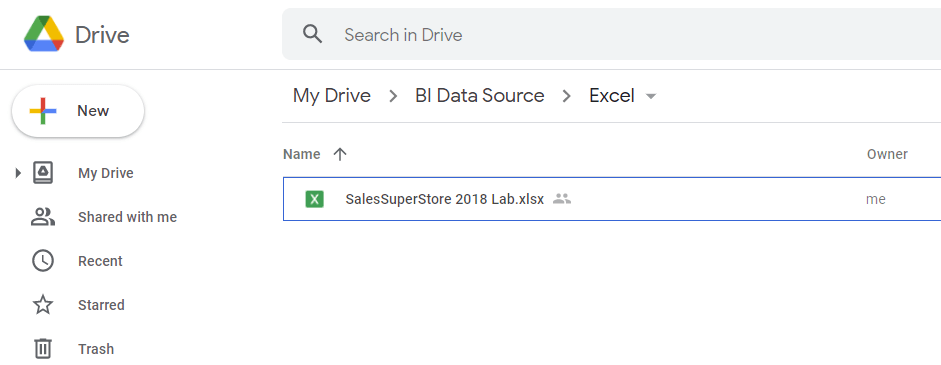
Next, we need to share this file by selecting "Anyone with the link"
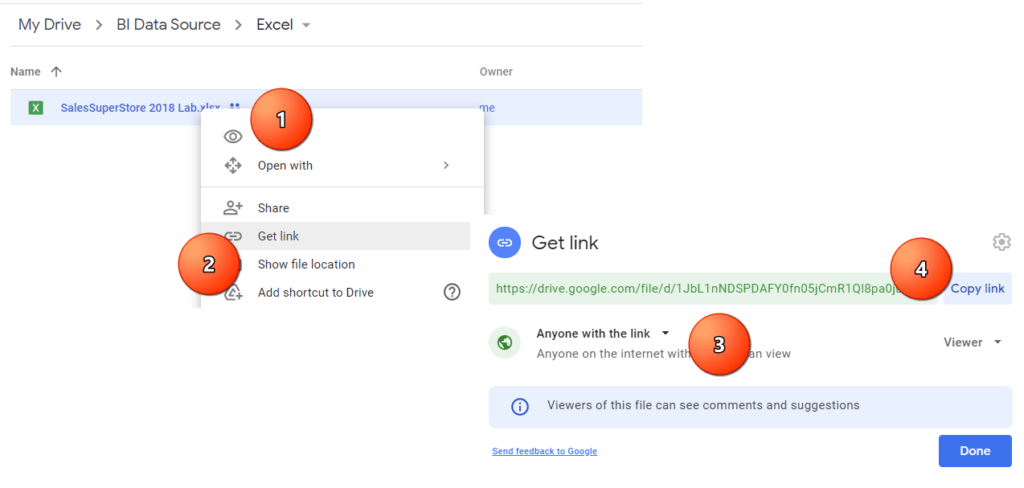
The steps for sharing files are as follows (refer to the image above)
- Right-click the desired file
- Then select Get link
- Select Anyone with the link
- Click on Copy link
- Click Done to save and close the window
We will get a shared link as a long text message, like in the example. (This link can be tested to see if it actually works, or you can try downloading it to test on your own Drive.)
- https://drive.google.com/file/d/1_k2XA2se7sCBmHIzuELM04PbVsXdNDry/view?usp=sharing
This link is used for sharing Excel files with end users. It can be opened through a browser, but it cannot be used directly with Power BI Desktop. A new link needs to be created first. The new link will be as follows:
2. https://docs.google.com/spreadsheets/d/ID code/export?format=xlsx
Replace the ID code ( green text ) in the second link with the ID code from the Google Drive share link ( the orange text ) . This will result in the third link as follows:
3. https://docs.google.com/spreadsheets/d/1_k2XA2se7sCBmHIzuELM04PbVsXdNDry/export?format=xlsx
In the case of Google Sheets, changing the command at the end of the link from /edit?usp=sharing to /export?format=xlsx will allow you to use it immediately
Paste the obtained file link into Power BI
Next, copy this third link to use with Power BI Desktop
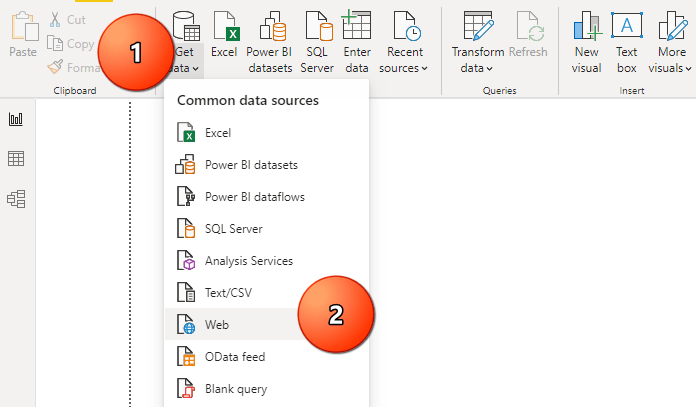
Open Power BI Desktop and then Get Data by selecting Web as the Data type, as shown in the image
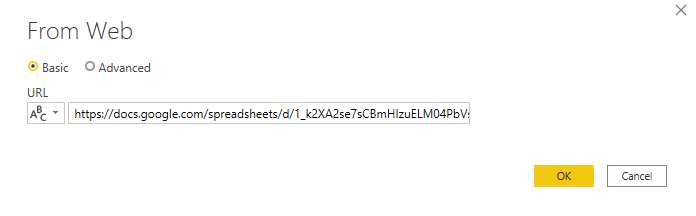
Then, paste the copied link into the URL field and click the OK button (select the option as shown in the image)
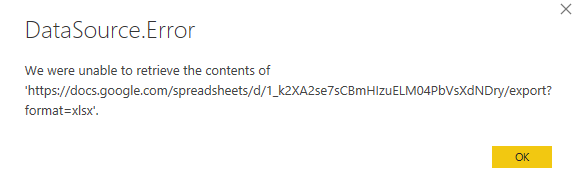
Please wait for the program to load the data. From my testing, you may encounter an error like the one shown below (I'm not entirely sure why, but I suspect Power BI is unable to open the file (since it's an Excel file)). Just click OK
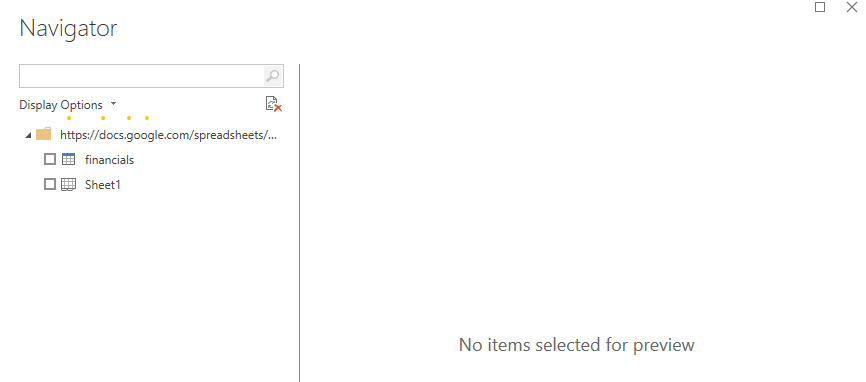
The program will display the table contained in the Excel file, just as if we were getting data directly from the file
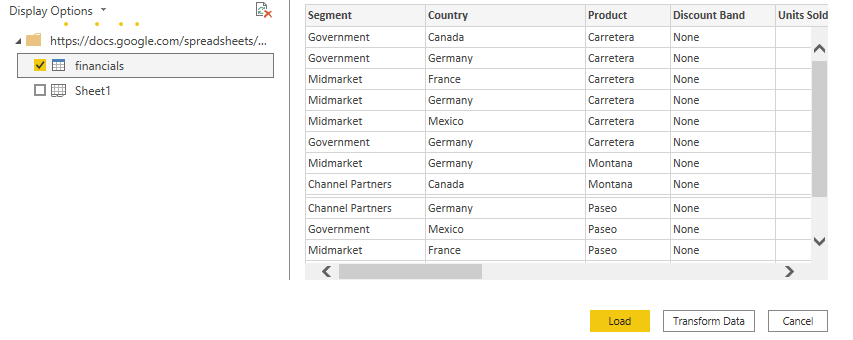
Next, select the desired sheet or table. In this case, I chose the financials table (the table will have a blue header). Then click Load
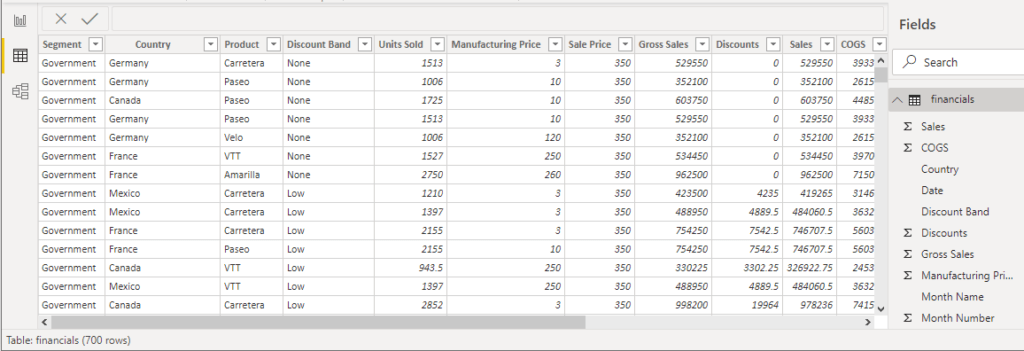
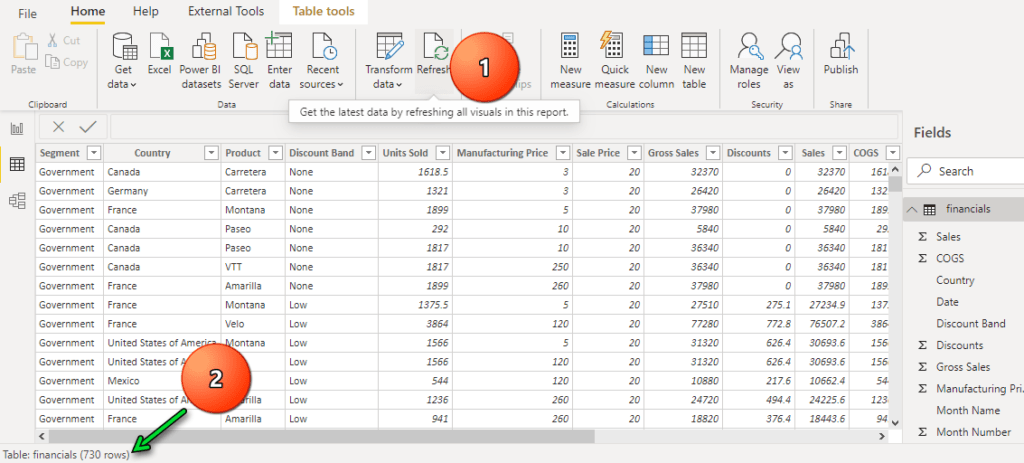
Please wait for the program to load the data into the Power BI file. When you view the Data View, you will see 700 rows of data (see the status bar at the bottom)
There are two ways to update the information
- Update directly from files located on Drive
- Update the files on your computer, then upload them to overwrite the files on Drive
The first method might require converting the Excel file to Google Spreadsheets first, which will change the connection link. Therefore, I recommend the second method because it's more convenient. Just update the data in your Excel file and then upload it to the same folder as the original data source file
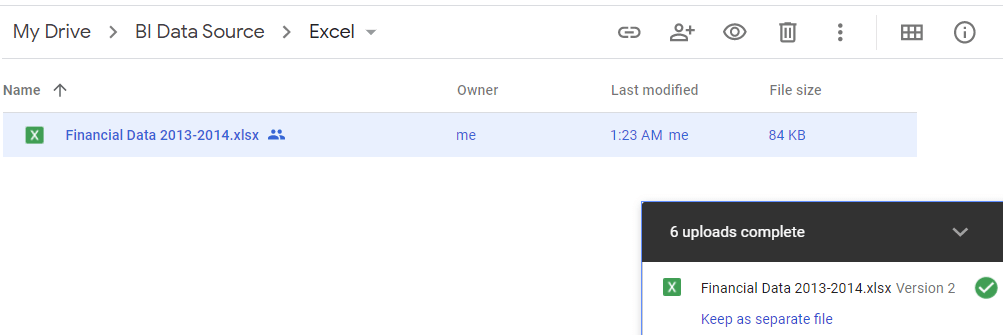
In this example, I added 30 more rows of data to the file and then saved it
If we upload a file with the same name, Google Drive will consider it an update to the file's revision. Once the upload is complete, the system will display a message indicating the version number of the update, as shown in the image below
Once the upload is complete, return to Power BI Desktop and refresh the data. You will find that Power BI can load the new dataset, just like when connecting to a regular Excel file
With this, we can now use Excel files on Google Drive as our data source. This method supports CSV and Txt files located on Google Drive, and can also be used directly with Google Spreadsheets
Anyway, give it a try. If you encounter any problems, you can ask questions via email at keattipong@rdbi.co.th or on our Fanpage @RandDBI. See you next time with more tips and tricks for using Power BI!
For more information, please contact us via our
Line official account: @rdbi
or email: sales@rdbi.co.th
Read other articles related to Power BI.
If you are interested in Power BI Desktop training courses, you can find details at https://demo.rdbi.co.th/power-bi-desktop/