
In the previous article, we briefly discussed using Tableau Public, covering data import, creating simple graphs, and uploading or saving files to the Tableau Public cloud. Today, we'll introduce how to customize the graphs or reports we create, outlining the options available so you can adapt them to your own work
For those who have never done this before and would like to read our previous articles, you can find them at: Using Tableau Desktop Public Edition .
If you need a report file to follow along with, you can download the report I created in a previous article by going to https://public.tableau.com/app/profile/keatpong/vizzes
Next, go to the Tableau Report Sample page (this is a sample report file that I have prepared; you can download the data and the report file). On the report page, click the Download button and select Tableau Workbook to download the report file to your computer. (You must have Tableau Public program installed beforehand.)
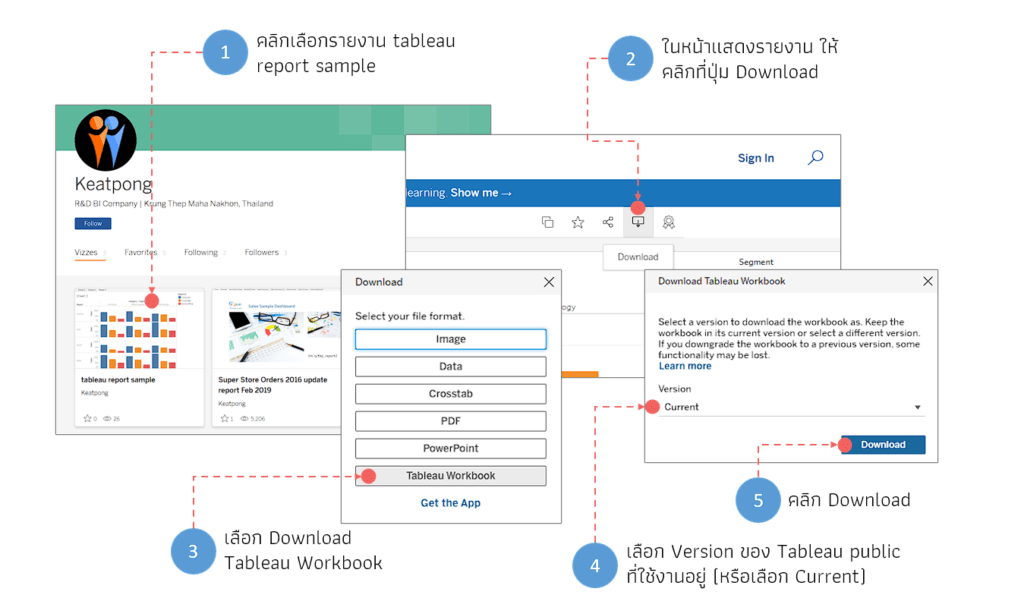
Once finished, you will have a report file named tableau report sample.twbx. You can open this file now
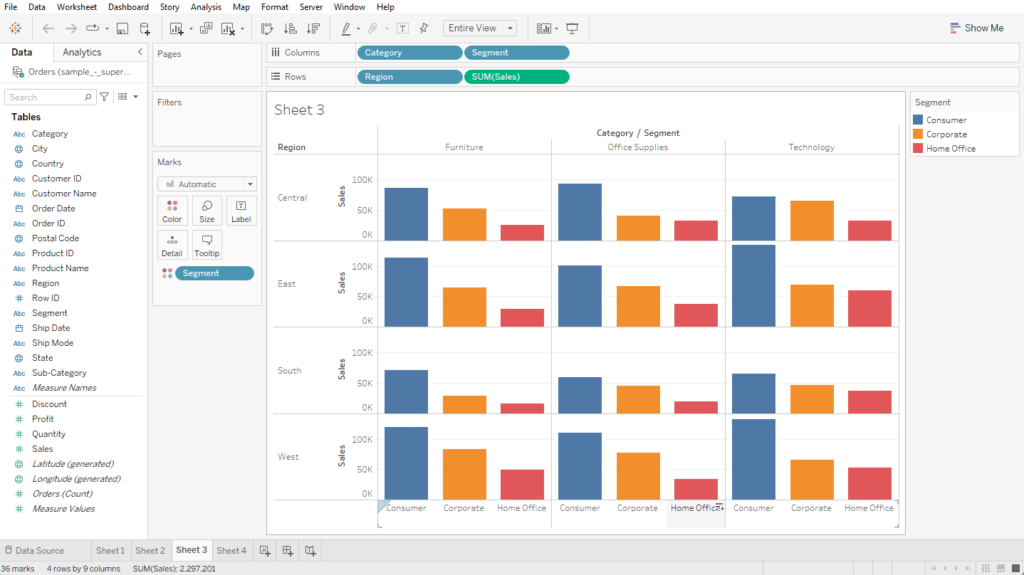
Upon opening the file, you will see that it already contains the data for creating the report in the Data Model, and there are a total of 4 report sheets or graphs (part of which are from the example created in the previous article, and I created additional sheets for explanation in this article)
Change the report page name
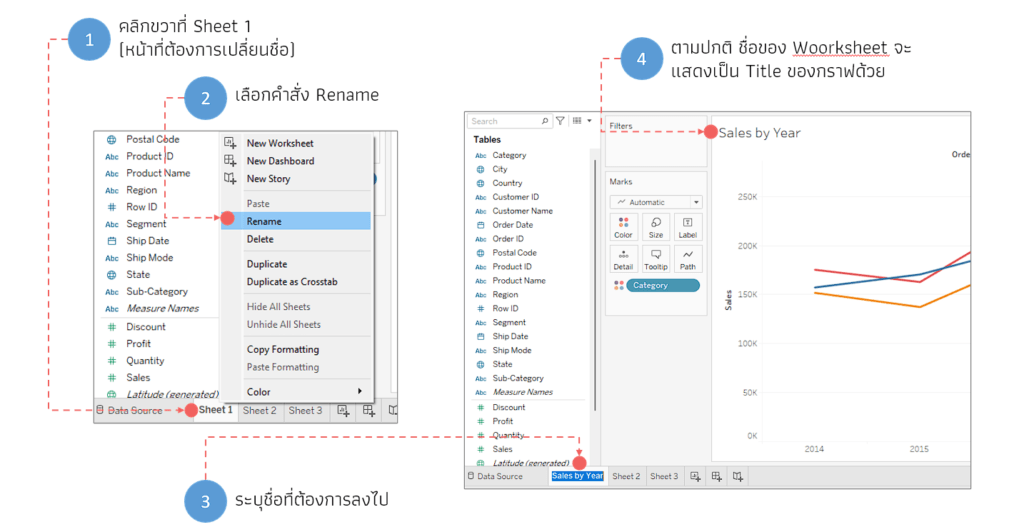
Normally, when we add a worksheet or page for creating a graph, the program displays them as Sheet 1, Sheet 2, respectively. These names will also be used as the graph titles. Therefore, we should change the sheet names to match the data on the report. There are several ways to change sheet names, such as..
Right-click on the sheet you want to rename (in the image, click on Sheet 1), then select the Rename command and enter your desired name. You will see that the name you specified will also be displayed as the title of the graph
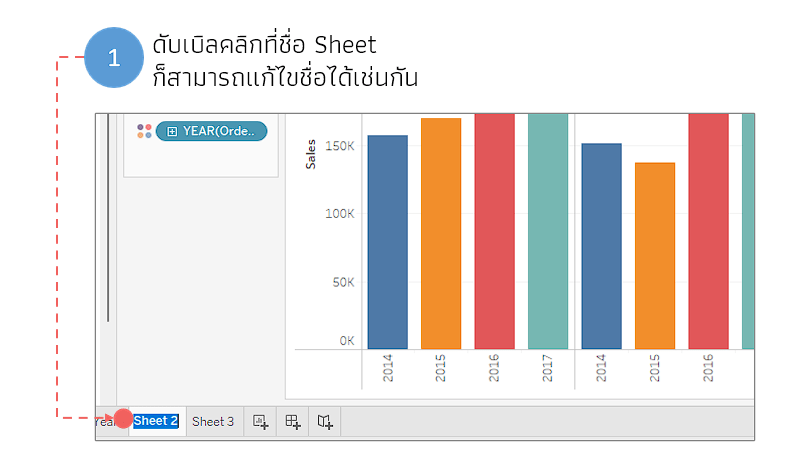
Additionally, we can double-click on the Sheet name to execute the rename command
Editing Chart Title
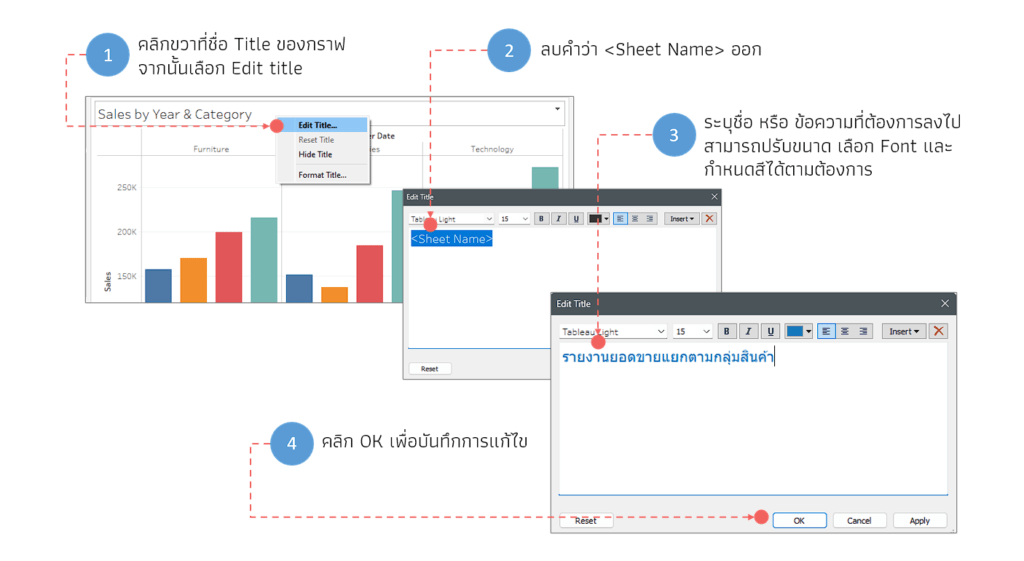
If you want to change the chart title to something other than the worksheet title, you can do so by going to the chart's title tab, right-clicking on the title, selecting "Edit title," and then deleting the text.<Sheet Name> This is the code to display the Worksheet name. Then, enter the desired text in its place and click OK
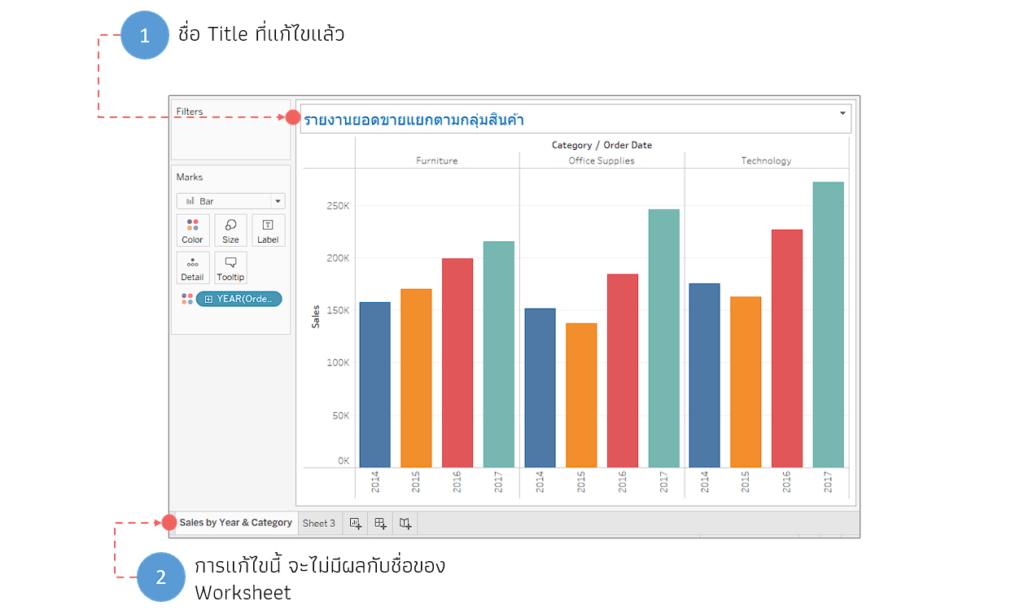
This change will only affect the Chart Title; the Worksheet name will remain unchanged
If you would like to try adding information to the Title, please click the Insert button (on the Edit Title page) and then select some existing information to fill in the Title
Ordering the data within a graph
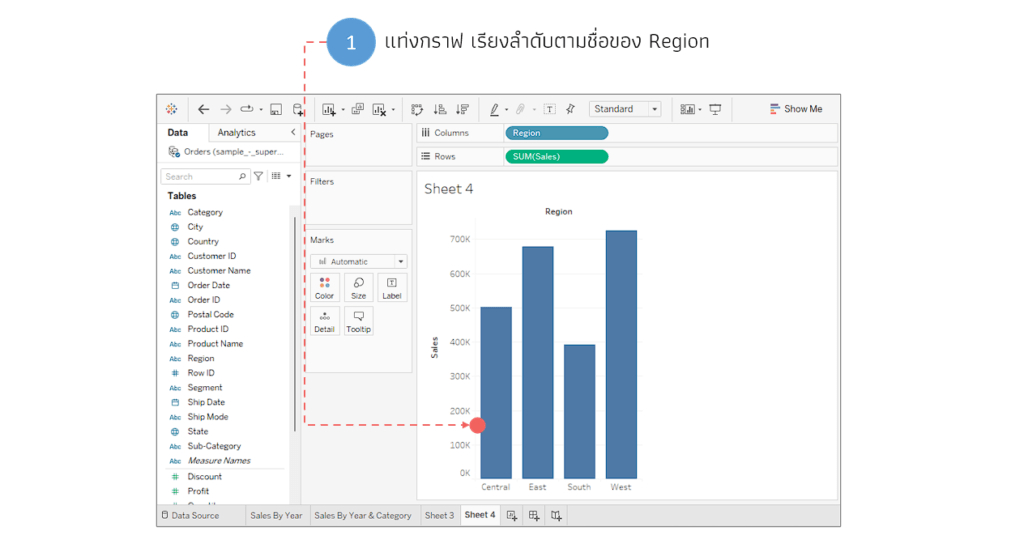
We can sort the data in graphs created with Tableau in several ways. In this example, we'll go to Sheet 4, which contains sales data broken down by region. Currently, the data is sorted alphabetically by region value
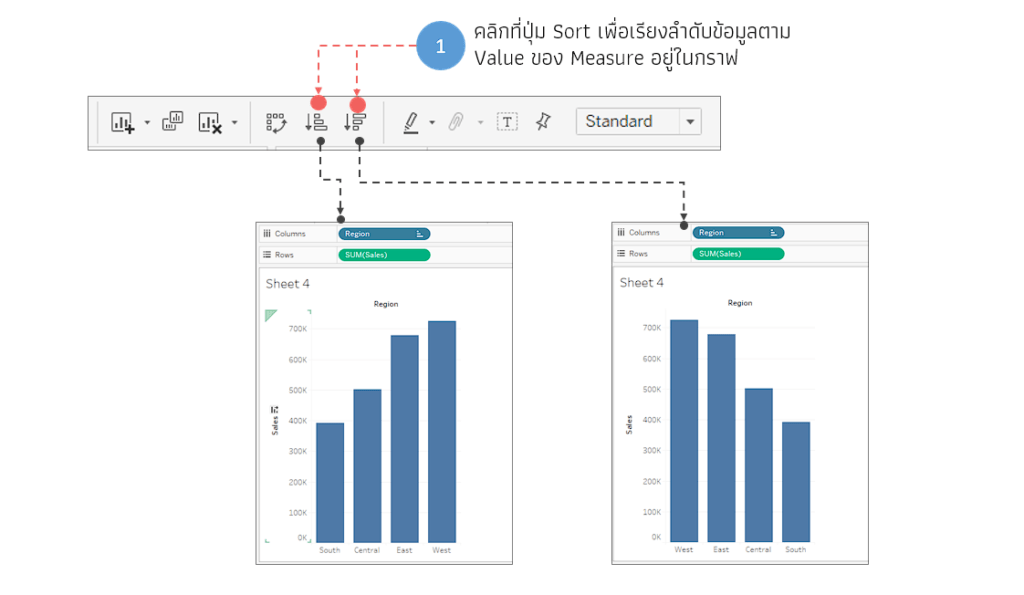
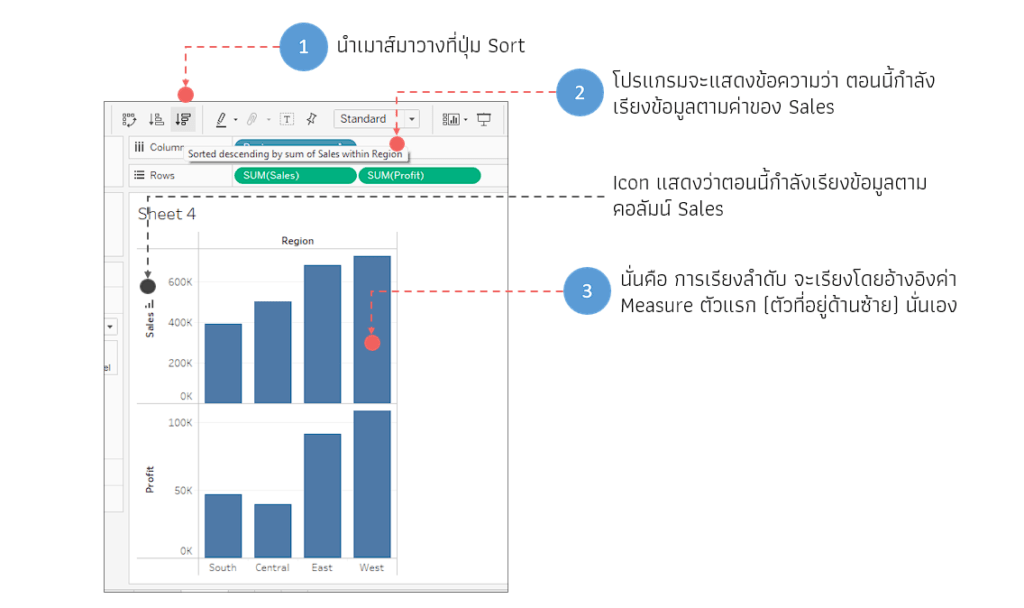
If we want to change the graph to sort data by the Measure value (the number displayed in the graph, in this example, the sales value), we can click the Sort button on the toolbar. In this case, there is only one Measure value, which is the sales number, so there is no problem sorting the data
If we add numerical data to a graph, as shown in the example below, where I added a Profit column to the Row shelf, we will see that our graph displays two sets of Measures, or numerical values: Sale and Profit
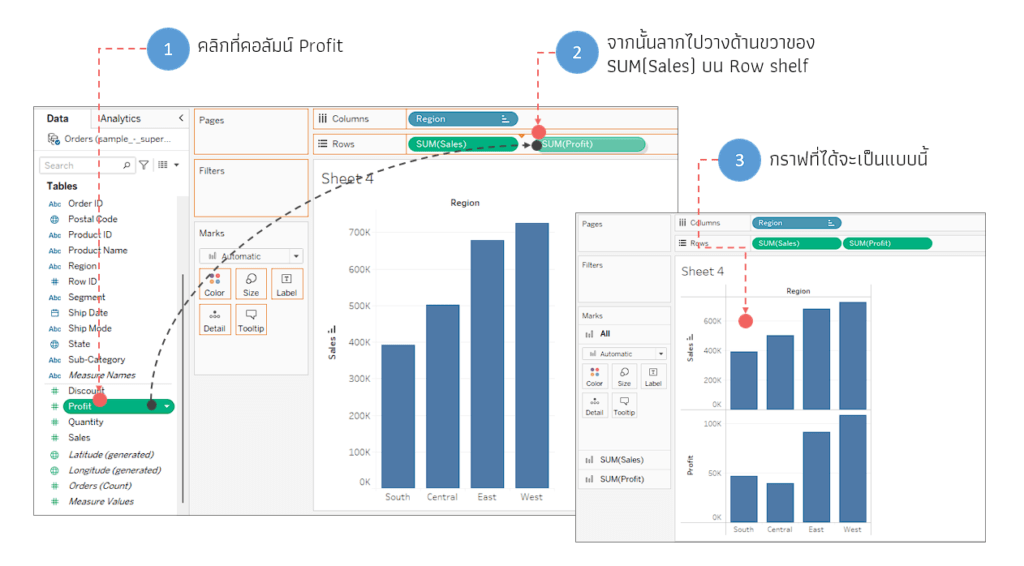
If there are multiple Measure values, the program will always reference the Value of the first Measure on the Shelf. In this example, it's the SUM (Sales) value on the left. (The program will display a Sort icon next to the column used for sorting, as shown in the image below.)
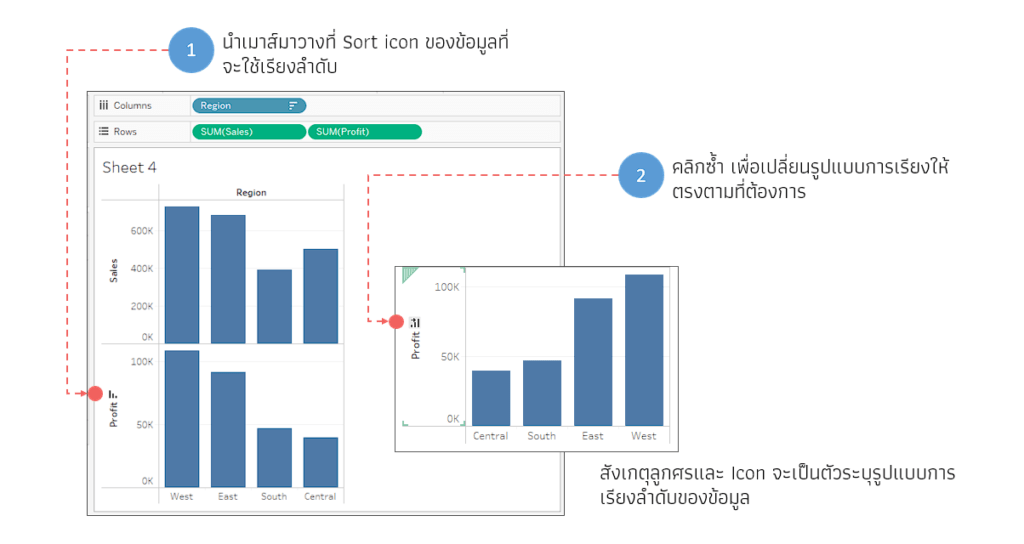
There are several ways to change the data sorting format. For example, you can click the Sort icon of the column on the graph (a Sort icon will appear). You can click it repeatedly to select the desired sorting format
Additionally, we can set up various sorting options by right-clicking on the Dimension field (the column or data you want to sort; in this example, the Region field on the Column shelf). A Sort command will be available, and the menu will show several sorting options to choose from
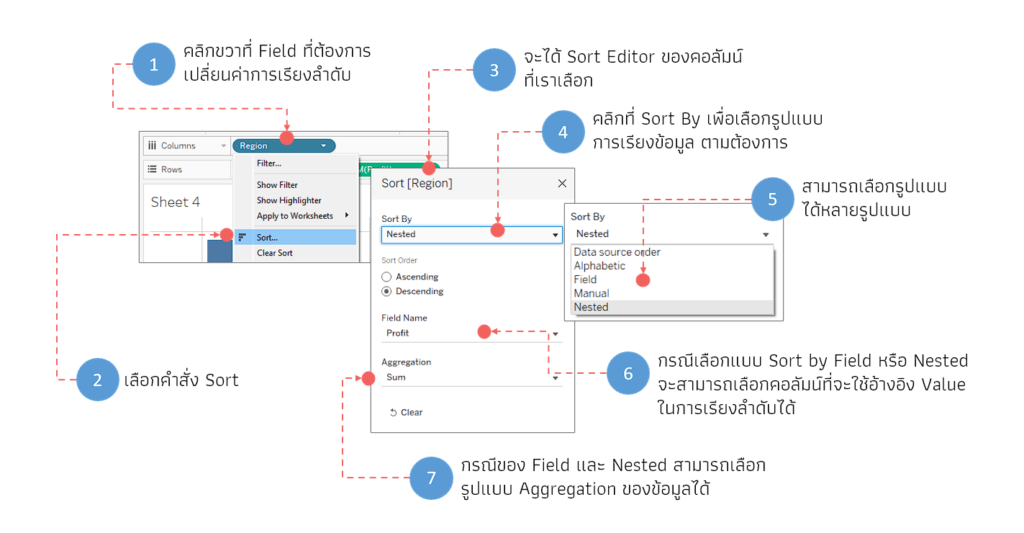
If you select Sort by Field or Sort by Nested, you can choose a column or field to use as a reference for the value in the sorting order. For example, if the graph shows sales data, but you want to sort it by the count of the Order ID
Copying a Worksheet
We can create copies of a report page or worksheet in two ways: duplicate the graph page (Duplicate) or duplicate the data summary table (Duplicate as Crosstab)
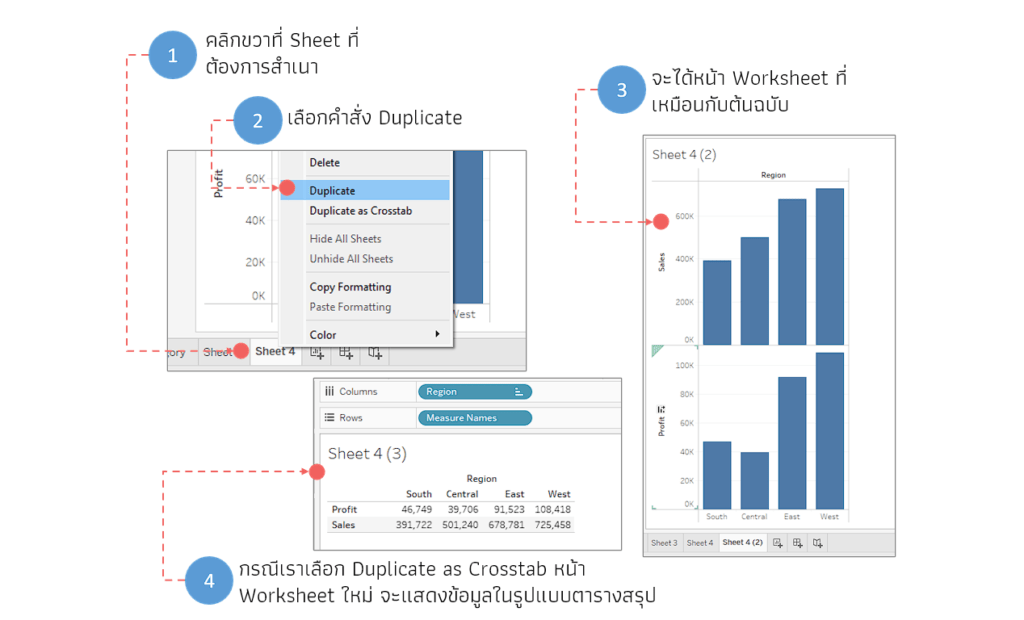
Before moving on to the next topic, on Sheet 4 (2) or the page we have added, delete the Profit field from the graph, leaving only the Sales field. (To delete, right-click on SUM(Profit) on the Row shelf and select the Remove command, or click and drag it outside the Worksheet area.)
Adding data labels to graphs or reports
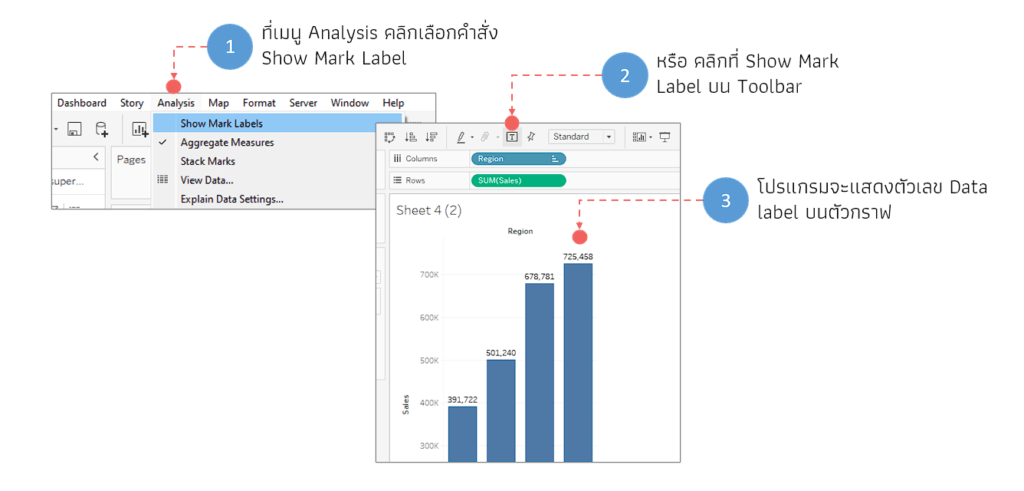
Normally, Tableau graphs do not display numerical labels. To add numerical labels to your graph, you can do so in several ways. For example, click the "Show Mark Label" command from the Analysis menu, or click the "Show Mark Label" button on the toolbar. The graph will then display the data labels as shown in the example image. (Clicking again will cancel the command.)
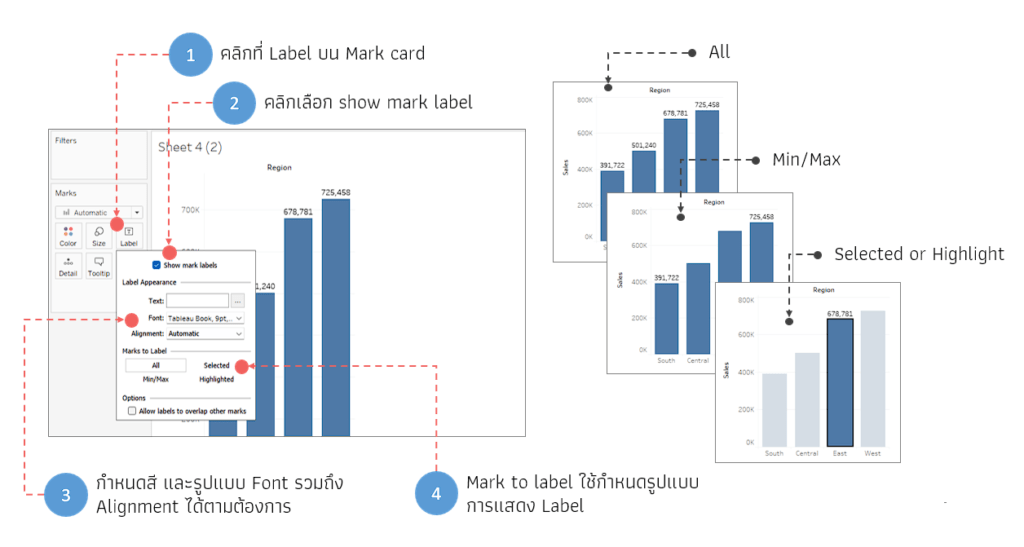
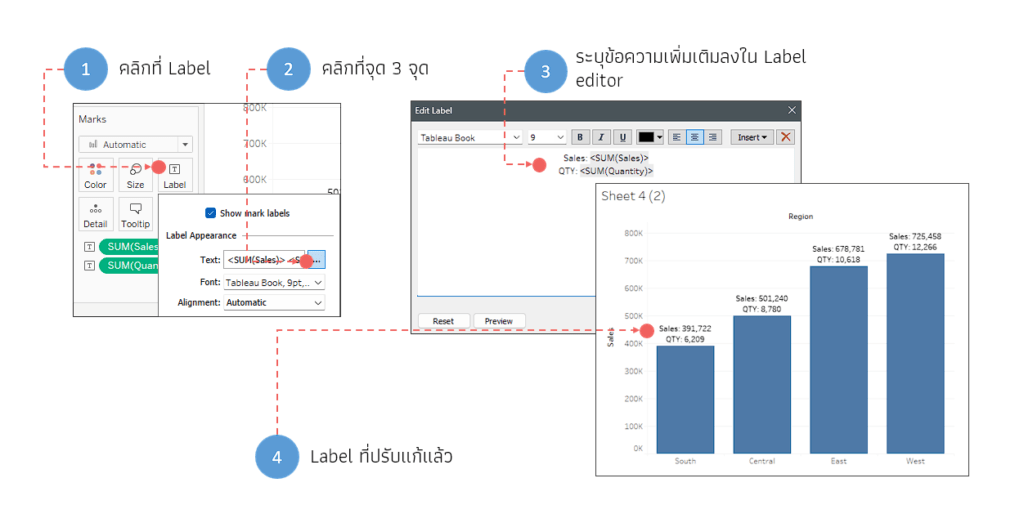
Additionally, we can access Data Labels from the Mark card by clicking on a Label on the Mark card. The Label section on the Mark card includes a menu for customizing the label's display format. Even if we accessed Data Labels using the previous method, we can still further customize the Label on the Mark card from there
The `Show Mark Label` command will display a label based on the `Measure` or numerical value of a field on the graph (in this example, `Sales` or sales figures). If you want the label to display other information as well, such as sales figures and the number of items sold (without showing the graph of the number of items), you can use a different command
We can drag the desired columns or fields from the Data pane and drop them onto the Labels of the Mark card as needed, as shown in the example. (However, this method will only display the Value, not the column names, which may cause confusion when viewing the data.)
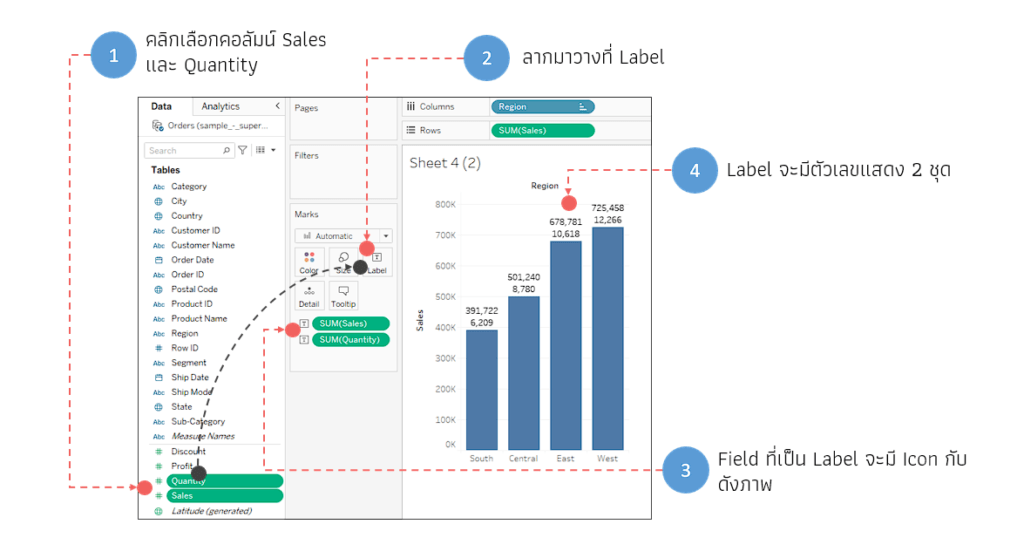
If using this method, we need to edit the Label further by clicking the Label button on the Mark card, then clicking the three dots to edit the display of the text on the Label. In this example, I added text to specify the name of the number and what its value is. Then click OK, and the Label information will be displayed as we specified, as shown in the example
Changing the color of the graph
To change the color of the graph, click the Color button on the Mark card and then select your desired color, as shown in the example image
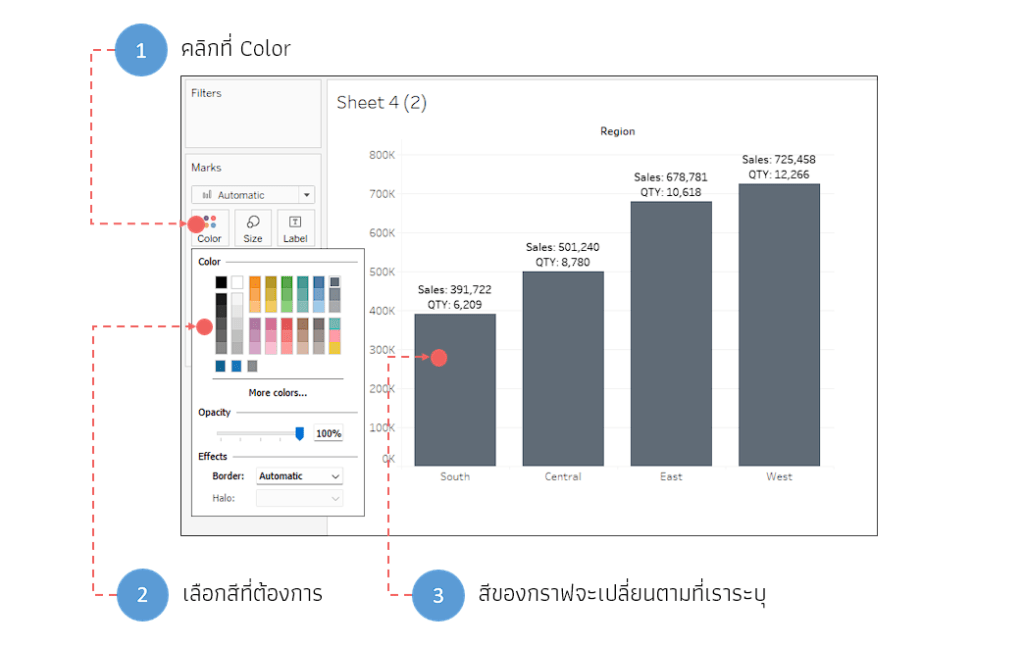
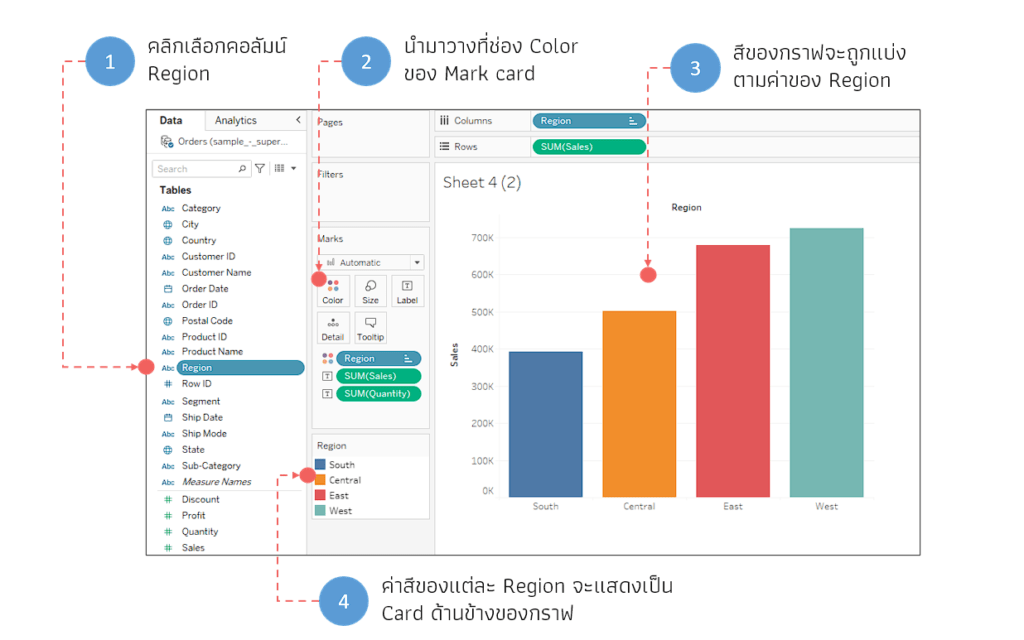
Additionally, we can drag columns from the Data pane into the Color field to use as color parameters. The displayed color will depend on the data type used, whether it's a Dimension or a Measure
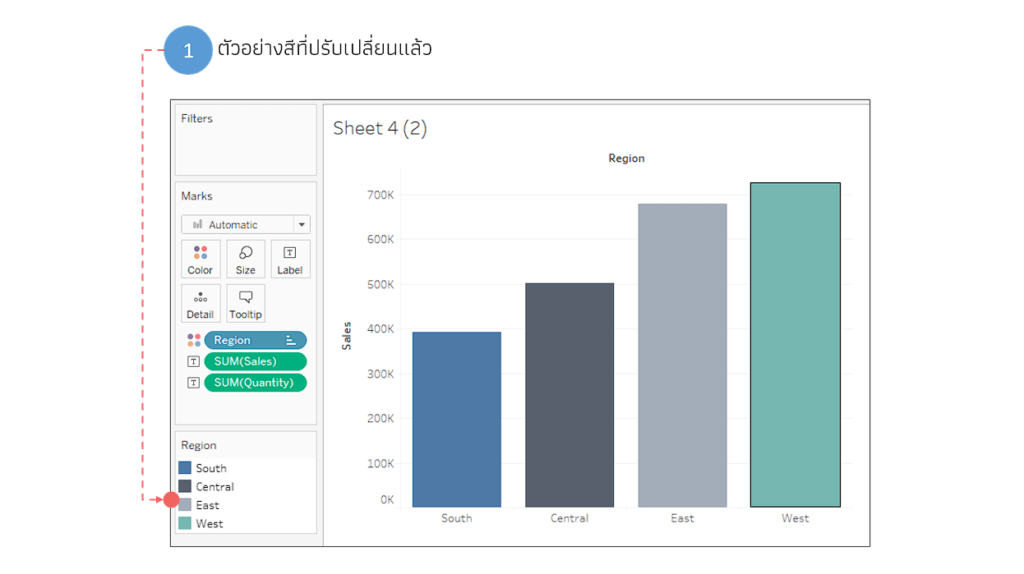
When using dimensional data, the colors will be divided according to the data groups in the dimension list used to define the color. For example, separating graph colors by product group, or separating colors by region group, as shown in the example below. The Region column is used to define the color of the bar graph, and the program will display the color according to the program's default settings
To change the color value of a Dimension, you can edit it by clicking on Color in the Mark card, then selecting the desired color palette, choosing data from the Data Item side, and clicking on the desired color (the color value of that data will be changed). Alternatively, you can click Assign Palette to have the program assign the color. When finished, click OK
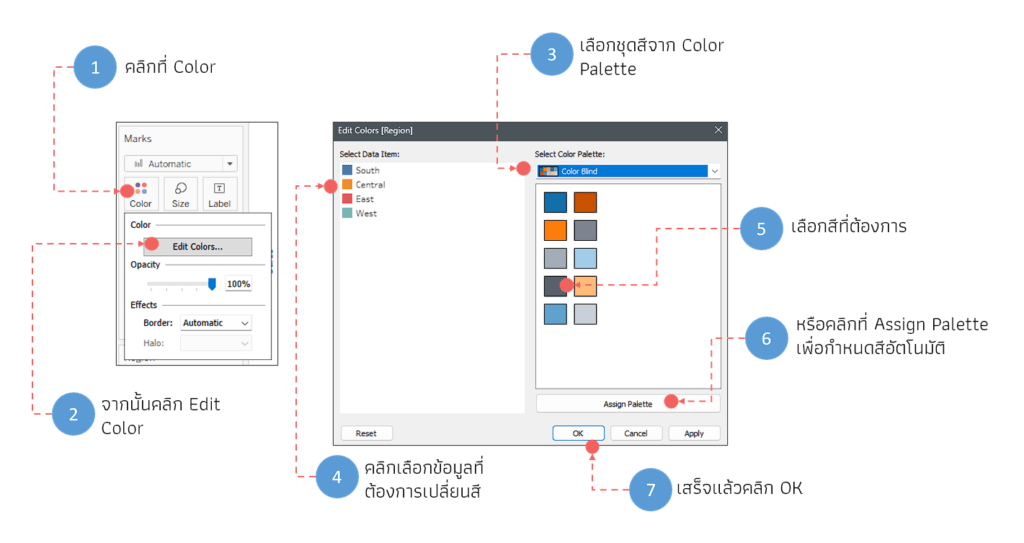
To edit the color, you can access the Edit Color command by right-clicking on the Field Region located directly on the Mark card
An example of the adjusted color palette will be shown in the image (which will affect all graphs that use the Region column)
When using Measure data, or numerical data, to determine the graph's color, the graph will display a gradient of colors based on the quantity of the Measure used to define the color, as shown in the example. The bar graph will show dark to light shades depending on the Sales quantity used to determine the graph's color
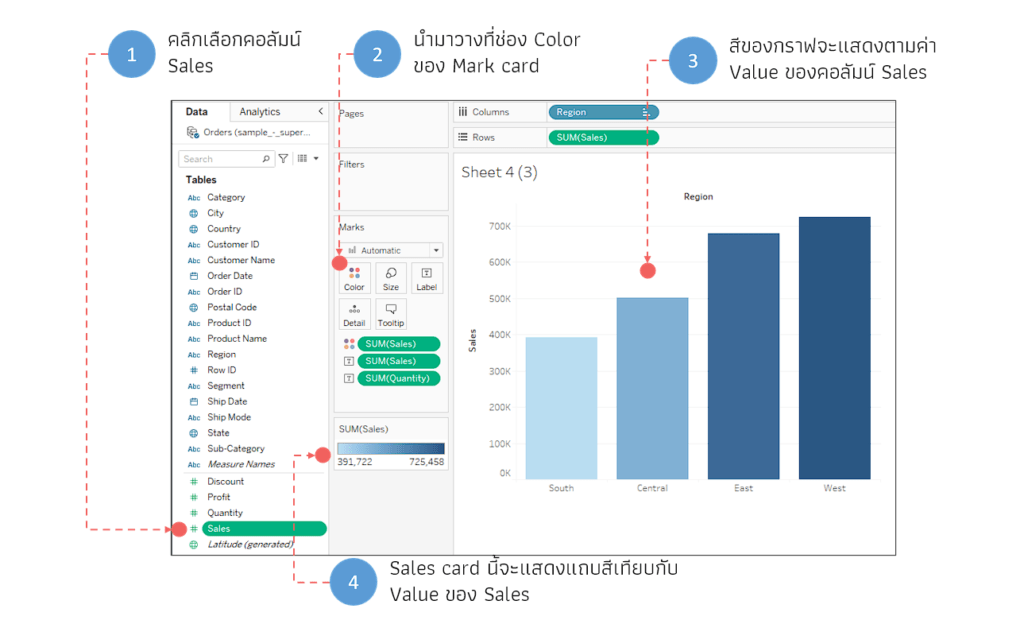
There are various ways to change the color of a graph, depending on the user's needs
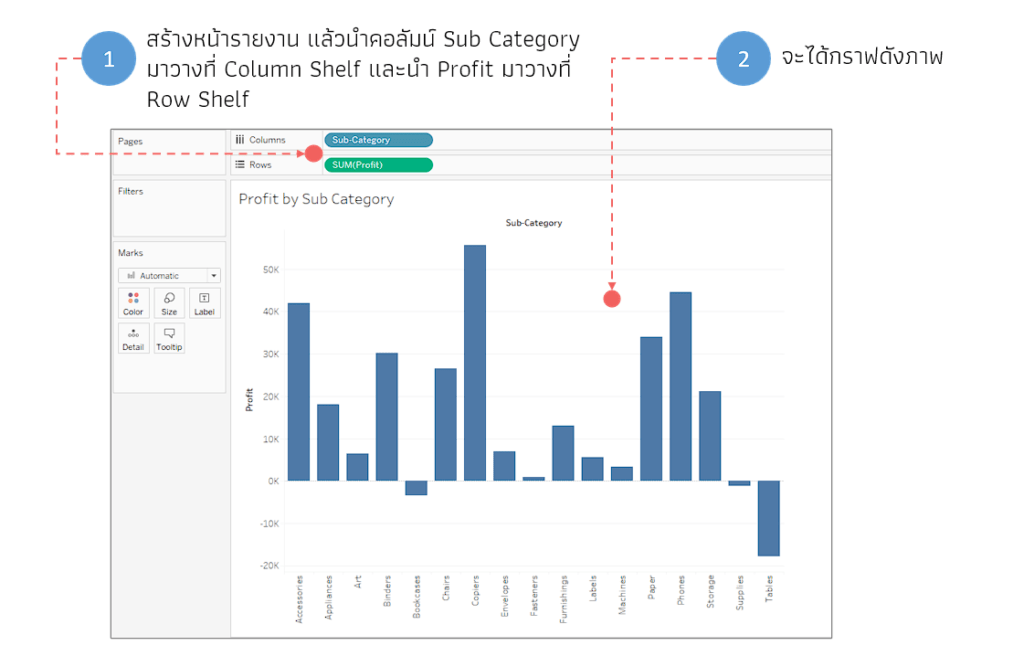
To illustrate this further, I will create an additional report page named "Profit by Sub Category." Then, I will place the "Sub-Category" column in the "Column shelf" and the "Profit" column in the "Row shelf" to obtain the graph shown in the image
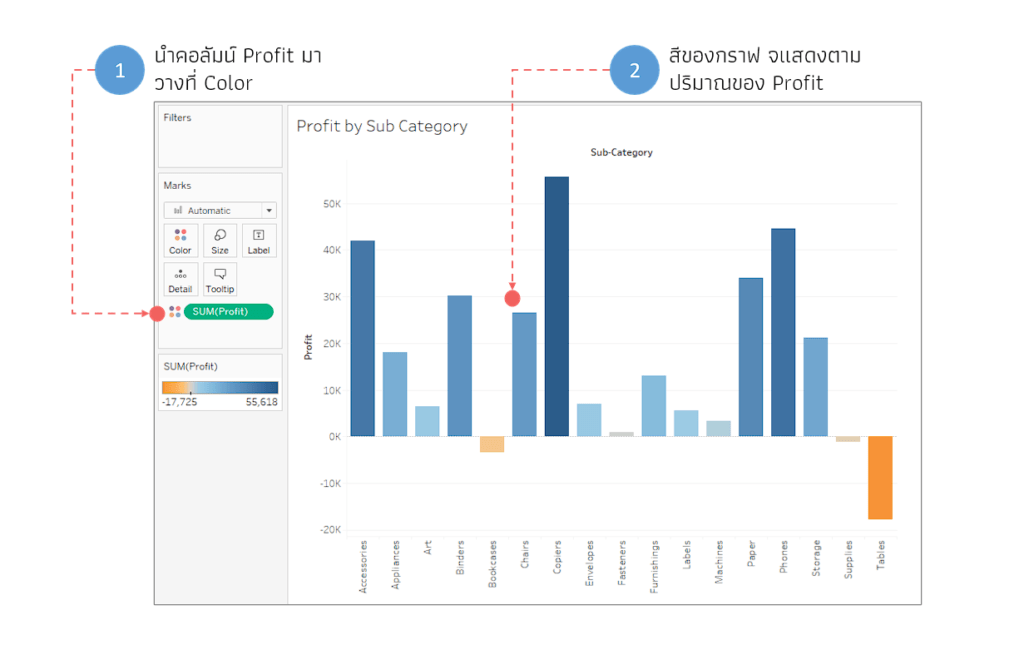
Next, drag the Profit column to the Color section of the Mark card. This will create a graph displaying the colors shown in the image. You will notice that the lower values are orange, and the color gradient gradually increases to dark blue
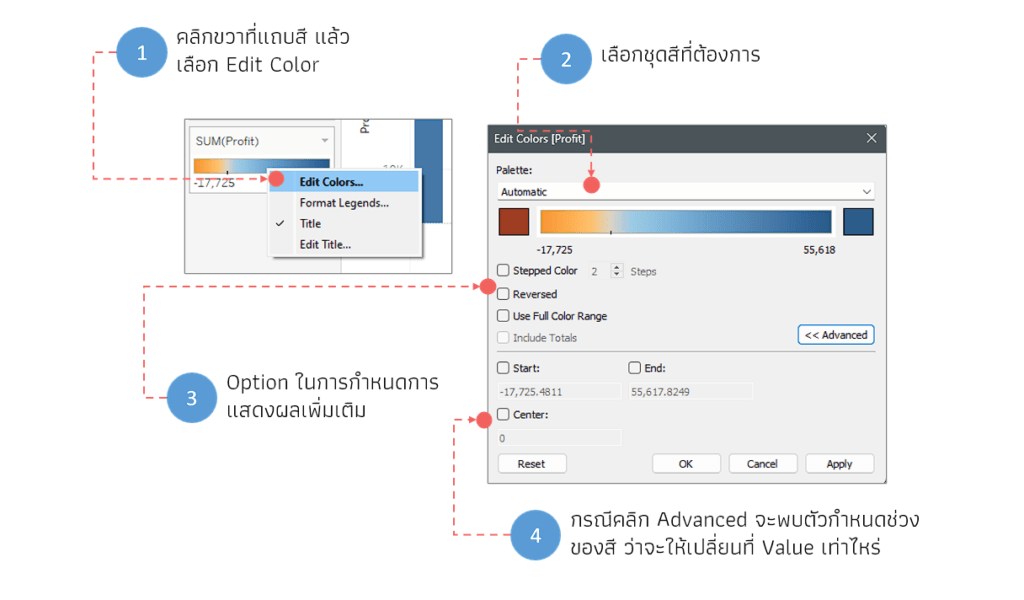
Editing the graph's colors is similar to using dimension columns. In this case, I right-clicked on the color bar and selected "Edit Color." The editor differs from the dimension color case in that you need to select the desired color palette, choosing which shade of color you want to display
We can adjust the color display in several ways, such as changing the gradient to a Step Color style by selecting Stepped Color, or reversing the color direction by selecting Reversed, etc
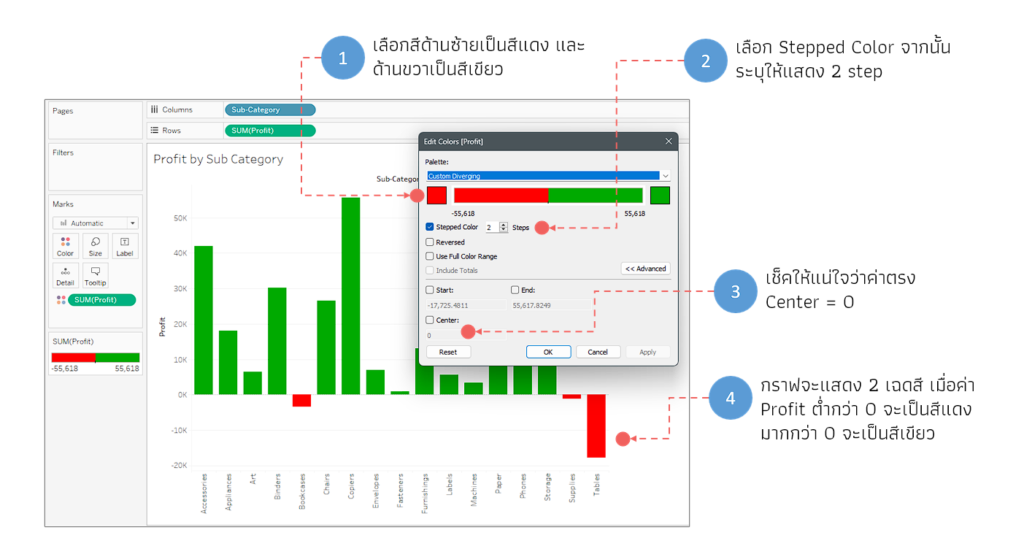
To specify a numerical value at a point where the color shade changes (e.g., from red to green), click the Advanced button and select the desired point (there are three points to choose from). If you do not select a point, the program will use the value it deems appropriate
The example below demonstrates how to set the graph color to display based on two conditions: green if the value is greater than 0 and red if the value is less than 0, without using a gradient (the graph will display two colors). This is achieved using Stepped Color, resulting in the image shown
Adding a tooltip to a graph
Normally, when you hover your mouse over a graph, a tooltip will appear to indicate the values at that particular point in the data chart. However, this only shows the data used to create the graph
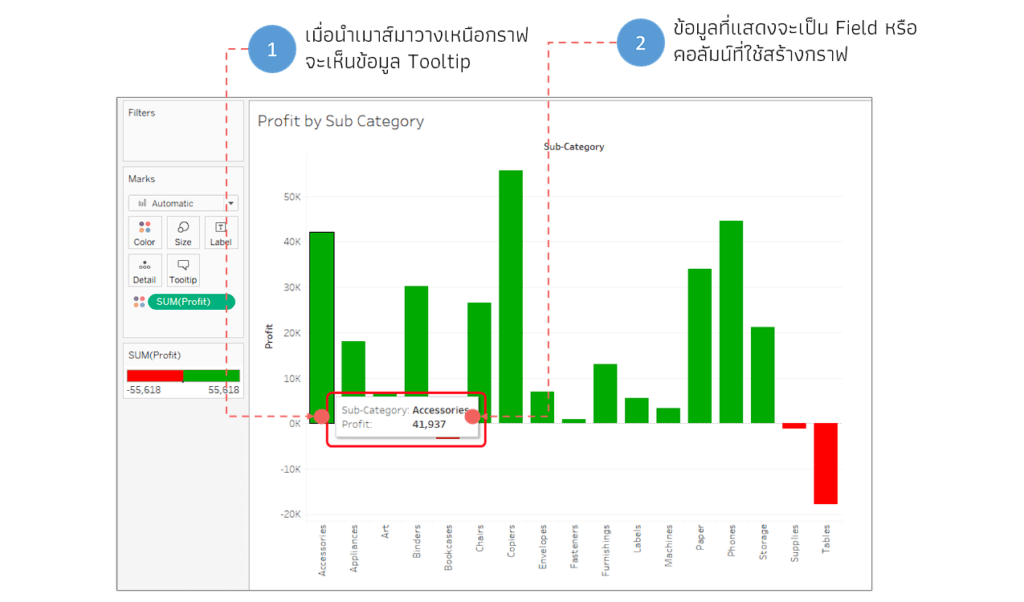
To have the tooltip display additional information, such as sales figures and the number of items sold in addition to the profit figure,
Drag the Sales and Quantity columns from the Data pane to the tooltip of the Mark card. The program will then display additional sales and product quantity information on the tooltip, as shown in the example image
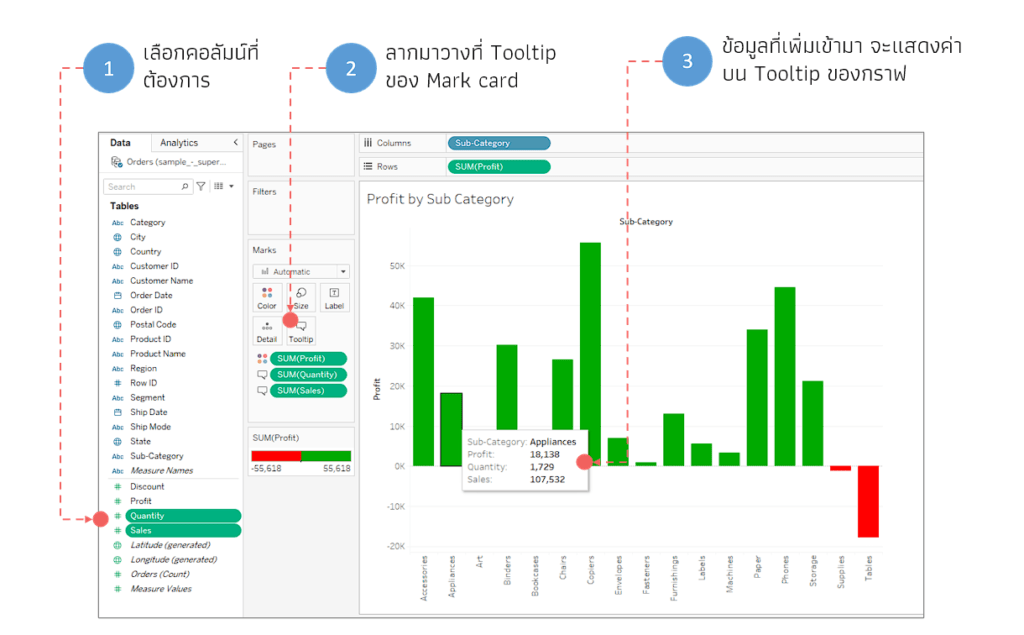
By using a mark card, you can see that when you place a column at different positions on the mark card, the icon in front of that field will change depending on the function of the point where the data is placed. This allows you to check what each field on the graph does
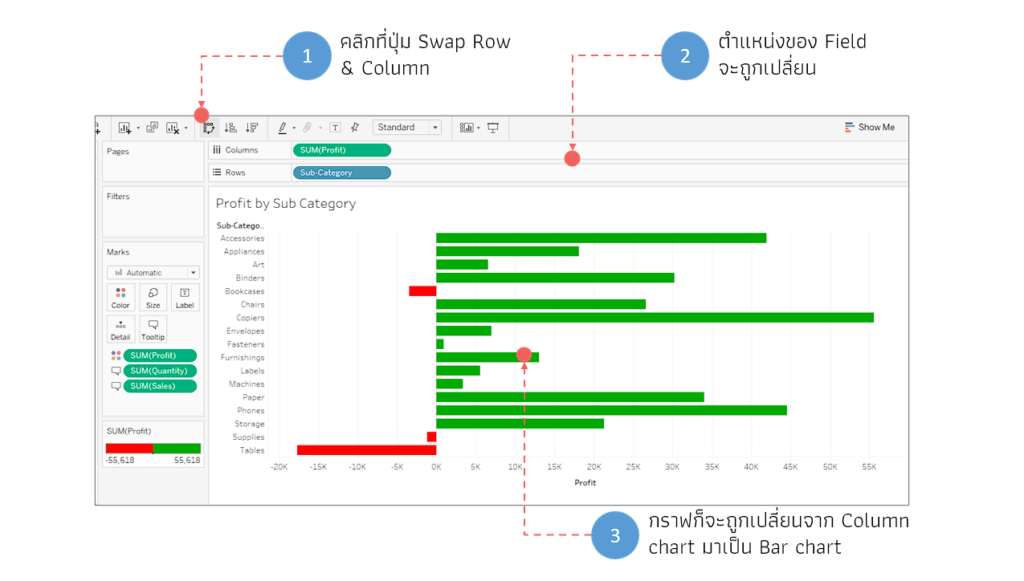
Rotating the graph (Swap Row & Column)
If we want to rotate the graph display, for example, from a column chart to a bar chart, in addition to moving the data fields on the shelf, we can use the Swap Row & Column command by clicking the command button on the toolbar, as shown in the image
Now that we've learned quite a bit about customizing Tableau charts, there are actually many more aspects to explore. However, since this article is already quite long, I'll have to end it here and we'll meet again in the next one
If you have any questions or need further information, please feel free to contact us through any channel, or click on https://demo.rdbi.co.th/contact/