
In a previous article, we introduced Tableau Public. This time, we'll learn the basics of using Tableau Public for general users. This article will cover the steps for importing data into Tableau Public, basic data management, and creating simple graphs and dashboards as a guide for creating reports from your data
Introducing the program
(For those who don't yet have the program, please refer to the article " Introducing Tableau Desktop Public Edition.)
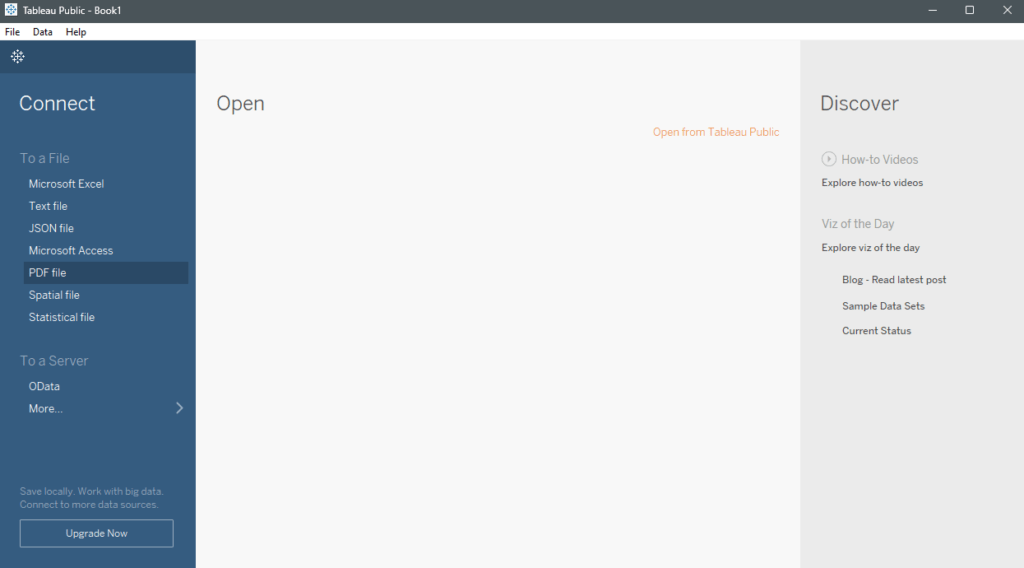
Upon opening the program, you will see the main screen, as shown in the image. This screen is used to select the data source for generating the report
When we click on the program icon,  the program will switch to the Worksheet Editor page, or the page for creating reports, as shown in the image. The program screen is exactly the same as the full Tableau Desktop screen. On this page, if we want to connect to a data source, we can click the "Connect to Data" command on the Data pane.
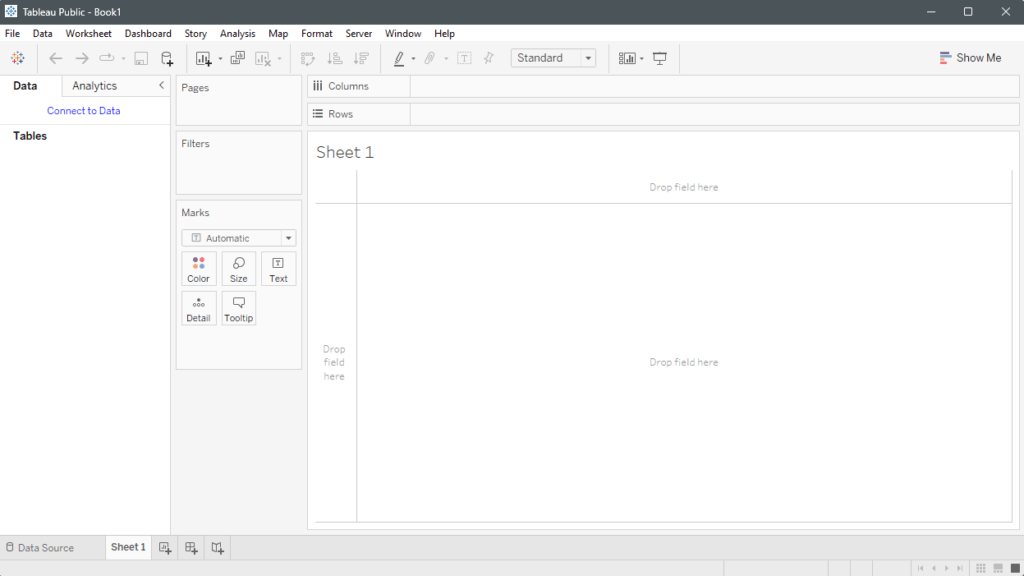
To return to the Connection view, click on the Data source menu in the bottom left corner. This will allow you to manage your data sources as needed
Download Sample File
Go to the Connection view and click the Sample Data Sets menu to load the sample data provided by Tableau
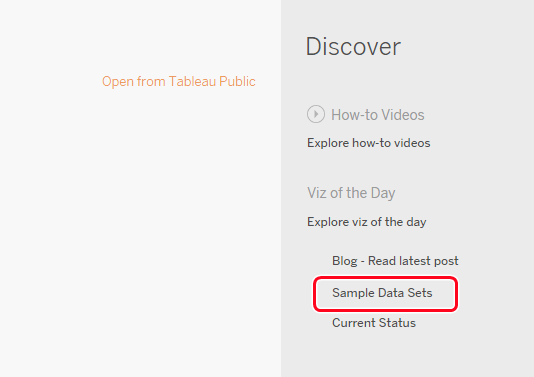
Alternatively , you can access it via this URL: https://public.tableau.com/app/learn/sample-data?qt-overview_resources=1#qt-overview_resources
The webpage contains a list of sample data that you can use for free to practice writing reports. In this article, we will use the sample data called "Superstore Sales," which is in an Excel file. Click on "Dataset (xls)" to download the data file
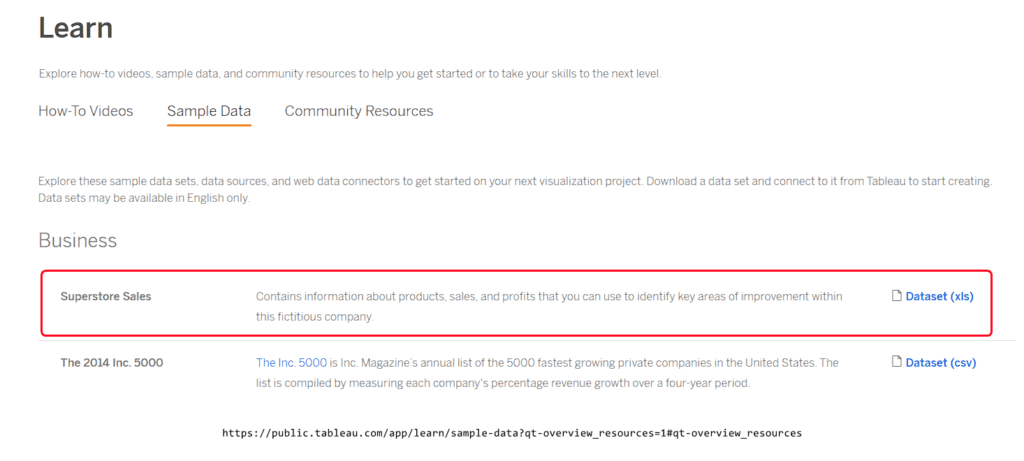
If the webpage opens a document file, click "Download file" to save the file to your computer
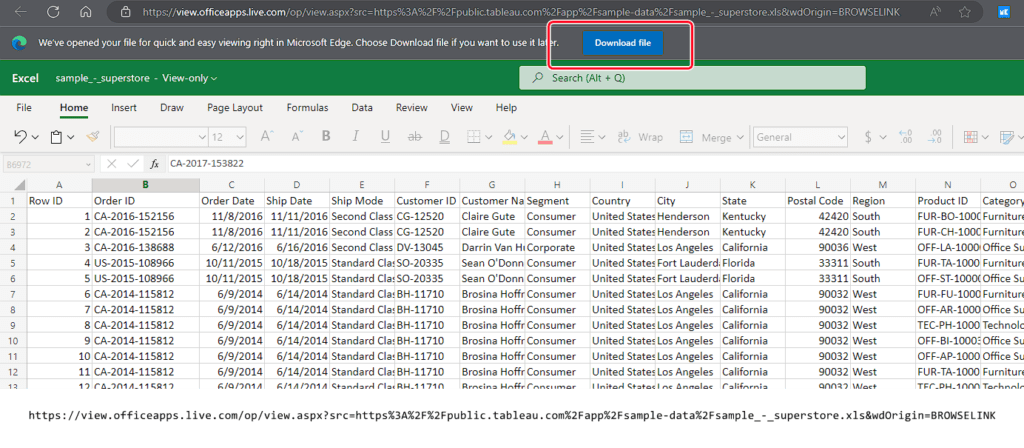
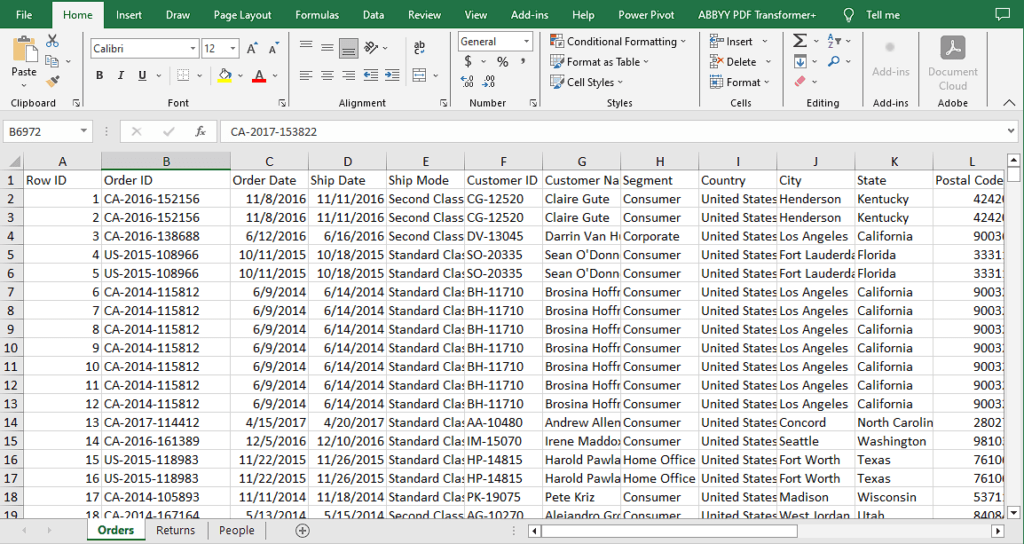
Once the file is downloaded, you will receive an Excel file containing three sheets with sales data from a supermarket that also sells products online. This data is specifically for the United States. The table shows sales figures for each order, including customer information, products sold, delivery details, as well as sales amount, profit, cost, and discount for that order, sorted by row ID
Importing data sources
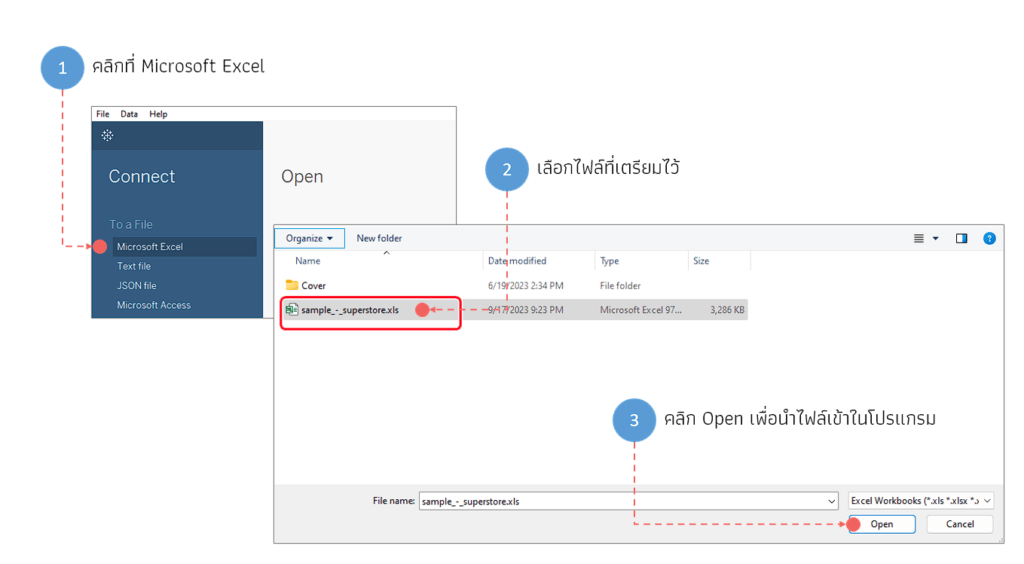
To import data, let's use the Connection view as an example. Click on the Microsoft Excel menu and then select the file we downloaded in the previous step
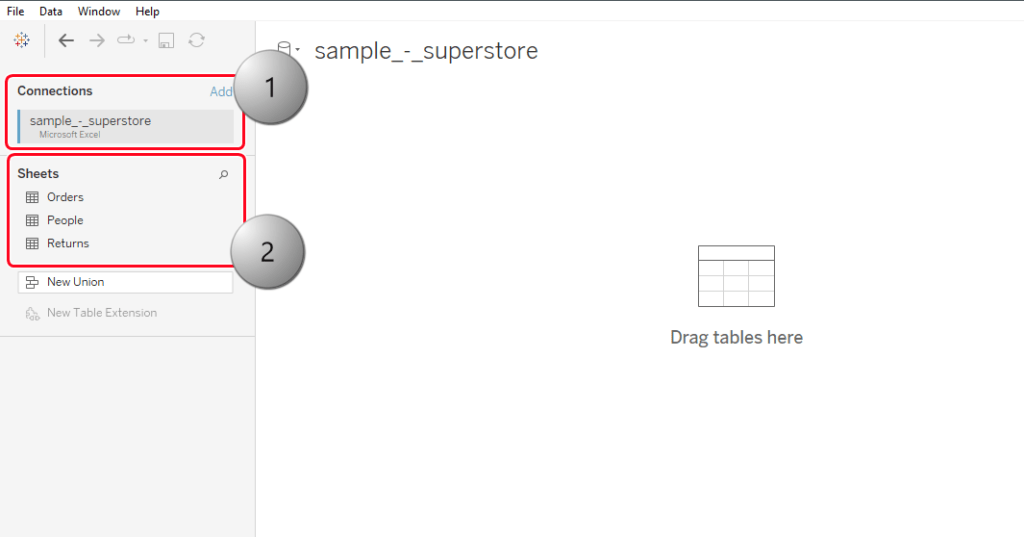
The program will then retrieve table or sheet data from the Excel file, as shown in the image. Box 1 shows the name of the data source currently being used, and box 2 shows the list of sheets in the imported file. You can see that this file contains a total of 3 sheets
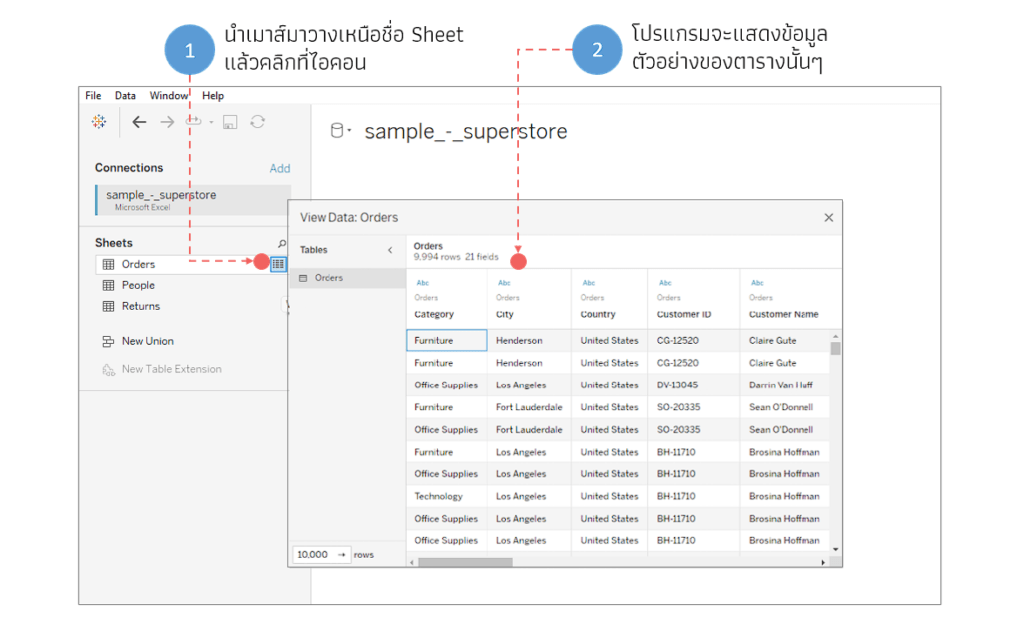
To view the data for each table, you can click on the icon at the end of the table name to see a preview of that table
Select the table or sheet you want to use. In this example, we will select the sheet named "Orders," which stores sales data for the Superstore. Click on the desired sheet and drag it to the empty space on the right (hereinafter referred to as the Data Model)
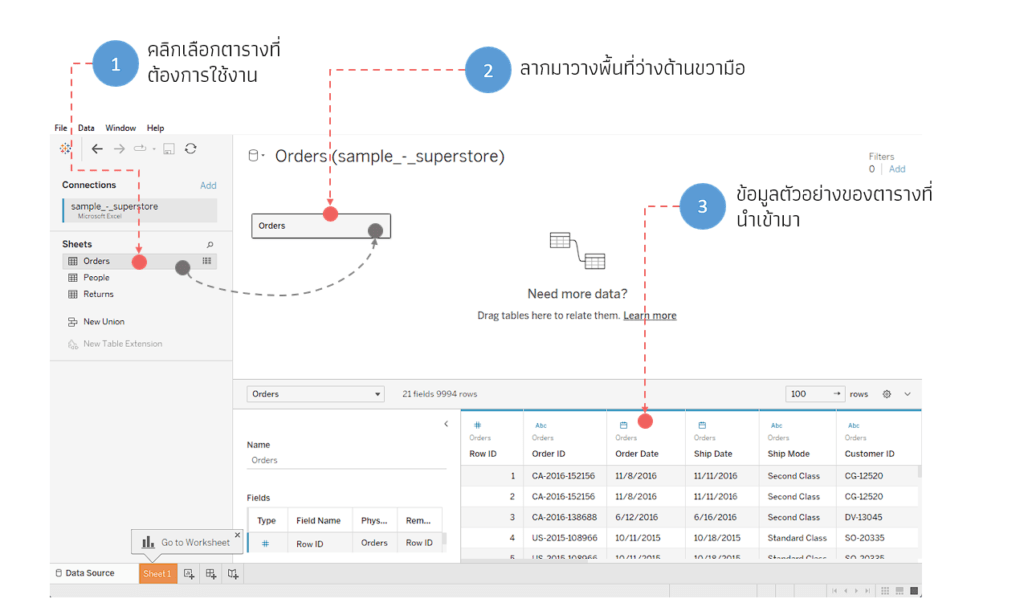
This article will only explain the case of importing data from a single table, for simplicity and speed. Cases involving multiple tables will be explained in the next article
Now that we have the data ready to use to create our report, click on the tab named Sheet 1 at the bottom of the screen to go to the Worksheet view
The Worksheet view contains several toolbar components, but the most frequently used ones are shown in the image below
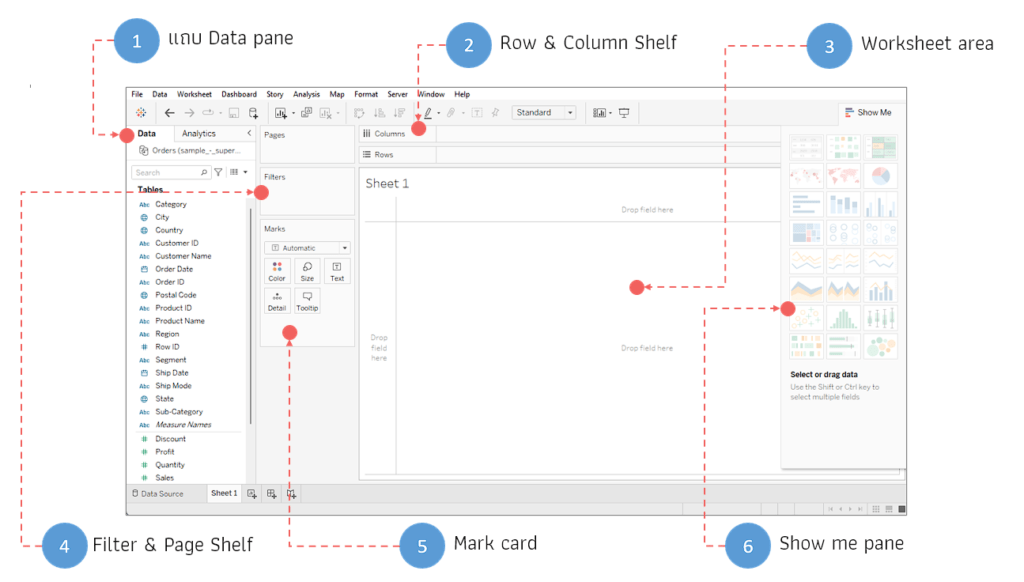
- The Data pane displays the names of the tables and columns from the file or data source we import, as well as a list of calculation formulas that may be added in the future
- The Row and Column shelves are areas for placing data from the Data pane to create various types of graphs. We can swap or change the position of the data on the Row and Column shelves as needed
- The worksheet area is where you create graphs or reports (you can also drag and drop data fields onto the worksheet area)
- Filter & Page shelf are points for placing data to be used as filters and to control the display of information on the report page
- Mark card is a tool for customizing graphs in reports
- Show Me is a toolbar for automatically creating graphs from your selected data
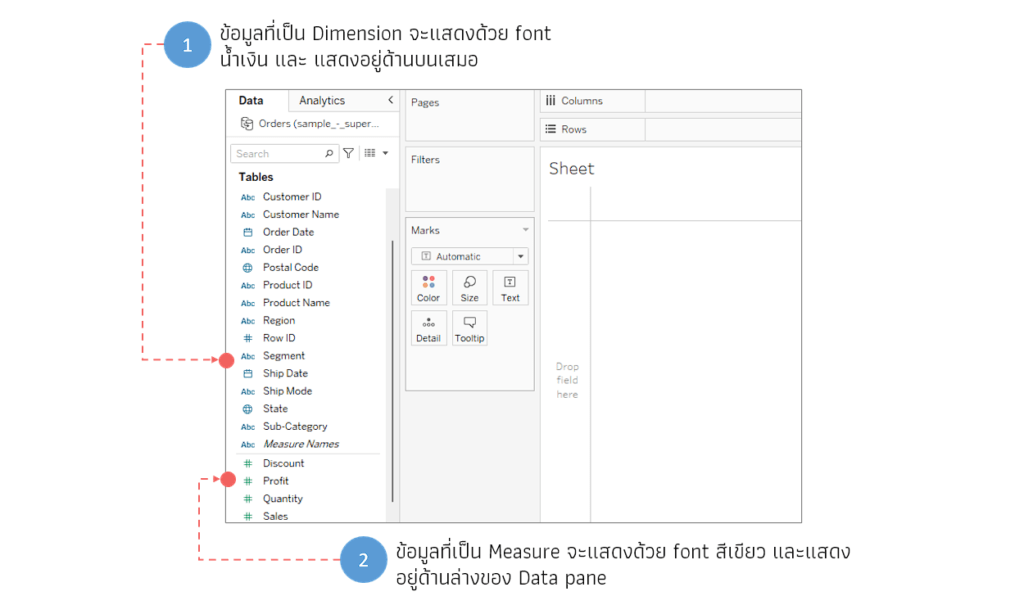
Data on the Data pane is divided into two groups based on data type: Measure data (numeric data) and Dimension data (text data). Colors and order are used to represent these types of data, as shown in the image
Creating graphs with Tableau Public
When creating graphs to analyze data, we typically first ask ourselves what we want to know from our data. For example, do we want to see an overview of sales over a past period (within a year or multiple years), or do we want to see sales broken down by customer group, or by product group, etc.?
That means we first need to know what data we want to use to create our graphs, and then we can look at what kind of graph to create from that data. The interesting aspect of Tableau is its VizQL function, which helps us select the most suitable graph for presenting the data. We simply select the data we want, and the program will process it to choose the most appropriate graph format for that data.
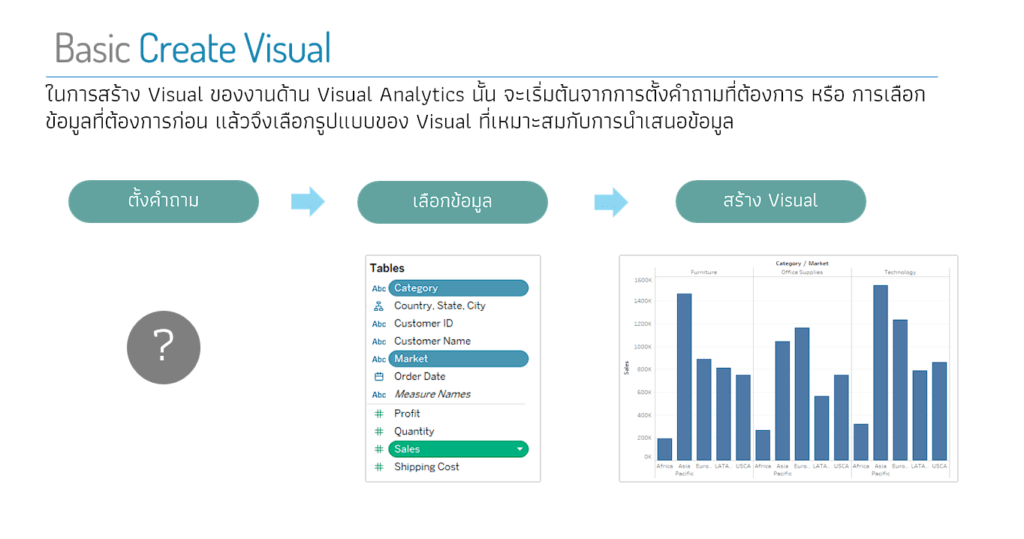
Now let's try creating our first graph. Go back to the program screen. Let's say we want to know the sales figures for each past year. Double-click on the desired data in the following order:
- Double-click the Sales column
- Double-click on the Order date column
The program will create a line chart as shown in the image
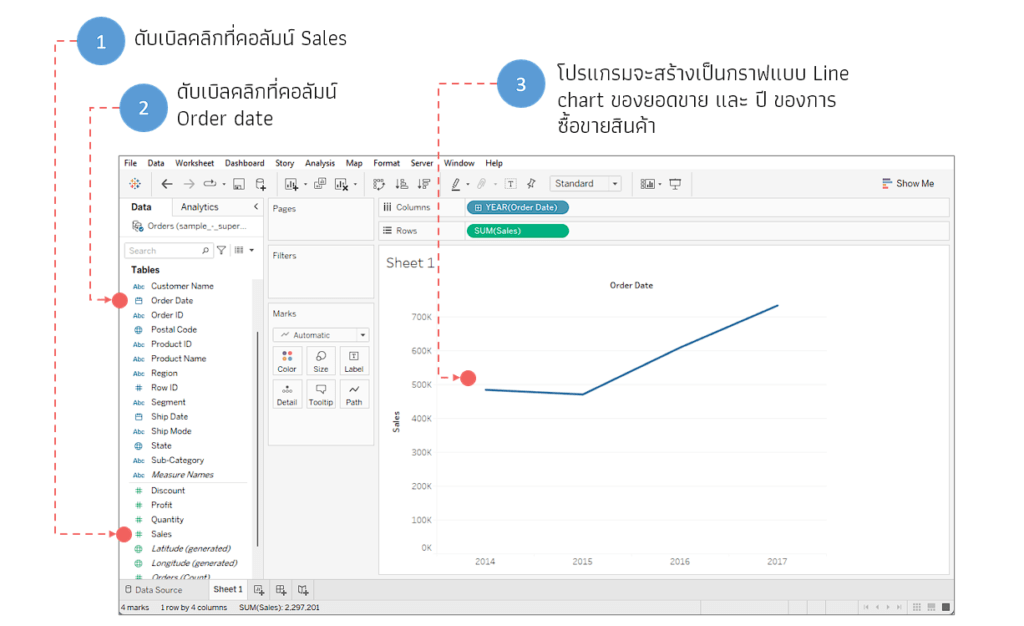
Try adding more data, for example, double-clicking on a Category to view sales data broken down by product group. You will find that the program will adjust the graph format, separating sales figures by the number of items in that Category (there are 3 groups), as shown in the image. (The color of the graph line is displayed on the Category card, which you can adjust if needed.)
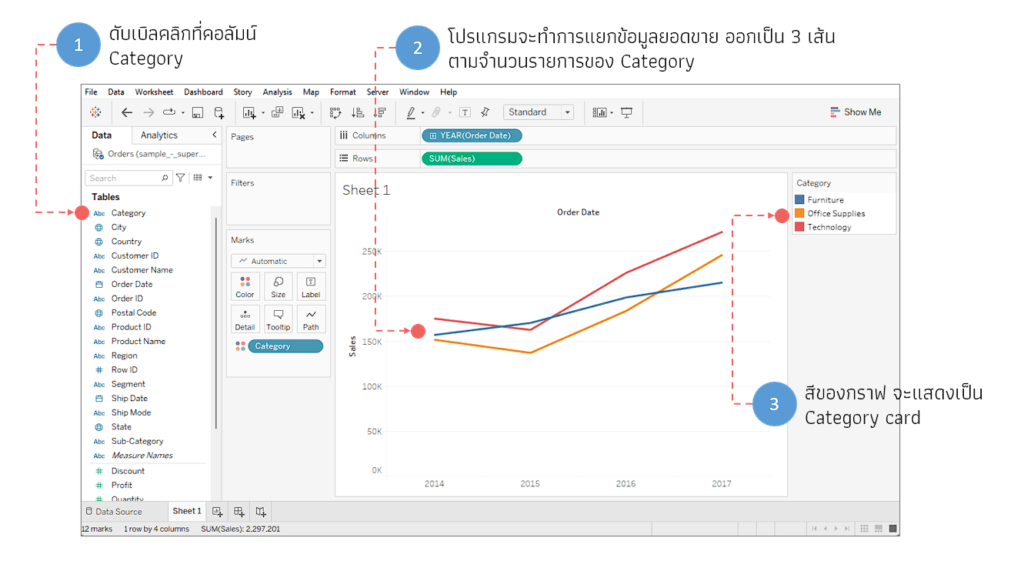
In the previous step, we selected numerical data, or "Measures." The program attempted to create a report using a suitable graph. Since the data we selected included a date column (Order Date), the program chose a line chart. If we changed to a regular column, the graph format would change
The example below will change the second piece of information from Order Date to Region. You will see that the resulting graph will be a Column Chart
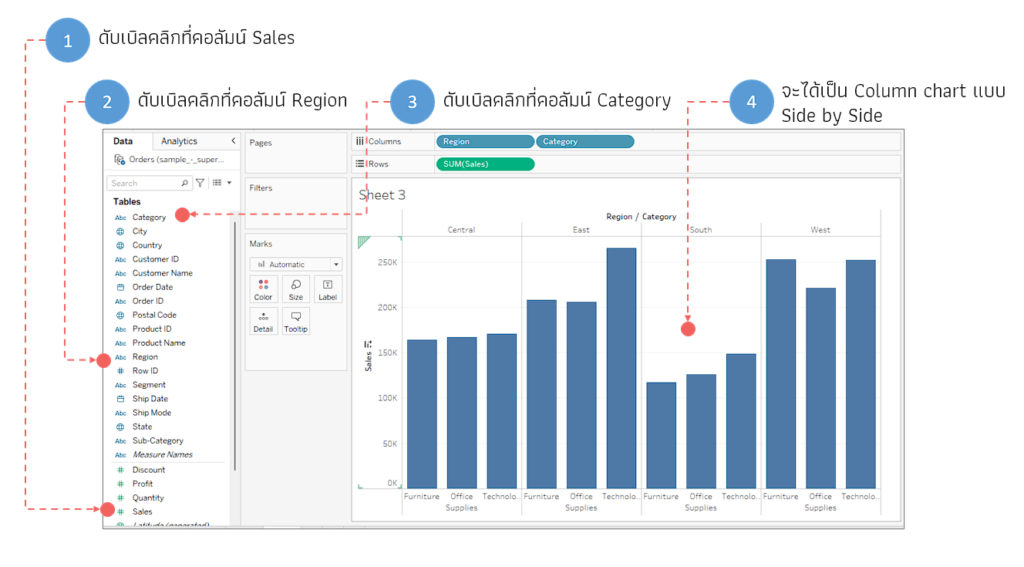
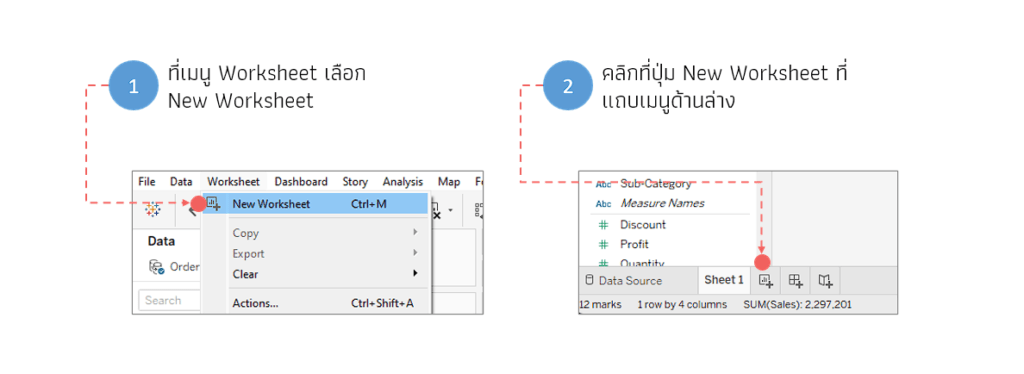
Before trying another condition, let's create a new Worksheet. This can be done in several ways, as shown in the image
This time, we'll use the same data but change the order in which we select it. We'll select the Dimension column first; in this example, I'll select the Order Date column first, and then select the other data as follows
- Double-click on the Order Date column
- Double-click the Sales column
- Double-click the Category column
As you can see, the program generates a report as a data table, as shown in the image
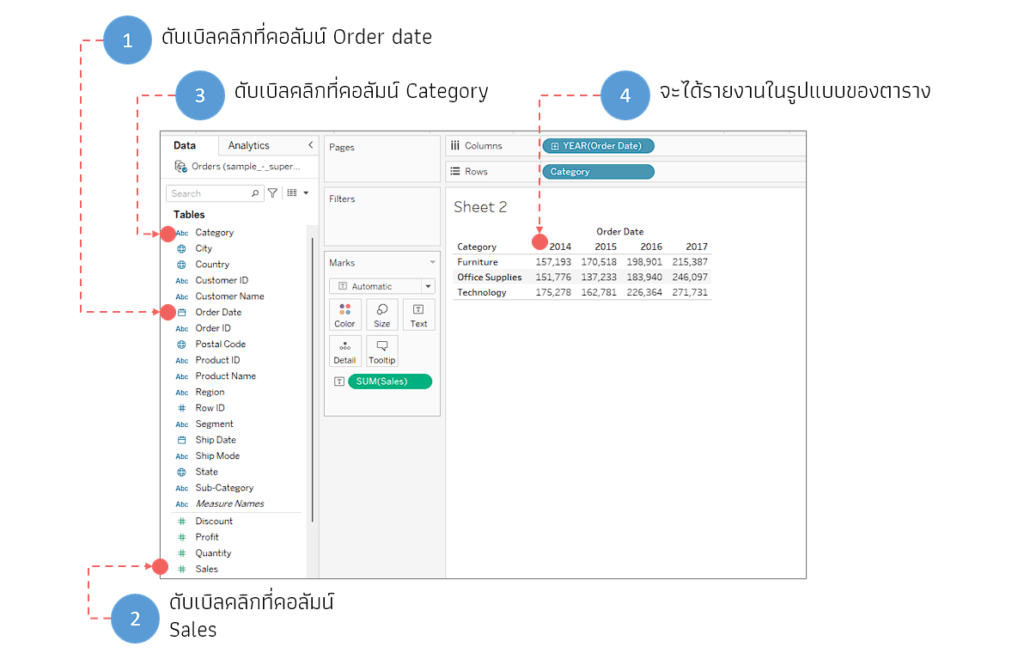
As you can see, the order in which you select the data and the type of data selected in each sequence may affect the format of the graph in the program. In some cases, the resulting graph may not be what we want, which we can edit or modify using the Show Me function
Creating graphs using the Show Me function
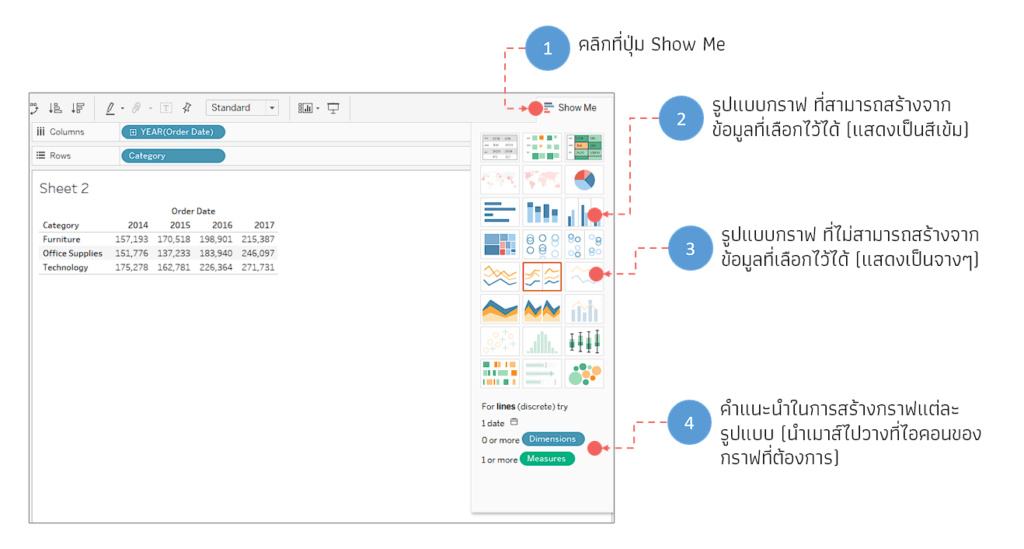
Show Me is a function for creating graphs using the program's pre-designed templates. This toolbar is located on the right side of the screen after selecting data or creating a graph (following the previous steps). The example image shows a graph created in the previous step. Clicking Show Me will display the graph in the format shown
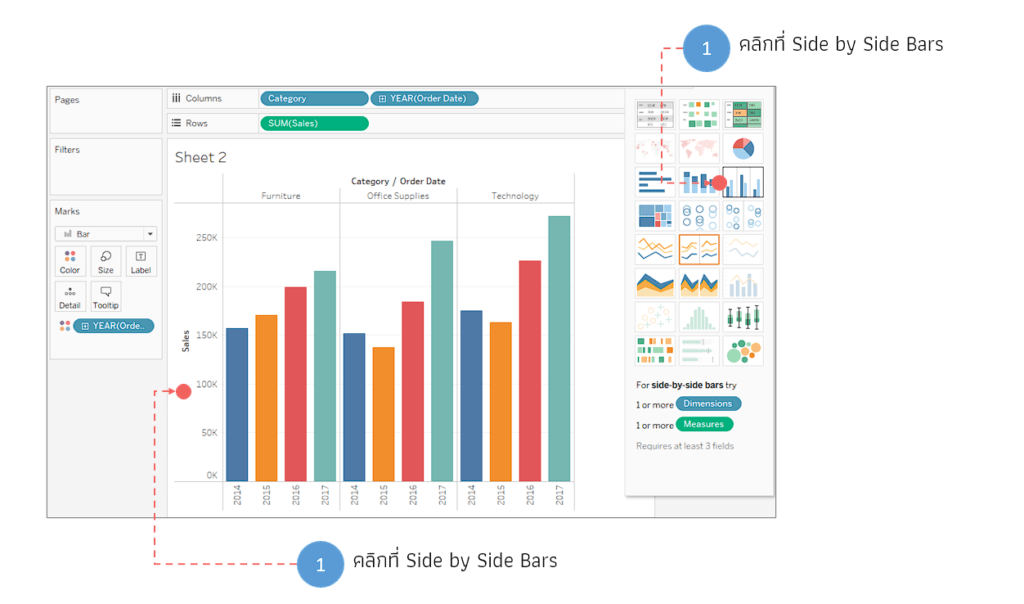
If you've already created a graph but it's not in the desired format, you can select a new graph format from Show Me. For example, to change the report from a table format to a Side by Side Bars format, simply click on the Show Me toolbar. The program will then change the graph format to Side by Side Bars as shown in the image. (The program will automatically select the appropriate position for the data fields, which you can adjust later.)
If you want to create a new report or graph using Show Me, you can do so by following these steps.
First, create a new worksheet. Then, select the desired data. Next, choose the graph style from the "Show Me" menu. To select data, hold down the Ctrl key on your keyboard and click on the data until you've selected all the desired data. Only then should you choose your preferred graph style
In this example, we want to create a report or graph to analyze sales data, broken down by product category and customer segment. Select the data from the Data pane as shown in the image
Clicking "Show Me" will display suggested graph styles, highlighted in red (number 2). If the graph you want to use is not available, hover your mouse over the icon of the desired graph style. The program will then show you what data is required for that graph. For example, to create a line chart, you need to add date data before you can select this type of graph
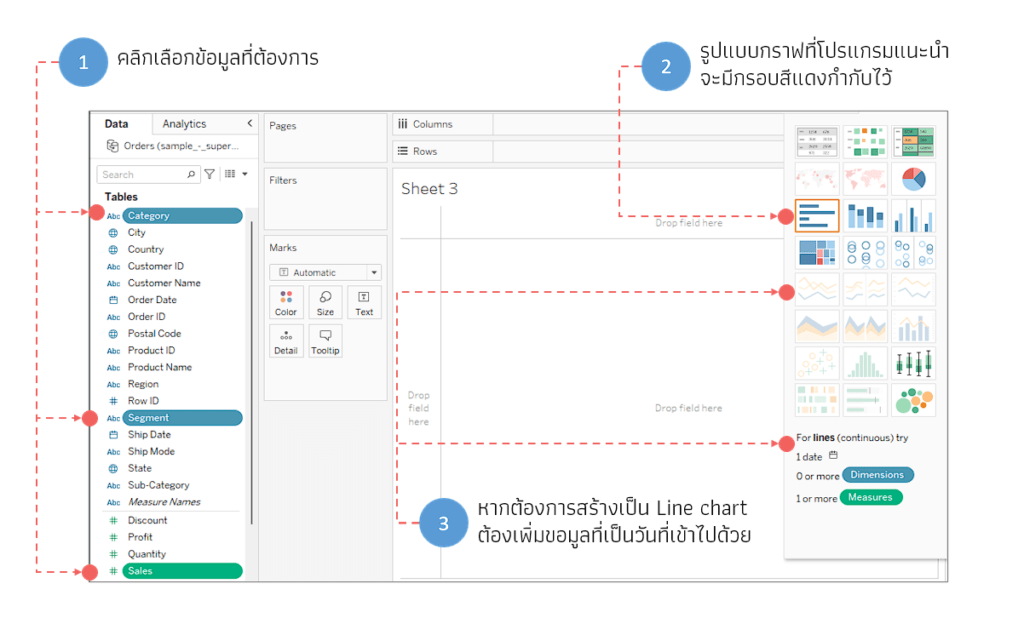
In this example, we will select Horizontal bars as suggested by the program, which will result in a graph like the example
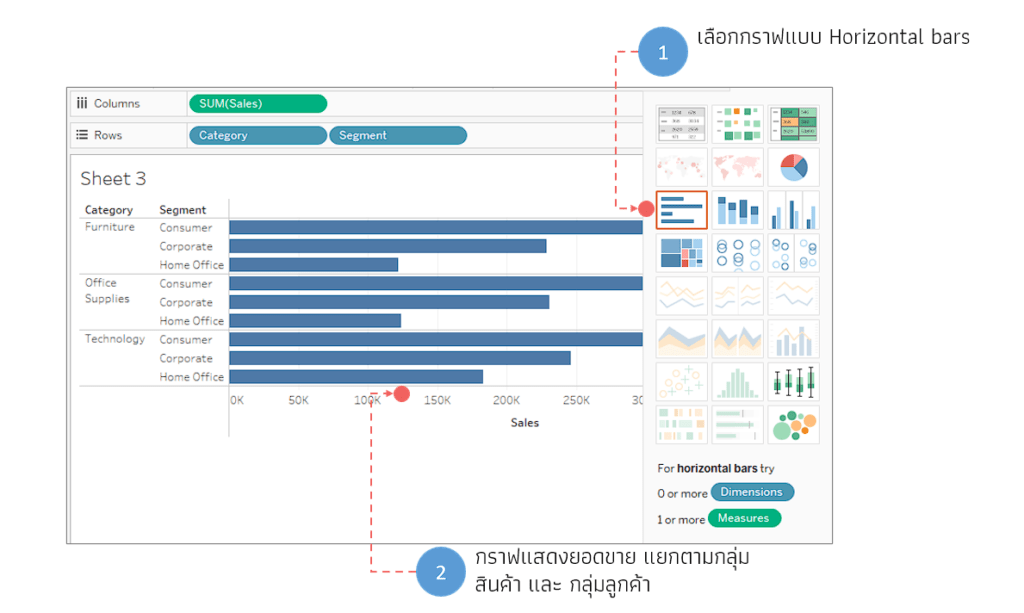
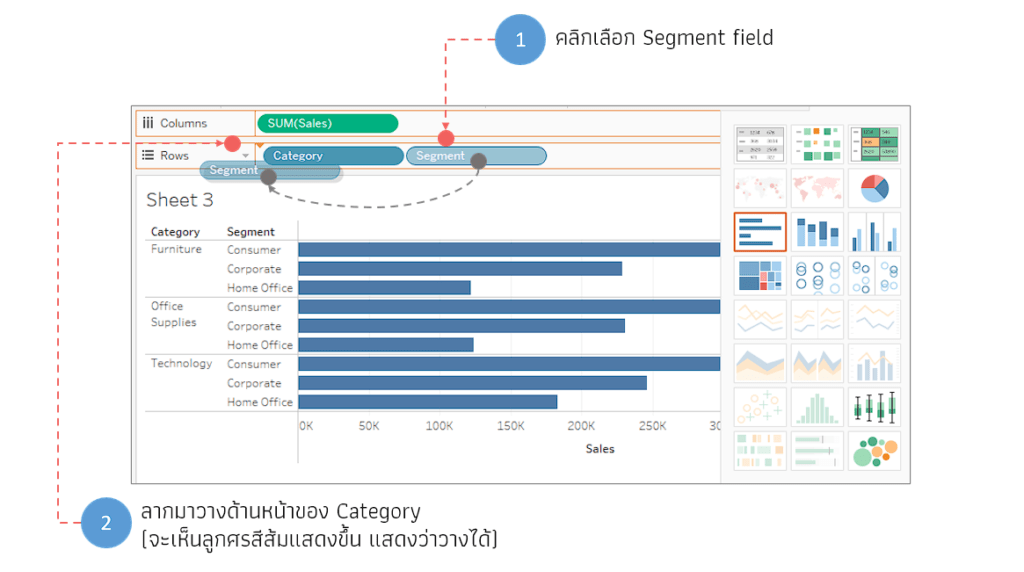
On the Row Shelf, you will see the names of the Category and Segment columns displayed. You can rearrange the positions of these two columns as needed by clicking on the desired field and dragging it to the desired location
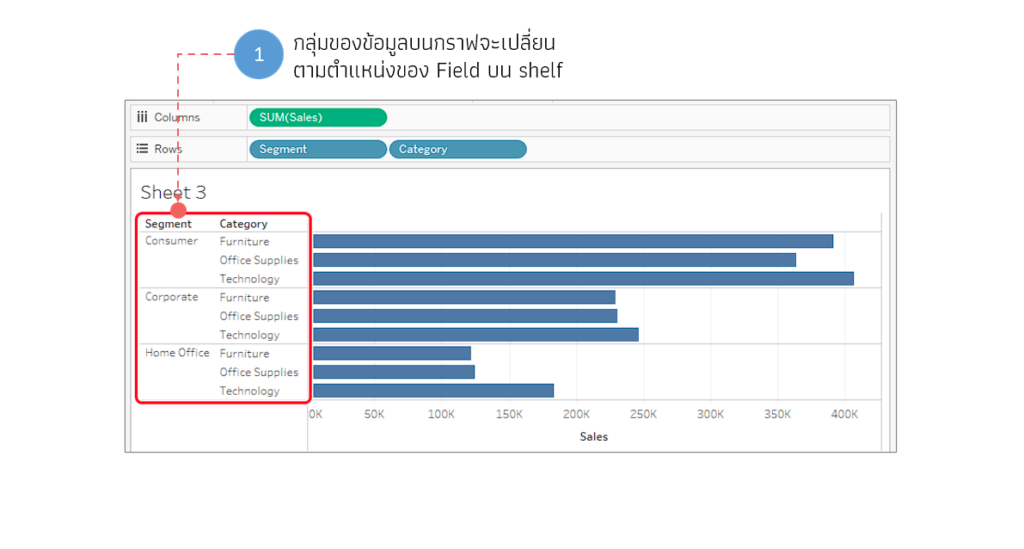
When the order of the data fields on the shelf changes, the data groups on the graph will change accordingly, as shown in the image. Previously, sales were divided by category and then subdivided by segment. Now, it will change to being divided by segment and then subdivided by category instead
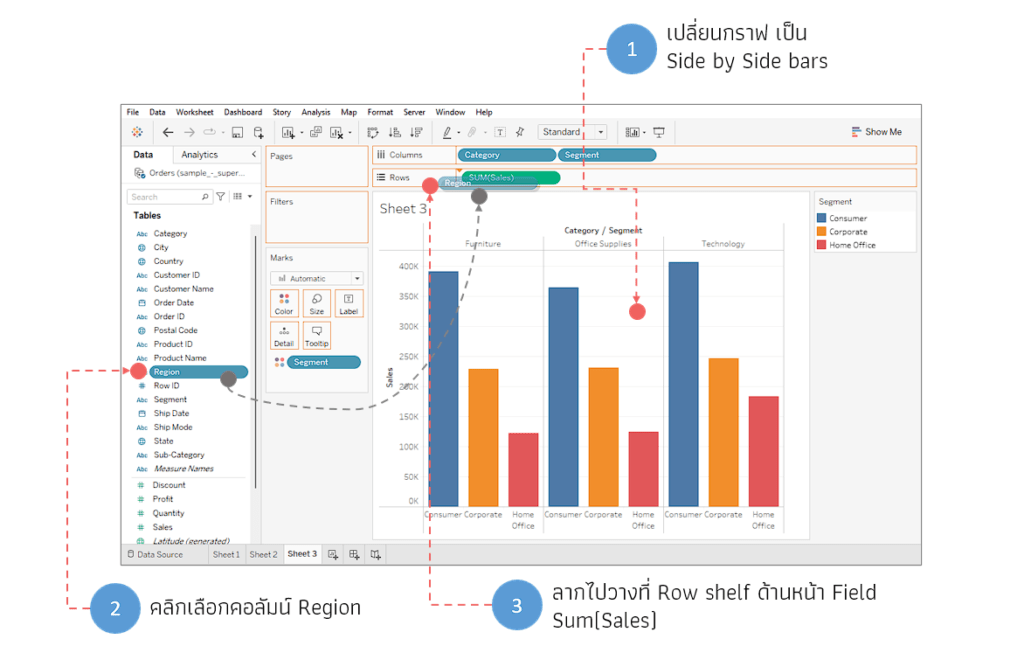
Experiment with changing the graph format to Side by Side Bars, then drag the Region column from the Data pane to the Row shelf in front of SUM(Sales)
Previously, the graph displayed sales figures broken down by category and segment. Now, the data on the graph is divided by region, allowing us to see sales figures broken down by category and segment in each region in the same graph
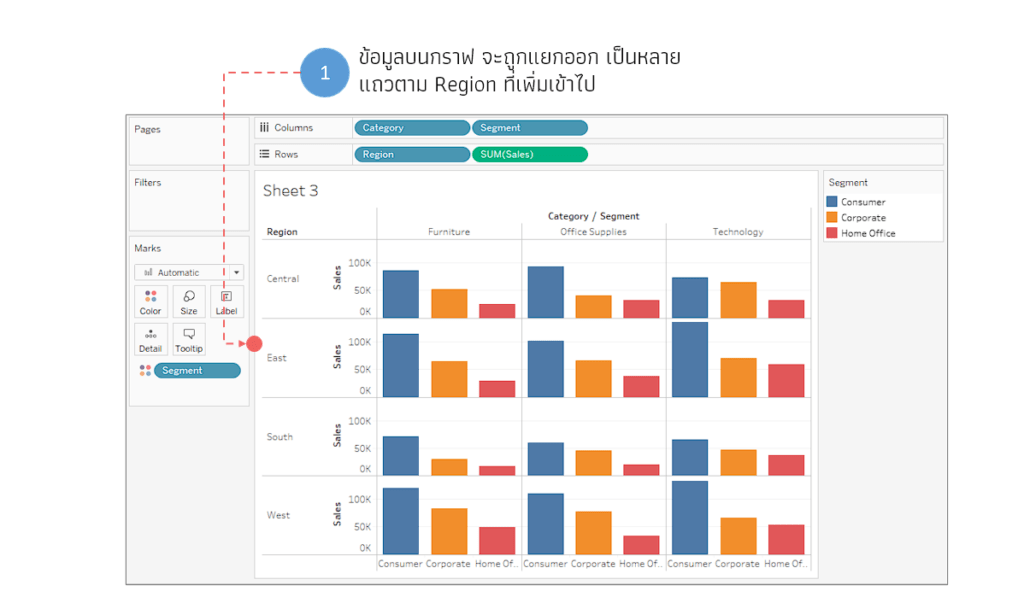
As you can see, even though we use the automatic graph generation feature, we can modify the format of the graph generated by the program as needed
Saving report files from Tableau Public
To save a Tableau Public report file, you need a Tableau Public Cloud account. (If you don't have one, please refer to the guide in the article " Introduction to Tableau Desktop Public Edition".)
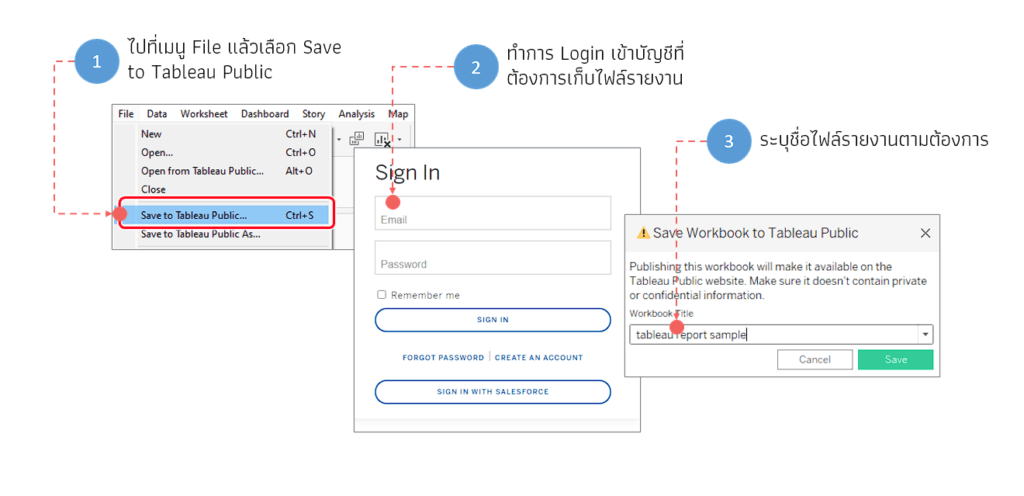
To save the file, go to the File menu and select Save to Tableau Public. Then, log in to the account you want to use to save the data, specify the desired report file name, and click Save. The program will then upload your report to the specified Public Cloud
(If you are using organizational data in your report, it is recommended that you study the article from the link above first, as Tableau Public is not very suitable for use with confidential data.)
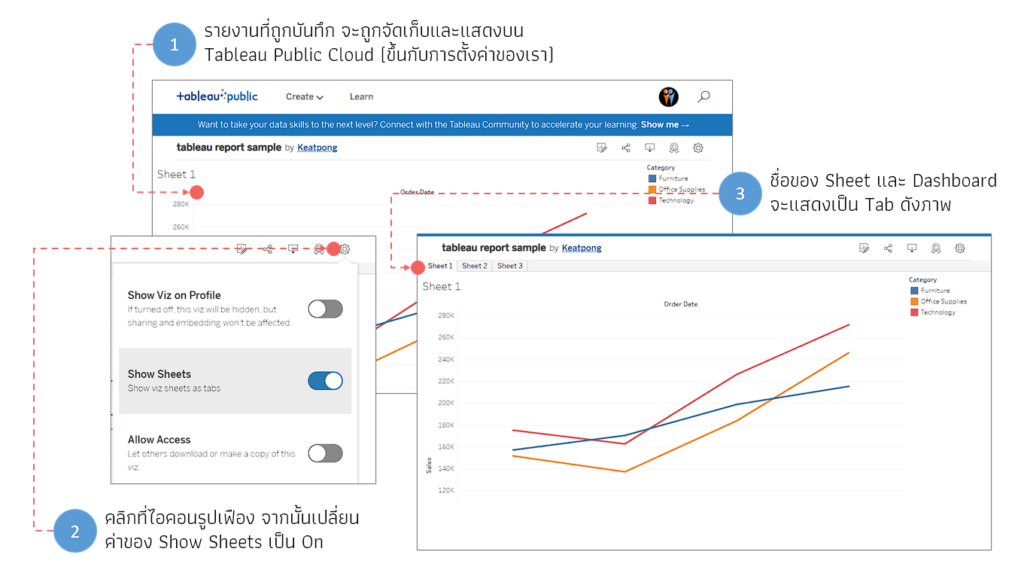
After the upload is complete, our report will be displayed on Tableau Public Cloud. If the sheet is not displaying, you can configure it as shown in the image
This article only provides a basic introduction to using Tableau Public. There are many more techniques and approaches for creating data analysis reports. Please stay tuned for more! For now, this article will end here as it's already quite long. See you again in the next article!