
When it comes to BI (Business Intelligence) or visual analytics software, Tableau Desktop is likely one of the first names that comes to mind, as it's one of the most popular software programs among users. However, learning to use Tableau Desktop can be difficult for most users because the program only offers a 14-day trial, which is often insufficient for general learning. Today, we'll introduce you to Tableau Desktop Public Edition, a free version that can be used to learn how to use the program just like the regular Tableau Desktop. Let's explore its features and limitations
Tableau Desktop Public Edition
Tableau Desktop Public Edition is a visualization software similar to the regular Tableau Desktop Edition (the paid version). However, the Public Edition is free to download and use, and its interface is identical to the full version. Therefore, you can use Tableau Public (for short) to practice and learn how to use the program, just like with the full version. It's ideal for those who want to practice before purchasing the full version, or for students who want to upskill but aren't ready to pay for a full license
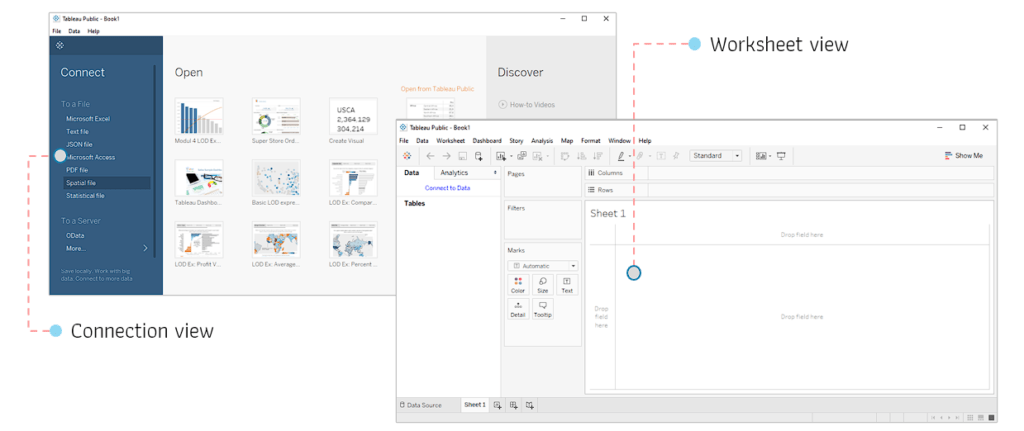
Limitations of Tableau Public
Because it is a free program, it has several limitations, as follows:
1. The program only supports data sources in file format, such as Excel, CSV, Txt, JSON, etc., and only supports data sources from Google Sheets, OData, and Web Data Connector
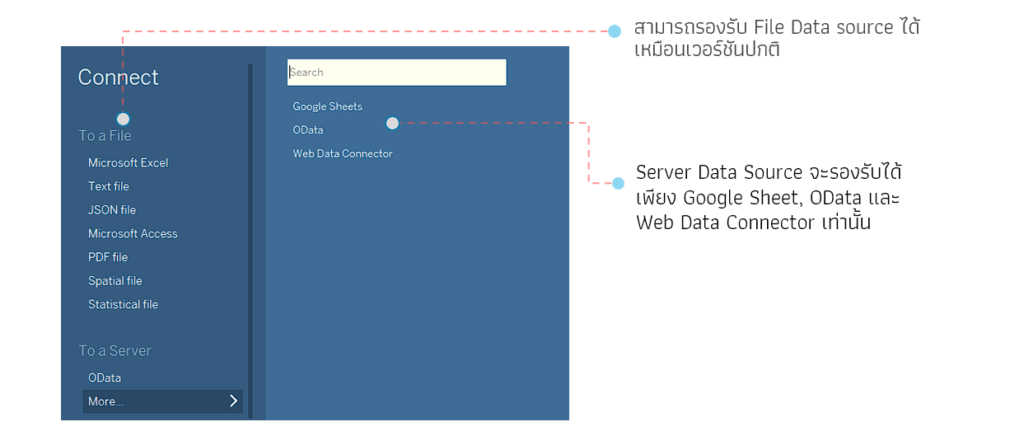
2. Workbook files cannot be saved to the user's local machine. To use them, they must be saved to the Tableau Public Cloud. This means a constant internet connection is required for operation
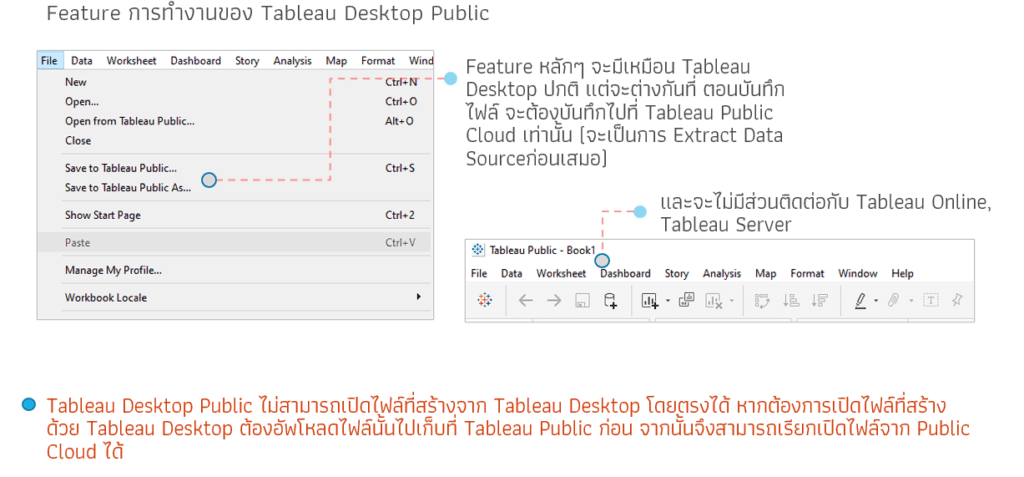
3. Report files or workbooks saved to Tableau Public Cloud are publicly available. General users can search for your information. Therefore, when working with sensitive data, it is recommended to disable the display of reports in the user's settings before saving the file
Advantages of Tableau Public
1. First of all, of course, this program is free to download and use
2. The obtained program has the same functions as the regular version and is also continuously updated. Therefore, we can learn how to use Tableau Public and then immediately build upon that knowledge with Tableau Desktop
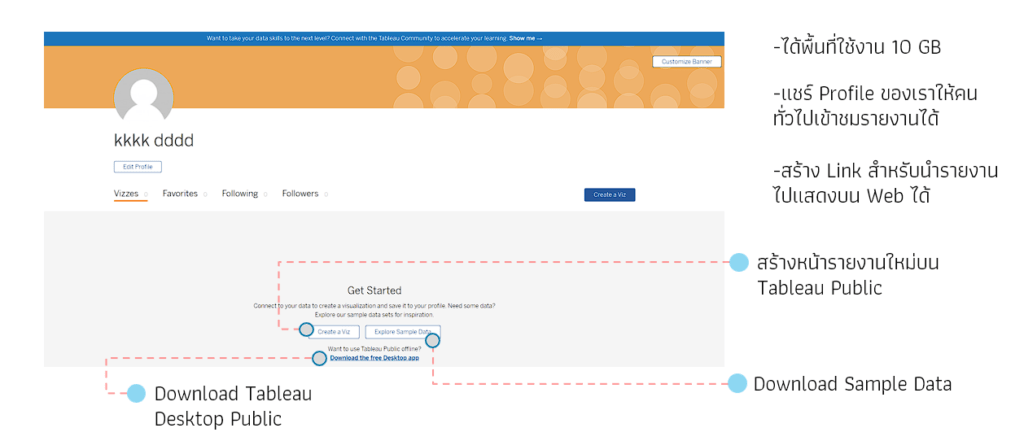
3. There is Tableau Public Cloud, a free cloud service (you can sign up using a free email address) that can be used to store reports or workbooks created with Tableau Public (including workbooks from Tableau Desktop). Currently, it provides 10GB of storage per user, and it now includes a feature to edit reports on Tableau Public Cloud, allowing you to edit reports via a web browser
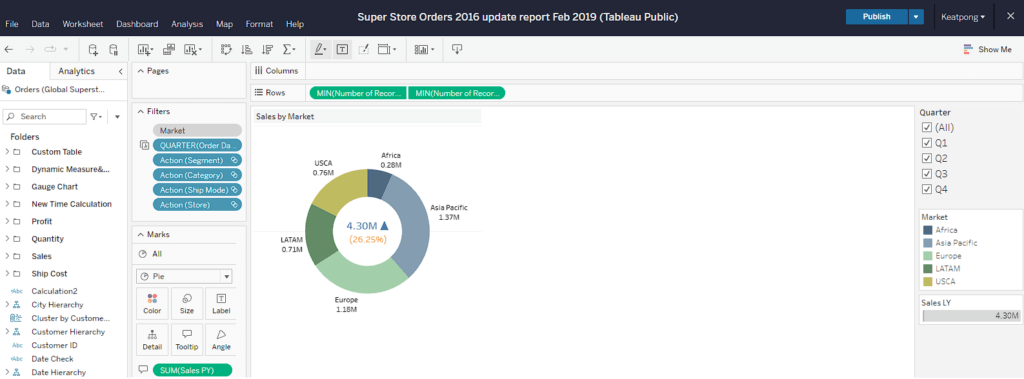
4. Because the Tableau Public cloud is a hub for Tableau users who want to share ideas and report formats created with Tableau Public, we can view reports shared by other users, see concepts, presentation styles, and even learn how to write calculation formulas (if the developer allows downloading the workbook file)
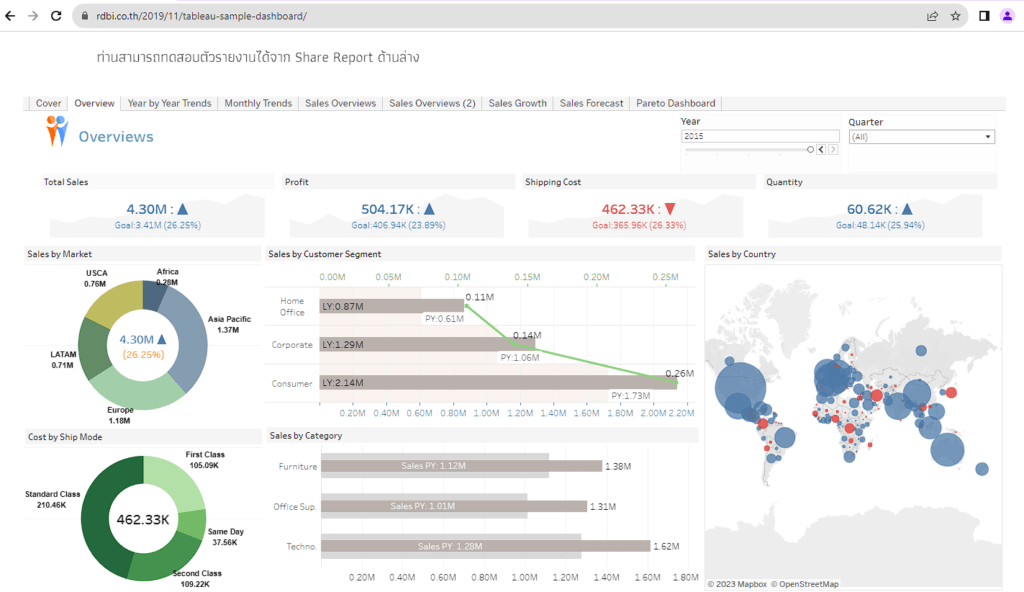
5. It can be used to share reports publicly by embedding them on a webpage or sending a link to recipients as needed. The example below shows a report shared on the R&D BI website. You can view it via this link: https://demo.rdbi.co.th/2019/11/tableau-sample-dashboard/
Downloading the Tableau Public program
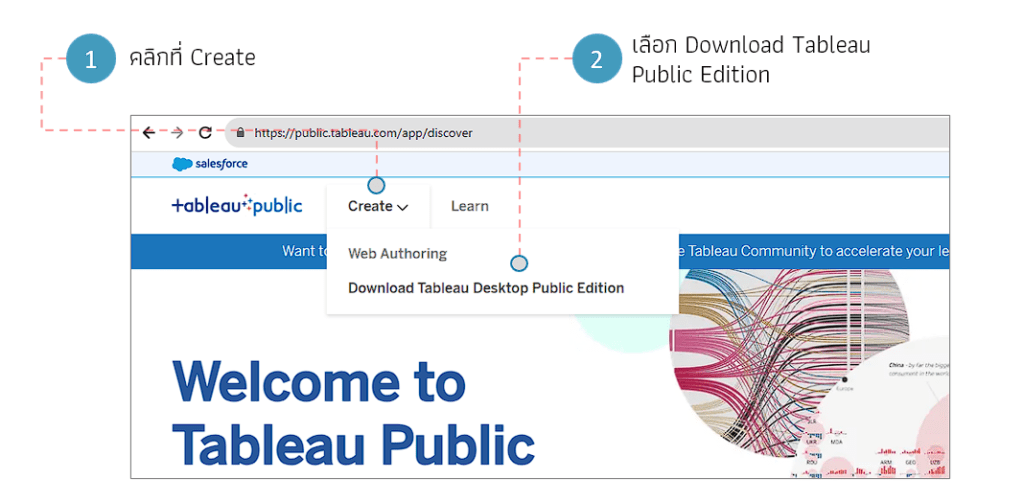
For those who wish to download the program for use, please go to https://public.tableau.com/ , then click on Create and select Download Tableau Desktop Public Edition.
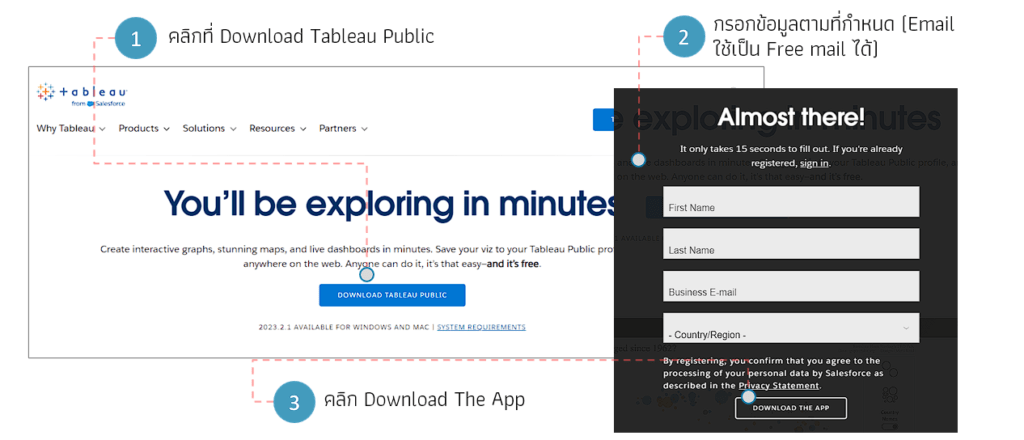
The system will take you to the program download page. Click on "Download Tableau Public," then fill in your information. For the email address, you can use a free email service (Tableau only collects this information). Once finished, click "Download the app" and wait for the program to finish downloading
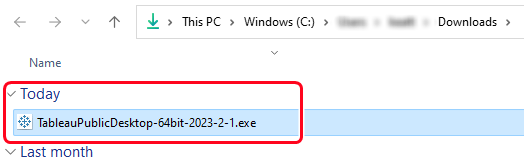
You will receive an installation file as shown in the image. Install the program as usual. Once completed, it will be ready to use
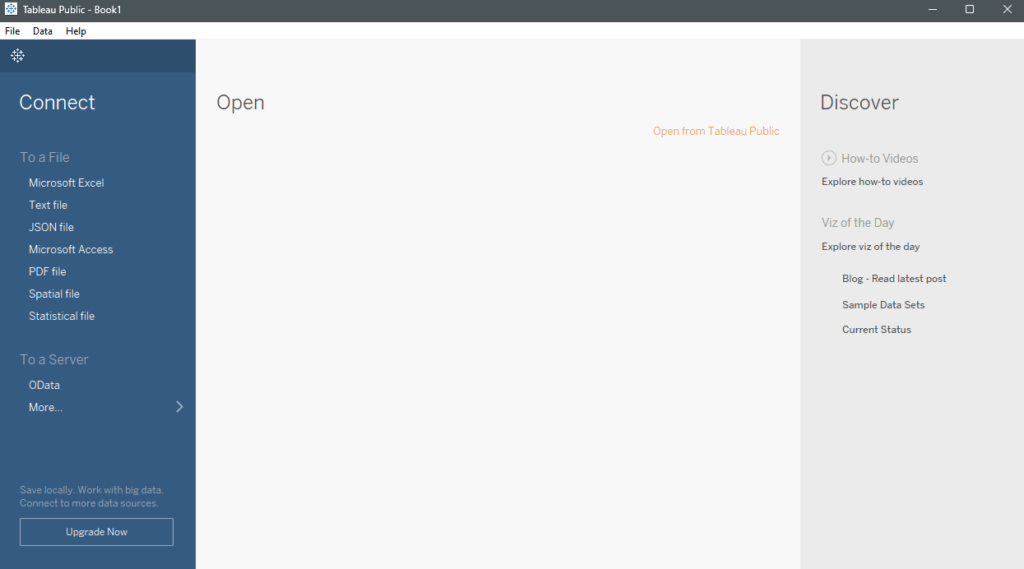
Upon opening the program, you will see the Connect Data Source page. This page only allows you to import data in file format. You can experiment with importing data into Tableau Public to create graphs or reports as needed
This article will not go into the step-by-step instructions (please stay tuned for the next article), but will provide an overview of how to use it to help you decide whether to learn it
Subscribing to Tableau Public Cloud
Since Tableau Public requires a Tableau Public Cloud account to save workbooks or reports, you can sign up by going to https://public.tableau.com/ , clicking on "Sign Up for Tableau Public," and filling in the required information to create an ID. The email address used for registration must be a valid, working email address (free email services are acceptable).
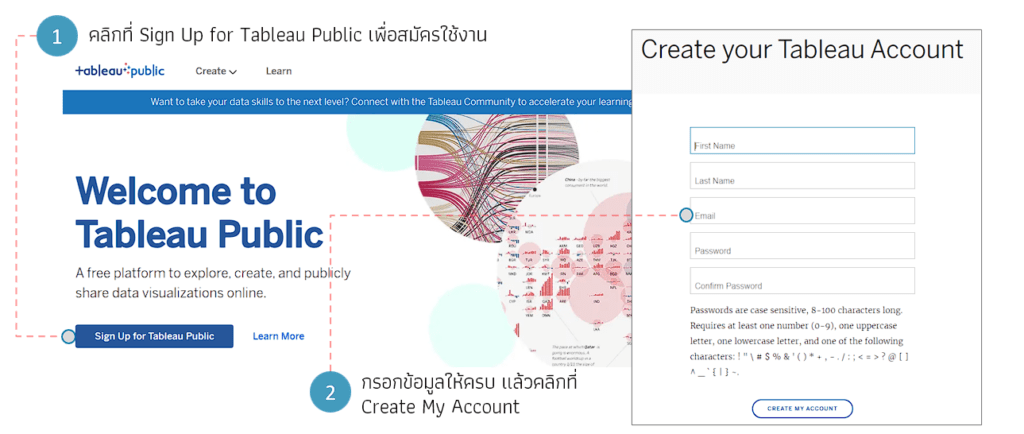
Once completed, the system will send a link to confirm account creation to the email address you provided. Click the link in the email to confirm your registration
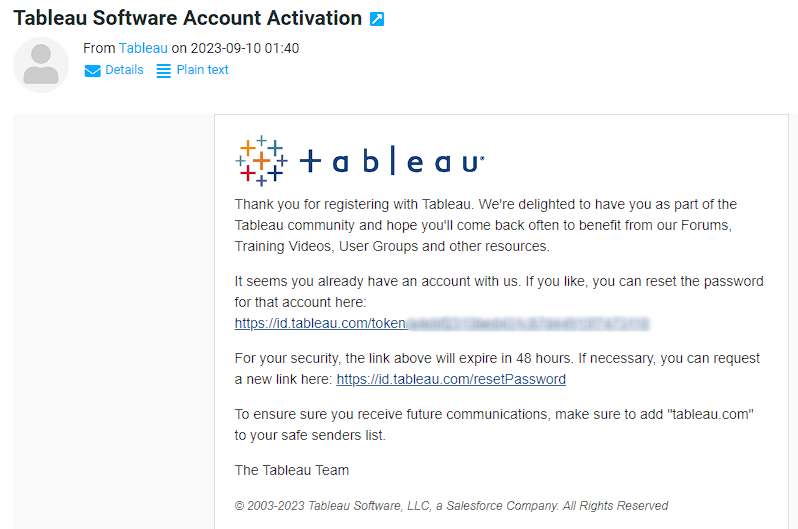
Once the process is complete, you can log in to Tableau Public Cloud. Tableau Public Cloud provides 10GB of storage space, and you can share reports on your profile or display the link on your website
In addition, you can create and edit report pages directly on Tableau Public Cloud
Saving or uploading reports to Tableau Public
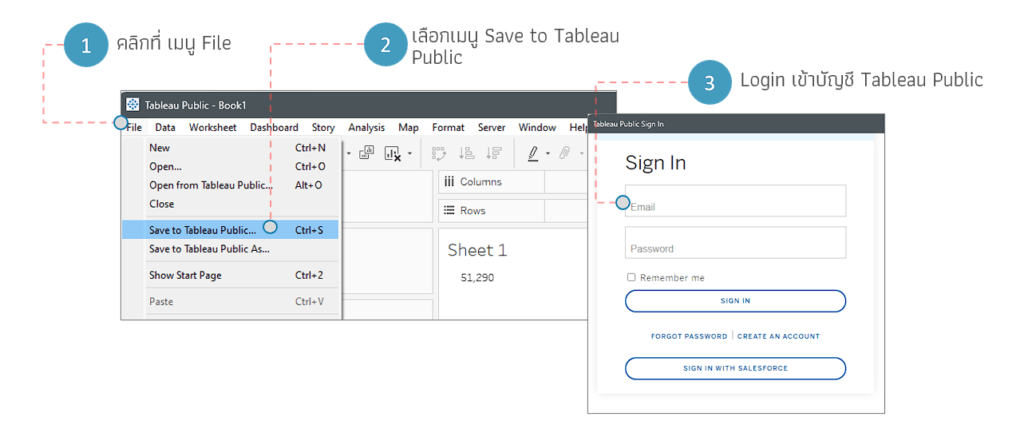
To save files created from Tableau Public, you need to save them to the Tableau Public Cloud. Once you've finished creating a report and want to save it, select the File menu, then choose Save to Tableau Public, and then specify the Tableau Public Cloud account name where you want to save the report
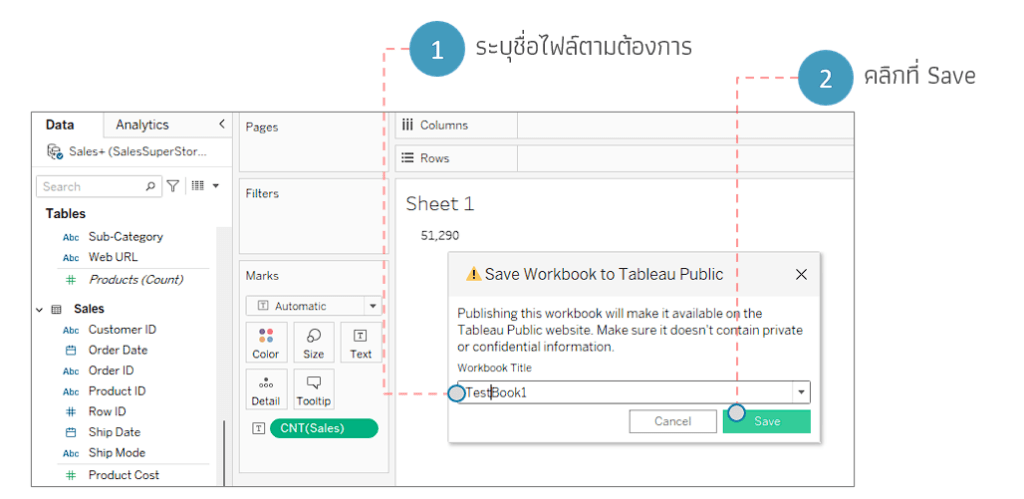
Then, specify the report name as desired
Essential settings for Tableau Public Cloud
If you want to use Tableau Public without sharing all your data with other users, you need to configure your profile settings to specify which data you want to share with visitors (this should be done before uploading report files to the public cloud)
On the Tableau Public Cloud page, click on your user profile picture, then select Settings, then select Visualization Permissions, and uncheck Allow Downloads and Copies and Show Published Visualization on Profile
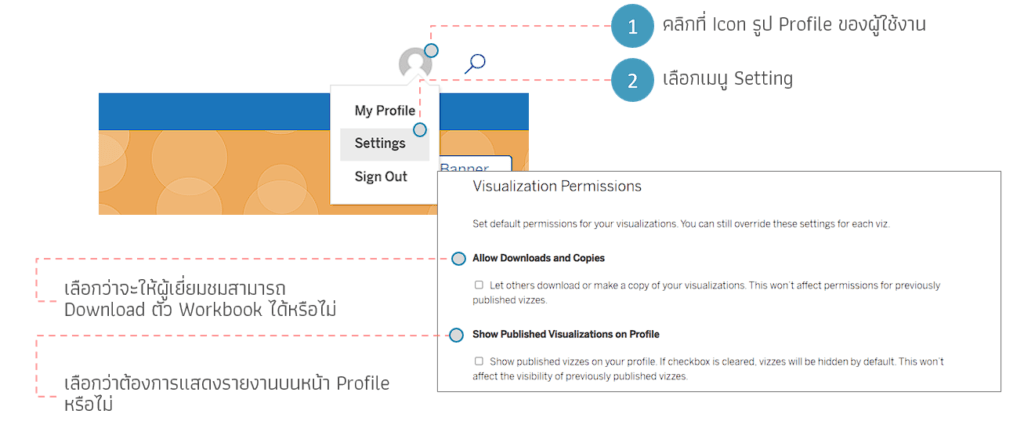
It is recommended to choose the option to prevent the download of workbook files and to not display reports on the profile page. If you want to change the display conditions for any report, you can specify this in the report file itself
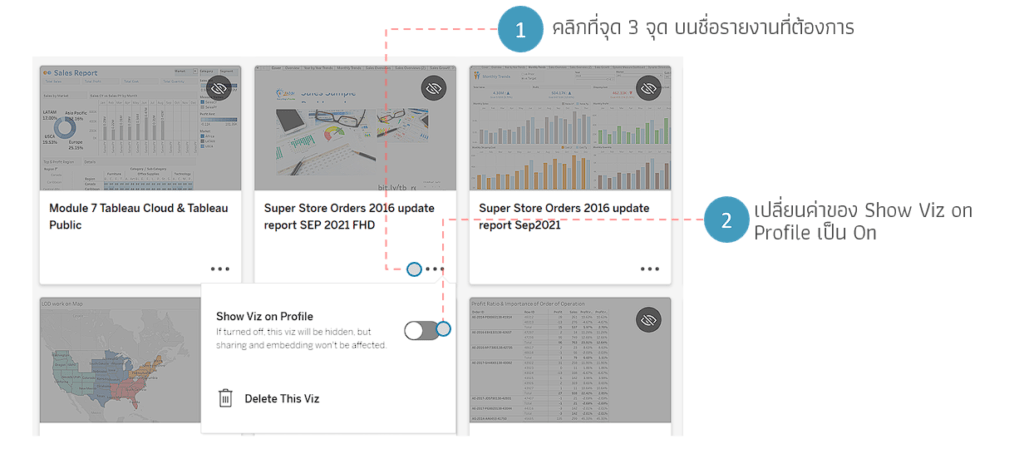
If you want certain reports to appear on your profile, you can configure this in the individual files. Go to the hidden report, click the three dots at the end of the report name, and change the "Show Viz on Profile" setting to "On." This will display the report on your profile, and visitors will be able to access it
To hide a report that was previously displayed on your Profile, follow a similar process: click the three dots on the report name you want to hide, then change the "Show Viz on Profile" setting to "Off." The report will then no longer appear on your Profile as desired
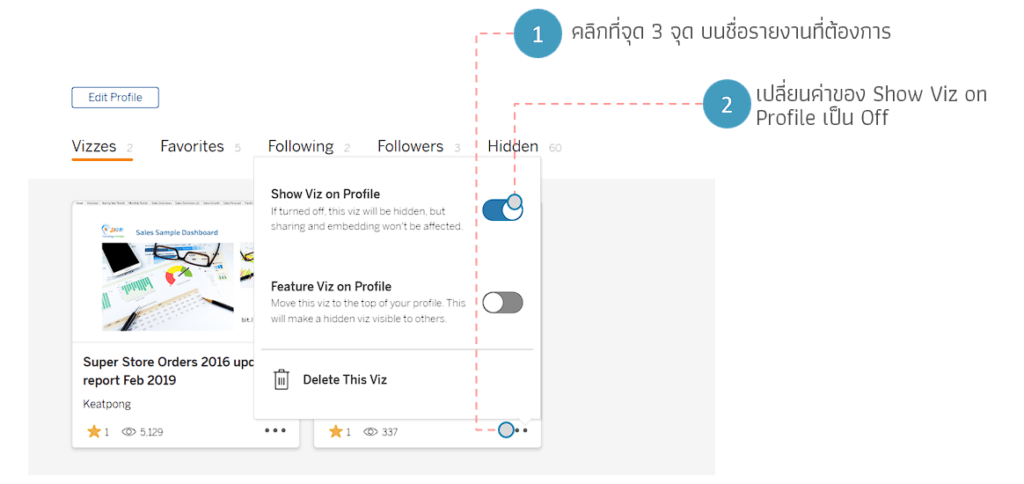
Hiding a report will prevent it from appearing on your profile and hide it from user searches within the Tableau Public Cloud system. However, the report link will remain accessible; that is, even if you hide the report from your profile, you can still share it with users or on any webpage you desire
*Although the system hides the report from display and search results on Tableau Public Cloud, testing has shown that if you have a link to a report stored on Tableau Public Cloud, you can still access it even if the file owner has hidden it. Therefore, it is not recommended for use with sensitive data.*
Editing reports on Tableau Public
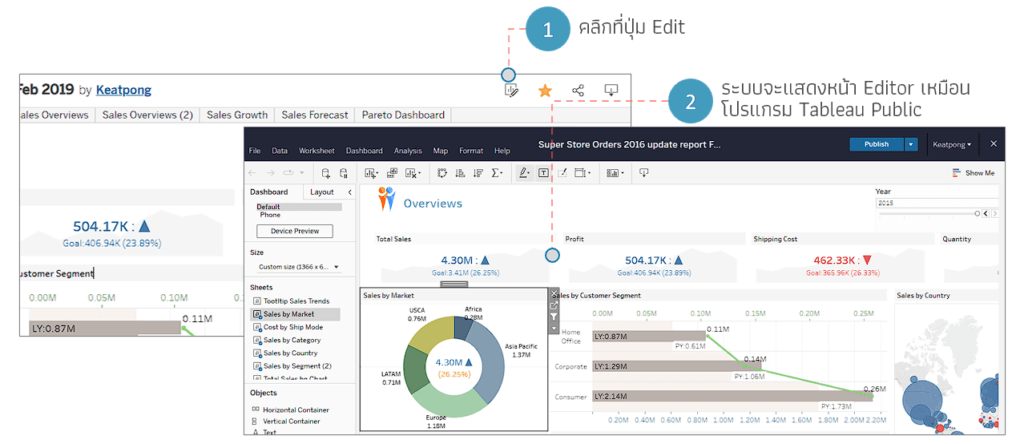
When we save a report on Tableau Public Cloud, we can edit it directly on the cloud service without needing to open it through Tableau Public. In the Report View, click the Edit button, and the system will display the same program interface as Tableau Desktop Public Edition, as shown in the image. We can then use it just like the program on our local computer
Sharing reports with users or a website
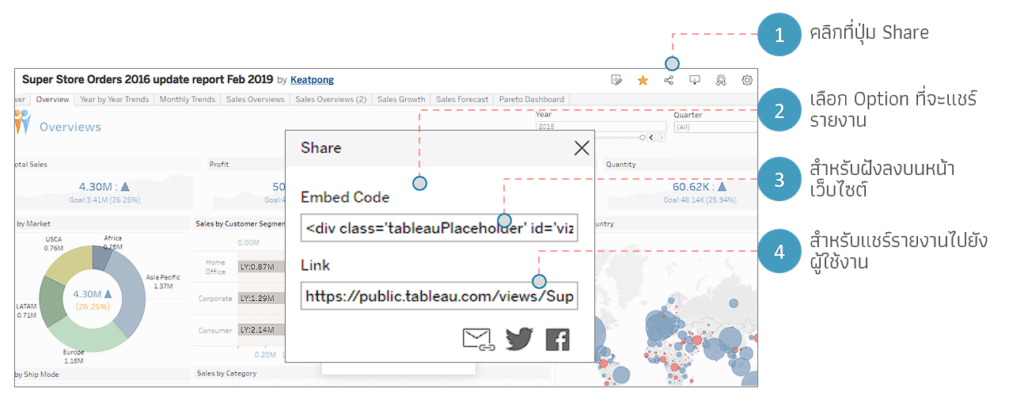
We can share reports from Tableau Public to users or embed them on a website. This can be done by going to the Report view page, clicking the Share button, and selecting the desired sharing option
Finding ideas for creating a BI Report
Tableau Public Cloud is a hub for those who enjoy visualizing data in various formats. It's a place where you can find ideas for reports and data presentations in different ways. Of course, all reports are created using Tableau Public Cloud
When we access the website https://public.tableau.com , the homepage will display Tableau Reports categorized into various sections for us to browse.
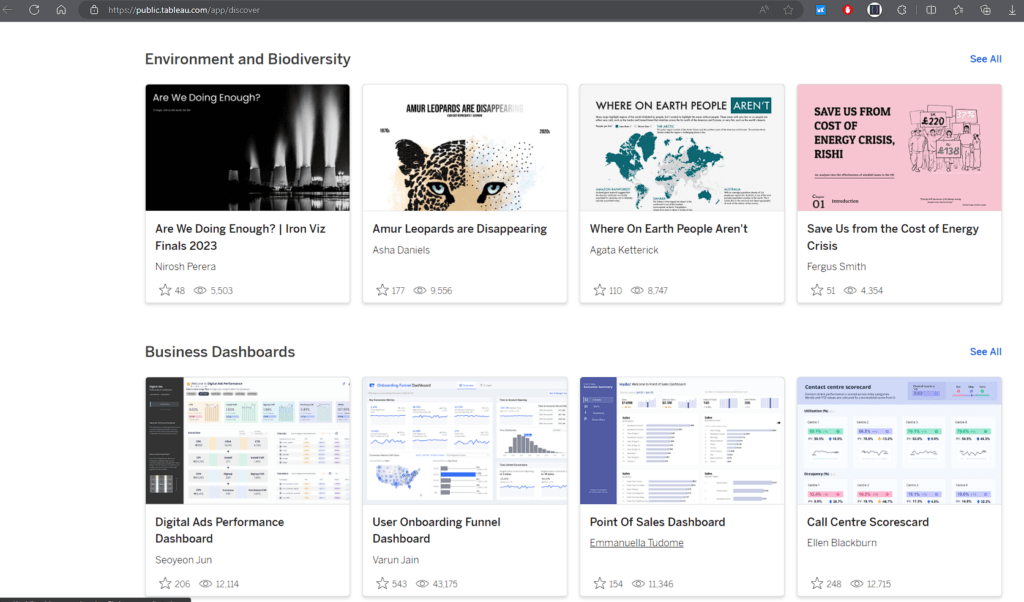
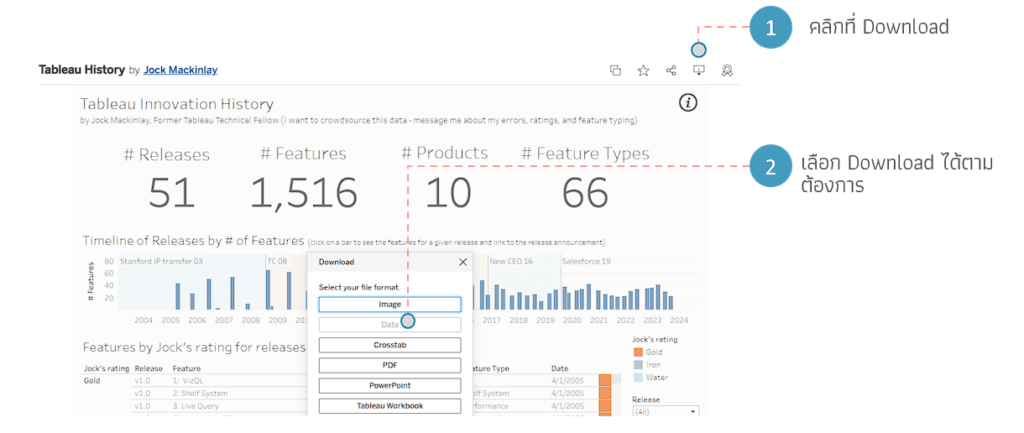
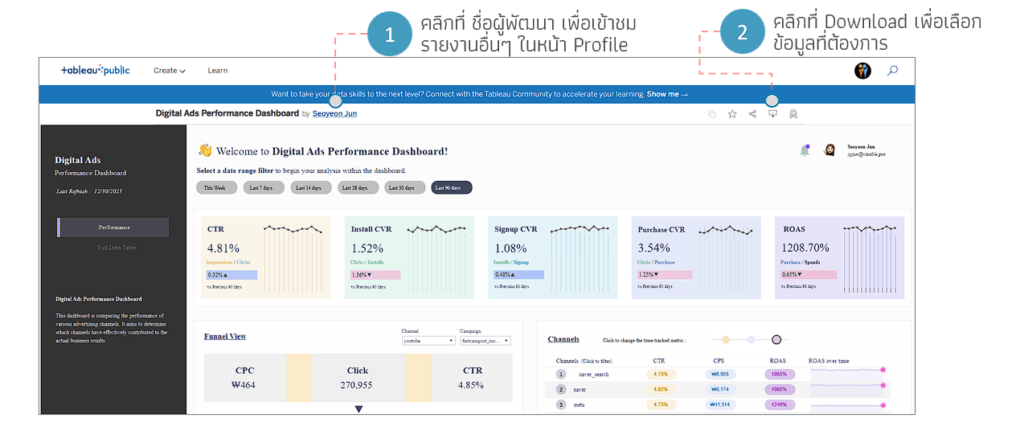
When you click on a report you're interested in, you'll see it in an interactive dashboard designed by the developers. You can experiment with the data to see the report's design concept as needed. Additionally, clicking the download button allows you to download the data (the download options depend on what the report owner allows)
As you can see, Tableau Public has many interesting features. It's a great tool for practicing with the program, just as good as the full version. However, I'll have to end this article here for now (it's getting quite long). Next time, I'll introduce how to use Tableau Public to create reports for beginners. If you have any questions or need further information, please contact us via our Fanpage or Line@ RDBI