
After getting acquainted with Power BI Desktop, let's explore another BI software provider known for its ease of use and user-friendly programs designed specifically for users: Tableau. Today, we'll give you a brief overview of what Tableau is, what kind of tool it is, and its interesting features. Let's get started!
Tableau is a very popular Business Intelligence (BI) tool on the market. Designed for general users, it can be used without needing any programming knowledge or skills. In my opinion, it's truly a BI software. First, let's look at an overview of how Tableau works
Tableau Solutions
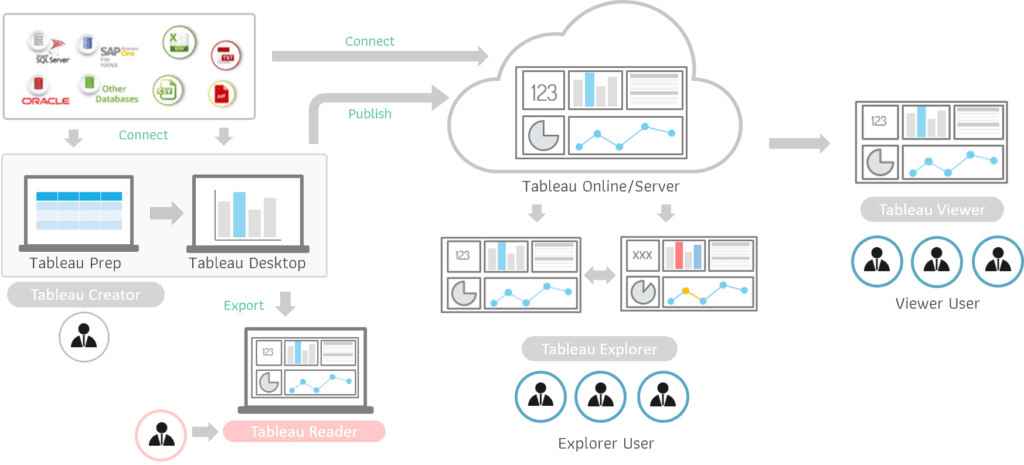
From the image, let me briefly explain how the program works:
Tableau Desktop can be used to connect to data sources to manage data or data models, as well as create visualizations. However, if our data contains many errors that cannot be handled with Tableau Desktop alone, we can use the Tableau Prep builder to help manage the data before importing it into Tableau Desktop
Reports created on Tableau Desktop can be shared with other users in two ways: as a Tableau package file, which users can then open and view the report data using Tableau Reader
The second option is to publish the report to Tableau Server or Tableau Online (depending on the organization's choice). The user who owns the report can view and edit it on the server as needed. This means you have access to your data at all times. Other users can view or use the report on the server via Tableau Explorer or Tableau Viewer. Tableau Explorer allows users to edit the report, while the Viewer only allows viewing
In addition to the report itself, we can also share the dataset for report creation by publishing it to the Tableau Server/Online and allowing authorized users to connect to the prepared dataset and create reports in their desired format
And of course, when we update the source data, both the Data Model and the prepared reports will be updated accordingly. We can set the report refresh rate on the server as needed
Tableau Product
From the image above, I've mentioned several Tableau tools. Now, let's get to know the main tools Tableau offers
Tableau Desktop is a software program that can be installed on a user's computer. It is used for connecting to data sources, managing data, and creating interactive reports that can analyze and uncover hidden insights within the data. Tableau Desktop supports a wide variety of data sources, allowing the import of data from multiple sources and its combination for analysis and report generation.
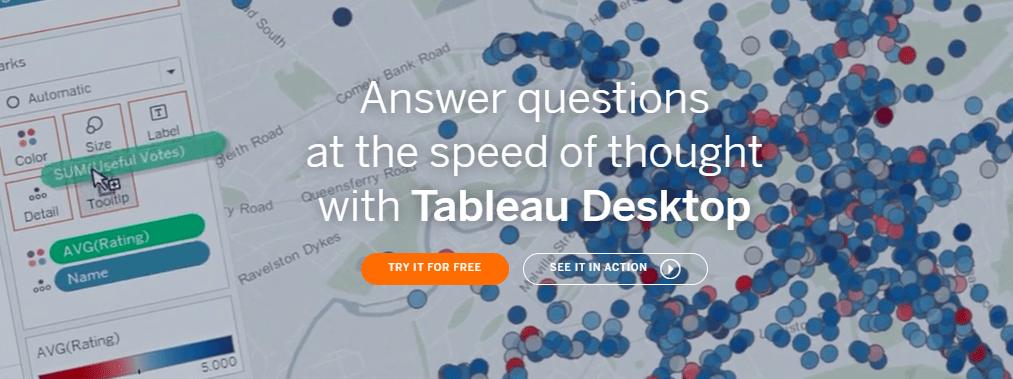
Tableau Desktop comes with VizQL technology, a programming language that simplifies the application. Users simply select and drag the data onto the worksheet area, and VizQL automatically analyzes and selects the most suitable visualization. This can be adjusted as the data changes. Furthermore, it offers visualization suggestions tailored to the user's needs, enabling professional-level use. Of course, creating your own visualizations is also possible
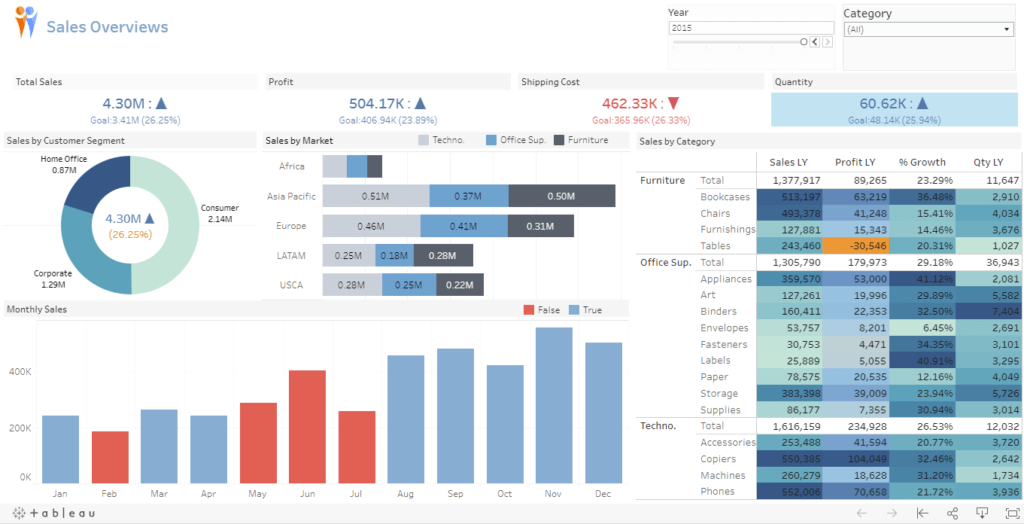
The current version is sold as a package, bundled with Tableau Prep Builder and Tableau Server/Online, via a subscription model. Users can download the program for a 14-day trial
Tableau Prep Builder is a tool designed to manage incomplete or inaccurate data, including splitting, merging, and formatting data to make it fully compatible with Tableau Desktop. It uses a flow-based instruction interface to facilitate user understanding and offers comprehensive data management commands. Like Tableau Desktop, it supports various data sources and allows for exporting data as CSV or Hyperfile files, enabling use with other software.

Tableau Prep Builder is a self-service data preparation tool that allows users to manage data with minimal additional scripting. Once a data management flow is established, Tableau Prep will automatically clean and prepare the data for quick updates
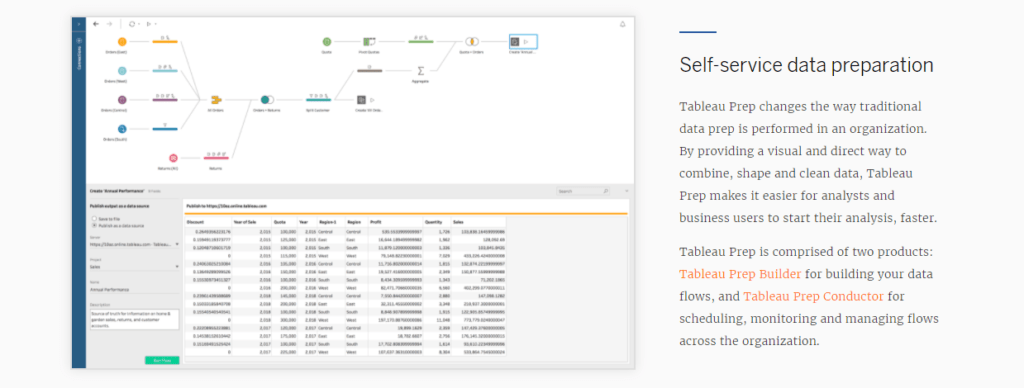
Tableau Prep is included in the Tableau Creator package, but you can download a 14-day trial version to try it out
Tableau Online / Tableau Server: This system is used to share reports and datasets created in Tableau Desktop with users within an organization. Users can choose to use either Tableau Server (on-premise installation on the organization's server) or Tableau Online (using Tableau's cloud service). These options are available when purchasing the Tableau Creator or Tableau Explorer package, allowing users or organizations to choose the option that best suits their needs.

Tableau Online and Tableau Server can be used to view and share reports with users within your organization, as well as to edit and create new reports directly through a web browser. However, access to Tableau Server or Tableau Online requires a Tableau Creator, Tableau Explorer, or Tableau Viewer license. Access can be done via Tableau Mobile or through a web browser
For Tableau Online, users will receive a total of 100GB of storage space
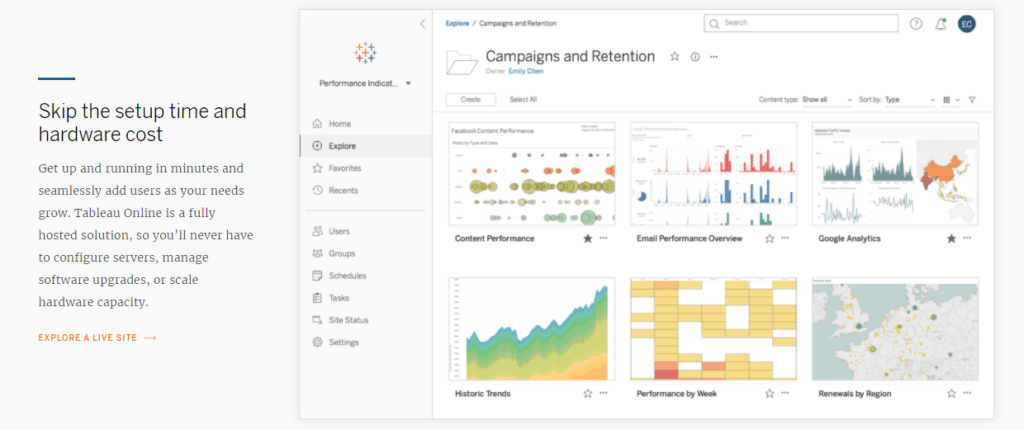
Tableau Reader: This program is used to view reports from Tableau Desktop. It's a free download, but users can only view reports; they cannot edit the data within them. Saving data from Tableau Desktop requires creating a package file or placing the desired data directly into the report file, which can result in large file sizes (difficult to send via email) and slow loading times. However, it's a convenient and cost-effective way to share Tableau reports with users in many cases.
You can download the program at https://www.tableau.com/products/reader
Tableau Mobile is a smartphone or tablet application used to access Tableau Server or Tableau Online. It supports both Android and iOS and can be downloaded for free. However, users must have a Tableau Server or Tableau Online license to access the application.
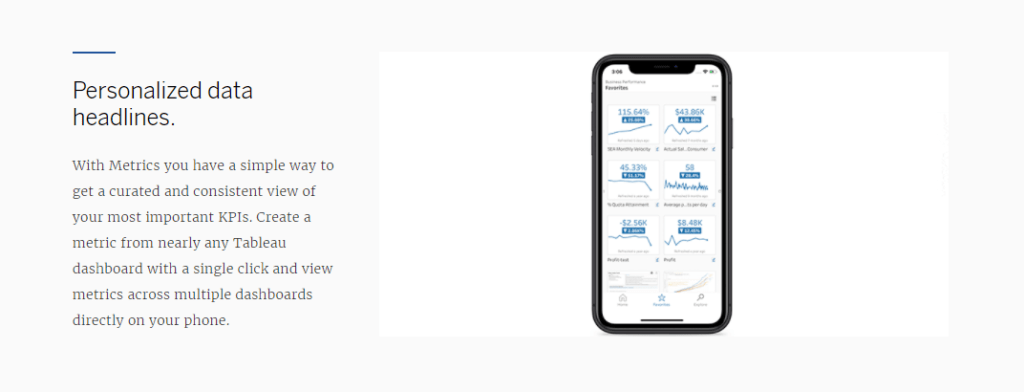
Users can download the apps at https://www.tableau.com/products/mobile.
Tableau Public: This is a free version of Tableau Desktop that users can download and practice with. Its core features are similar to Tableau Desktop, but it only supports file data sources and cannot connect to databases. Furthermore, it requires a Tableau Public Server, meaning a constant internet connection is needed. Tableau Public is suitable for users who want to try or practice with the program because it's free (Tableau Desktop only offers a 14-day trial). It's also ideal for organizations that need to share Tableau Desktop reports publicly, as they can store data on the Tableau Public Cloud, supporting up to 10GB of data per user.

Regular Tableau Desktop users can also upload reports to Tableau Public. This can be used when you want to share report data publicly, allowing users without a Tableau License to access the reports
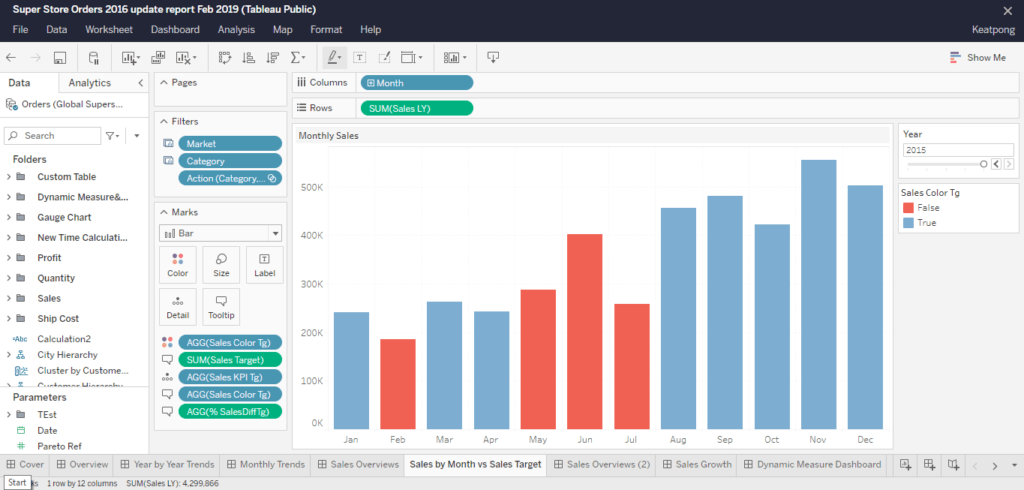
In the current version (2020.x), Tableau Public adds the feature to edit reports via a web browser, making it very user-friendly. In addition to uploading reports, you can also customize or further develop them. Importantly, it's also free to use
If you are interested in using Tableau Public, you can sign up and use it at https://public.tableau.com/s/
Tableau Package
After getting acquainted with Tableau's tools, let's now learn about Tableau Packages and the different packages available if you want to purchase a Tableau license
For individual users
Tableau Creator :
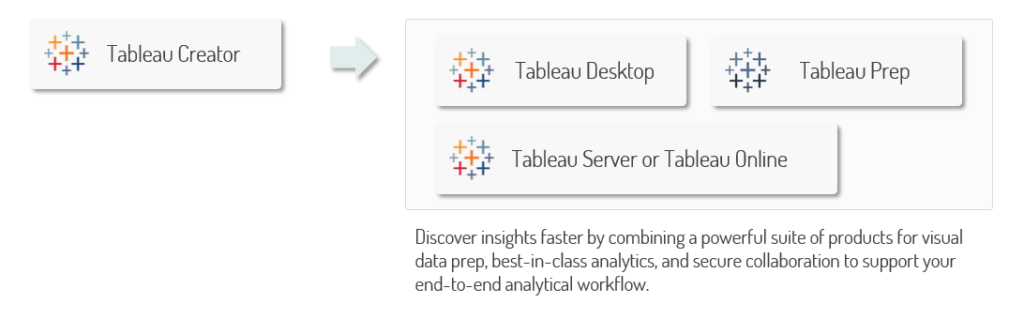
This is a package for developers creating reports using Tableau Desktop. The package includes Tableau Desktop, Tableau Prep, and either Tableau Server or Tableau Online (choose one). One license allows only one user
For enterprise users
For enterprise use, you need to choose whether to deploy the solution using Tableau Server or Tableau Online
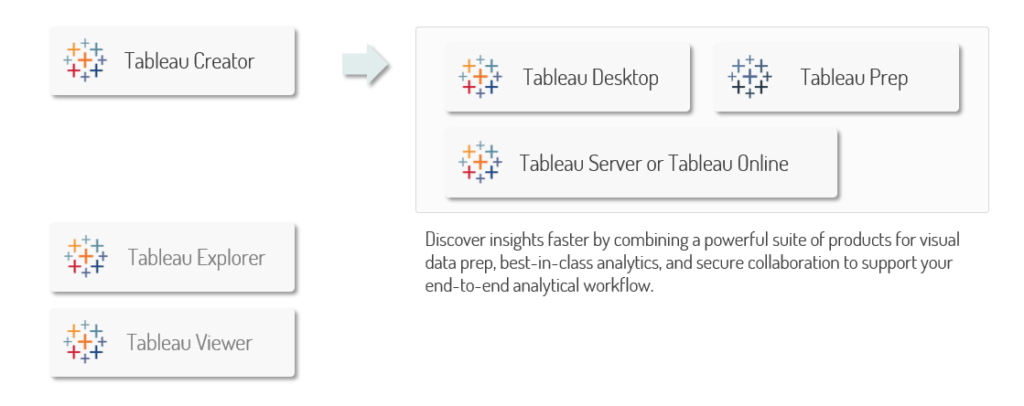
For use with Tableau Server, organizations must provide their own server for installing Tableau Server. Different packages can be purchased based on the number of users in each role
Tableau Creator :
It is used for creating or developing reports with Tableau Desktop, similar to personal use. If an organization has multiple report developers, they must purchase only the quantity they need
Tableau Explorer :
This is an add-on license that allows users who are not using Tableau Creator to access their organization's Tableau Server or Tableau Online. With this license, users can edit reports on Tableau Server/Tableau Online and create reports from datasets provided by Creator. This license is ideal for management teams who need to view and customize report views as needed
Currently, you can purchase a starter license from 1 (but you must have at least 1 Tableau Creator license)
Tableau Viewer :
This license allows users to view reports on Tableau Server or Tableau Online, similar to Explorer, but Tableau Viewer does not allow users to change the report view. In other words, it's designed for general users to view reports created by the creators
Currently, you can purchase a starter license from 1 (but you must have at least 1 Tableau Creator license)
You can find detailed pricing for each package at https://www.tableau.com/pricing/
Tableau for Academic License
In addition, Tableau offers the Tableau Academic License for educators (faculty and students), which allows them to use Tableau Desktop for free (for one year, renewable) provided that the usage is for teaching and research purposes only, and not for profit

If you are interested in using the service, you can submit an application at https://www.tableau.com/academic.